Find and organise files
Who can do this
Anyone with Files Access who can see the client.
Open the client and click Files. Folders come first, then files, each with when it was Last Modified and its File Size.
- Open a folder — double-click it. The breadcrumb at the top shows where you are; click Home or any folder in it to go back.
- Sort — click Name or Last Modified. Click again to reverse, and a third time to clear.
- Refresh () — fetches the latest, if someone else has just added something.
Search every folder
Click the magnifying glass and type part of a name. BaseCloud searches the names of every file and folder this client has, wherever they are.
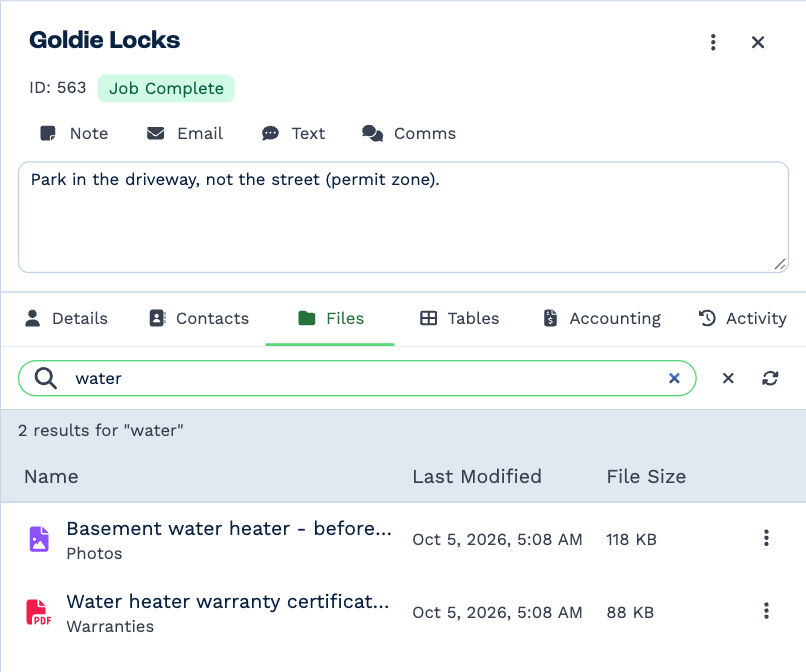
Each result shows the folder it's in. Click that folder name to go there. Esc, or the ×, closes the search.
Folders
Make one — click Create new folder, name it and click Create Folder. It's made inside the folder you're in, so folders can sit inside folders, as deep as you like.
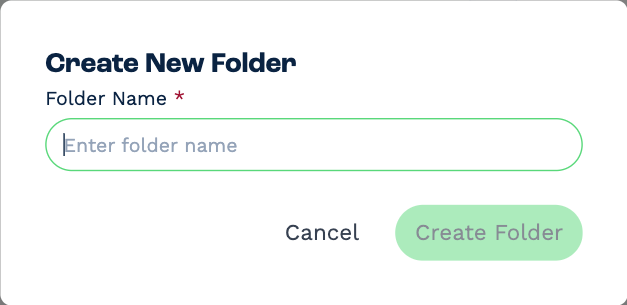
A name can be up to 255 characters, and can't contain / \ : * ? " < > |.
Rename or delete one — click the ⋮ on its row (or right-click it): Rename Folder, Delete Folder. Upload File Here puts files straight into it.
Deleting a folder deletes what's in it
Every file and subfolder inside goes too, and it can't be undone. A folder holding a document that's out for signature, or a signed copy, can't be deleted; deal with that file first.
Move files and folders
Drag a file or folder onto a folder to move it there. To move it back up, drag it onto Home or another folder in the breadcrumb.
Work on several at once
- Ctrl-click (⌘-click on a Mac) to pick several; Shift-click to pick a run; Ctrl+A / ⌘A for everything in the folder.
- Drag the selection to move it, or right-click it for what you can do to all of it: Delete All, Attach to Email, Attach to WFN — and, when they're all PDFs, Send for Signature and Combine PDFs into One.
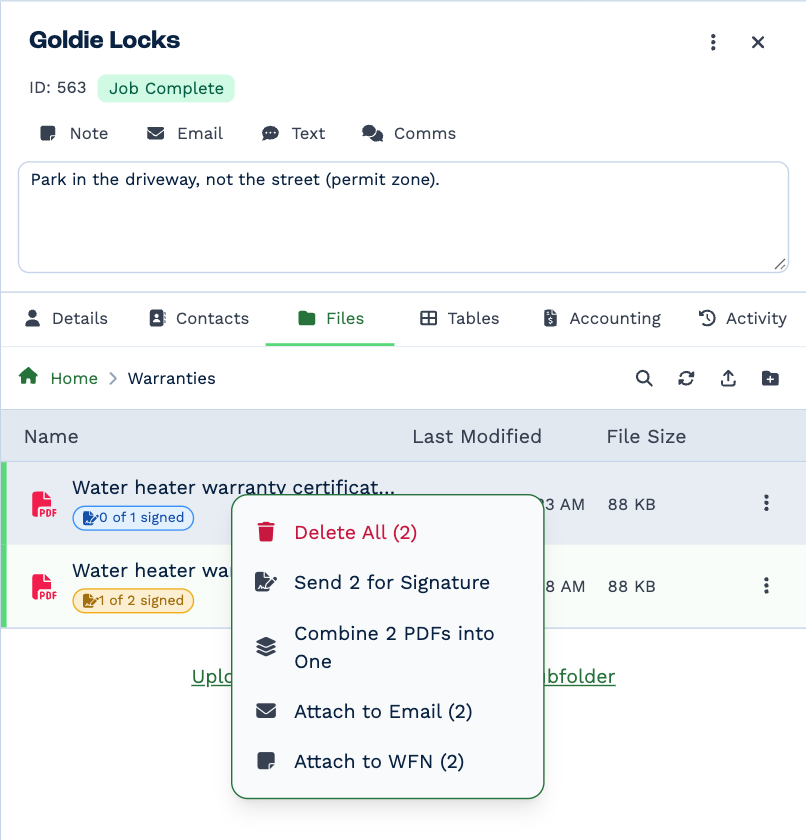
On a phone, press and hold a row for its menu.