Custom pages
Who can do this
Anyone with CRM Access.
A custom page puts another website inside BaseCloud: a reporting dashboard, a shared spreadsheet, a map. It gets its own place in the sidebar, and opens without leaving the CRM.
Open Settings → Custom Pages.
Add a page
- Click Add Page.
- Fill in the form, and click Create Page.
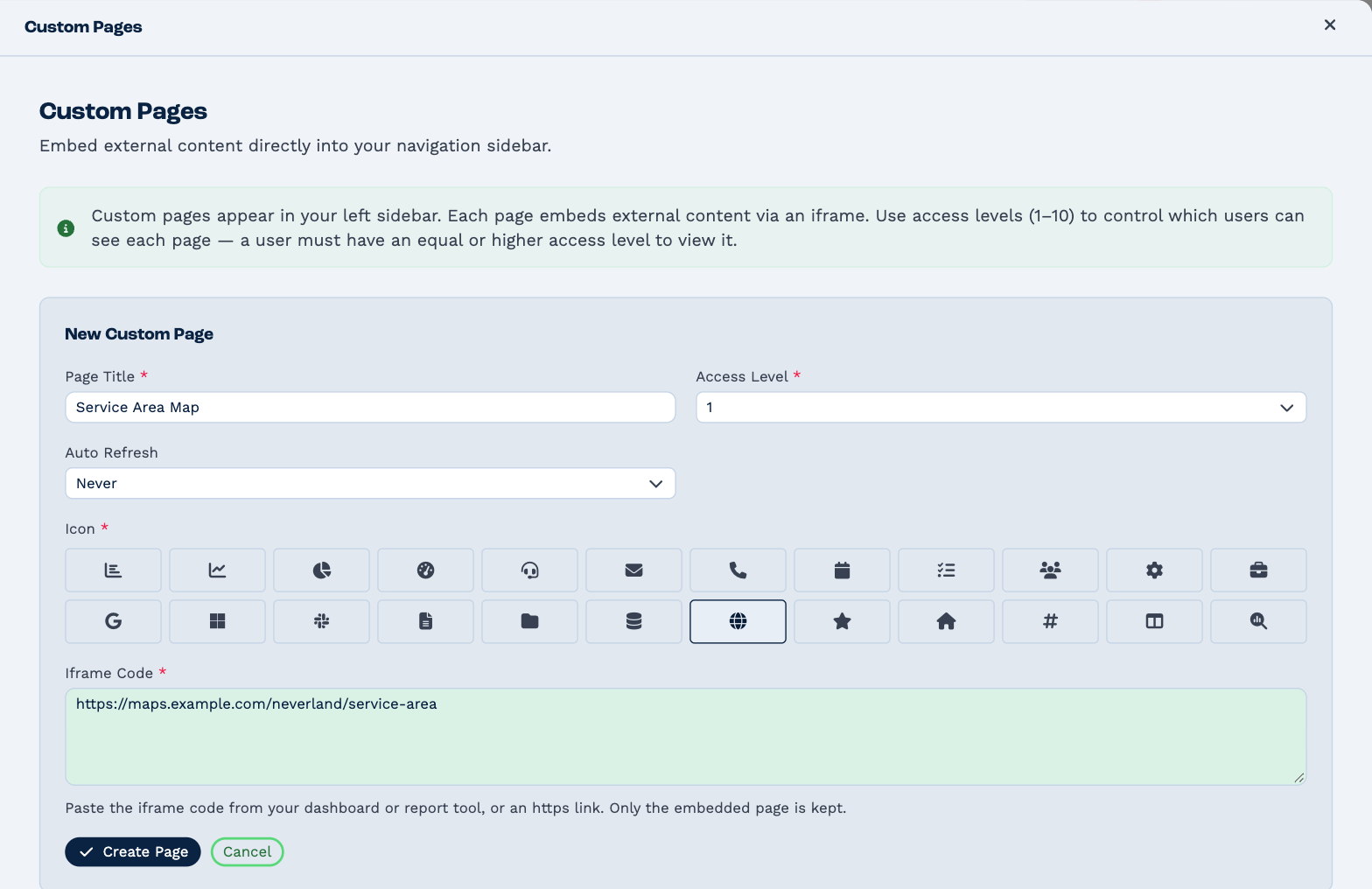
| Field | What to put |
|---|---|
| Page Title | The name shown in the sidebar. |
| Access Level | Who sees the page — see below. |
| Auto Refresh | How often to reload the page while someone has it open: never, or every 2, 5, 10, 30 or 60 minutes. Useful for a live dashboard. |
| Icon | The icon beside it in the sidebar. |
| Iframe Code | The page's https:// link — or the "embed" code the other site gives you, pasted whole. |
BaseCloud keeps only the address of the page to show, and its size; anything else in the code you paste is dropped.
The address must start with https://.
Reload BaseCloud to see the new page in the sidebar.
If the page is blank
Some websites don't allow themselves to be shown inside another site. Look for a Share or Embed option on that site, and use the code it gives you.
Who sees a page
A page's Access Level is a number from 1 to 10. Someone sees the page when their Custom Field View Level is at least that number. Level 1 pages are for everyone.
That level is set on the person, or on their team — see User rights.
If you set a page above your own level, it leaves your sidebar too. It stays in this list for anyone with Manage Users, who can change its level back; without that right, ask someone who has it.
Change or delete a page
- Click the pencil to change a page. Each change saves by itself; click Close when you're done.
- Click the bin to delete it, and confirm. It's removed from everyone's sidebar.