Claim intake from the website
A claim arrives at the worst moment in a client’s year, and the first reply sets the tone. This workflow reads the claim form the moment it is submitted, gives the claims handler a clean summary instead of a wall of text, tells the client what to prepare, and flags large claims to a manager.

Before you start
- A website form for claims that posts to BaseCloud
- Credit for the AI Prompt task
The workflow
| Step | Task | Type | What it does |
|---|---|---|---|
| 1 | Claim form | Website Form | Starts when the claim form is submitted |
| 2 | Find the client | Match to Client(s) | Finds the client by the email address on the form |
| 3 | Read the claim | AI Prompt | Pulls the claim type, incident date, estimated amount and a two-sentence summary out of the submission |
| 4 | Note for claims | Workflow Note | Puts a structured, high-priority note in the claims handler’s Inbox |
| 5 | Acknowledge | Tells the client the claim was received and what to have ready | |
| 6 | Large claim? | If Statement | Continues only when the estimated amount is above 5,000 |
| 7 | Alert manager | Workflow Note | Alerts a manager before an assessor is appointed |
About the variables
Values such as {{task_36450_…}} carry the number of the task they come from, so yours will
differ. Do not type them: click into a field and pick the value from an earlier task.
1. Claim form
Task: Website Form. Starts when the claim form is submitted.
This task has no settings to fill in.
Each form field arrives as its own variable, and response holds the whole submission.
2. Find the client
Task: Match to Client(s). Finds the client by the email address on the form.
| Field | Set it to |
|---|---|
| Action | Match to Client |
| Find the client by | Contact email = {{task_36450_email}} |
3. Read the claim
Task: AI Prompt. Pulls the claim type, incident date, estimated amount and a two-sentence summary out of the submission.
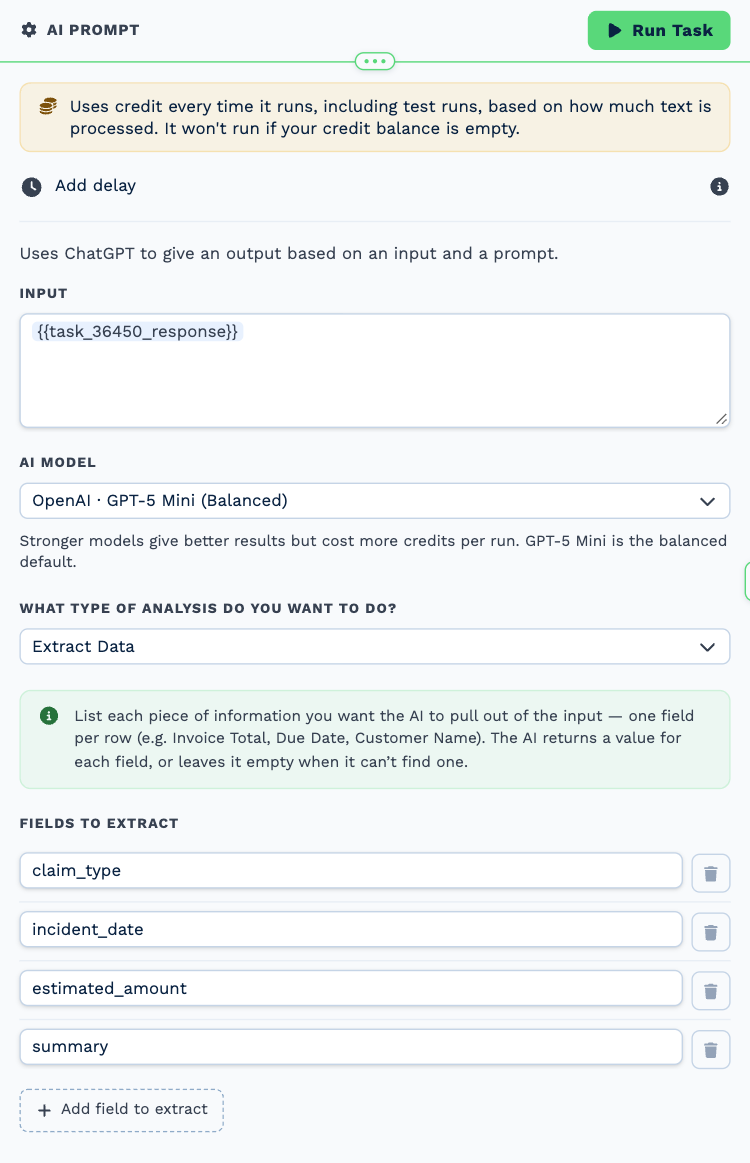
| Field | Set it to |
|---|---|
| Input | {{task_36450_response}} |
| AI model | OpenAI · GPT-5 Mini (Balanced) |
| What type of analysis do you want to do? | Extract Data |
| Fields to Extract | claim_type, incident_date, estimated_amount, summary |
4. Note for claims
Task: Workflow Note. Puts a structured, high-priority note in the claims handler’s Inbox.
| Field | Set it to |
|---|---|
| Action | Create Note |
| Client ID | {{task_36451_match_client_id}} |
| Note Type | Note |
| Priority | High |
| Due Date | Now |
| Tag Users | Tinker Bell |
Message
New claim: {{task_36452_claim_type}}
Incident date: {{task_36452_incident_date}}
Estimated loss: ${{task_36452_estimated_amount}}{{task_36452_summary}}
Open the claim and call the client within one working day.
5. Acknowledge
Task: Email. Tells the client the claim was received and what to have ready.
| Field | Set it to |
|---|---|
| Outgoing Email User | Wendy Darling |
| Client | {{task_36451_match_client_id}} |
| To | {{task_36450_email}} |
| Subject | We have your claim |
Body
Hi {{task_36450_name}},
Thank you. We have received your claim and a claims handler will call you within one working day.
What to have ready
- Photos of the damage
- Any police or incident report number
- Quotes or invoices for repairs, if you have them
Kind regards,
The Neverland claims team
6. Large claim?
Task: If Statement. Continues only when the estimated amount is above 5,000.
| Field | Set it to |
|---|---|
| Condition | {{task_36452_estimated_amount}} is greater than 5000 |
7. Alert manager
Task: Workflow Note. Alerts a manager before an assessor is appointed.
| Field | Set it to |
|---|---|
| Action | Create Note |
| Client ID | {{task_36451_match_client_id}} |
| Note Type | Note |
| Priority | High |
| Due Date | Now |
| Tag Users | Peter Pan |
| Message | **Large claim received** (${{task_36452_estimated_amount}}). Please review before an assessor is appointed. |
Make it yours
- Change the threshold in Large claim? to match your authority limits.
- Add an Edit a Client task to move the client to a "Claim open" status.
- Add fields to Read the claim, such as a policy number, and use them in the note.