Text templates
Who can do this
Anyone in the account.
A text template is a message you've written once and can send again — "we've sent your quote", "payment received". Everyone in the account can use every template.
Open Settings → Text Templates. A new account starts with three: Quote Sent, Invoice Sent and Payment Received.
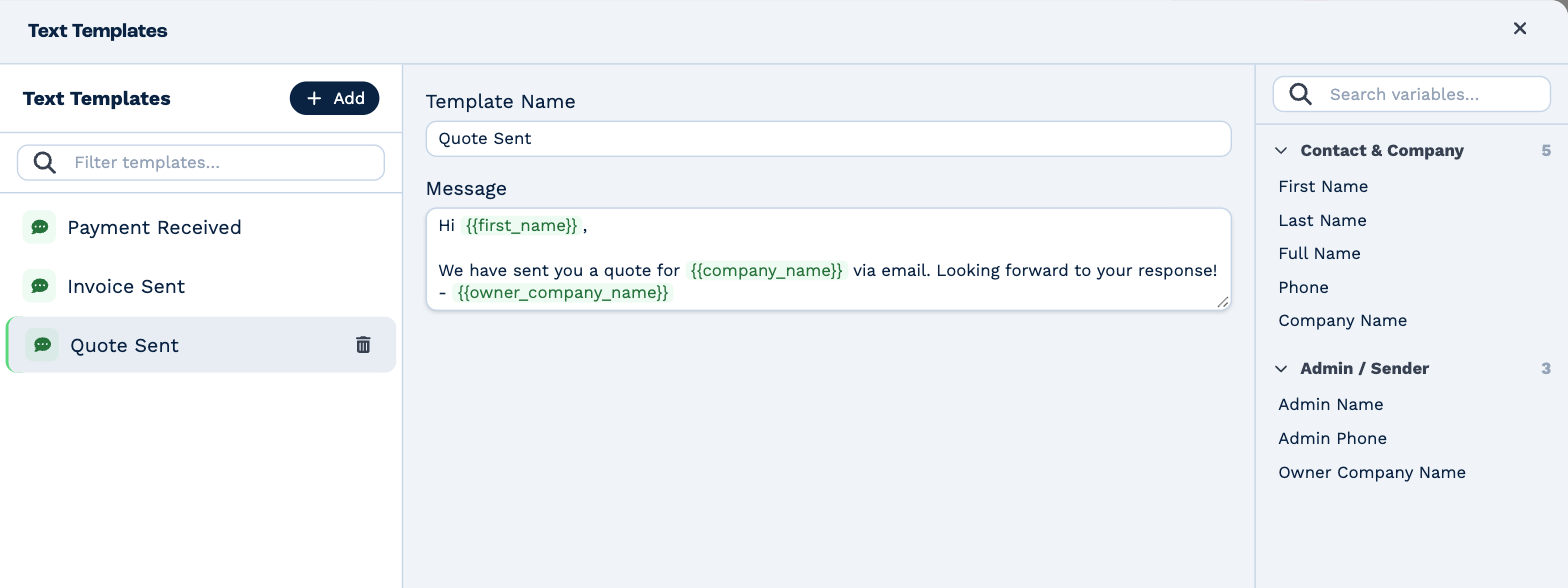
Write a template
- Click Add, type a name, and click Create.
- Replace the message with your own.
- Where a name or number should go, click it in the Variables list. It's inserted where your cursor is.
Changes save when you click away from the box. To delete a template, click the bin beside its name.
Variables
A variable is a placeholder in double curly brackets. When the text is sent, it's replaced with the real thing.
| Variable | Becomes |
|---|---|
{{first_name}} |
The contact's first name |
{{last_name}} |
The contact's surname |
{{full_name}} |
Their first name and surname |
{{phone}} |
Their cell number |
{{company_name}} |
The client's name |
{{admin_name}} |
The first name of whoever sends the text |
{{admin_phone}} |
Their cell number |
{{owner_company_name}} |
Your own business's name |
Check the brackets
Only double curly brackets are filled in. A variable typed with single brackets — {first_name} — is sent
exactly as it's written. If your account's three starting templates use single brackets, replace each one from
the Variables list before you send them.
If a client has no contact to take a name from, the variable is left out rather than sent as a placeholder.
Use a template
When you write a text — to one client, or to many with a bulk send — choose the template, and change the wording for that message if you need to. See Text and WhatsApp and Bulk actions.
A text is charged for each 160 characters. The box you write the message in counts them for you.