BaseCloud Tasks
Tasks are the building blocks of your automation workflows. Each task performs a specific function, and by connecting tasks together, you create powerful automated processes.
Task Types: Triggers vs Actions
Trigger Tasks
Trigger tasks START your workflows. They listen for events and initiate workflow execution.
Every workflow must begin with exactly one trigger task.
Common Trigger Tasks:
- Webhook In - Starts when external service sends data
- Timer Trigger - Starts at specific times/intervals
- Website Form - Starts when website form is submitted
- Inbound Email - Starts when email arrives
- CRM Trigger - Starts when contact data changes
- Call Connect Trigger - Starts when phone call occurs
How They Work:
Example: A customer submits a contact form → Website Form trigger starts → Send welcome email → Create CRM record → Notify sales team
Action Tasks
Action tasks DO things in your workflow. They execute operations, send data, make decisions, and transform information.
You can have multiple action tasks in a workflow, running in sequence or parallel.
Common Action Tasks:
- Email - Send emails
- Webhook Out - Call external APIs
- If Statement - Make decisions
- Delay - Wait before continuing
- Match to Client - Find existing CRM records
- Loop - Repeat actions for multiple items
- Code - Run custom JavaScript
- Variable - Store and manipulate data
- Text Formatter - Transform data
How They Work:
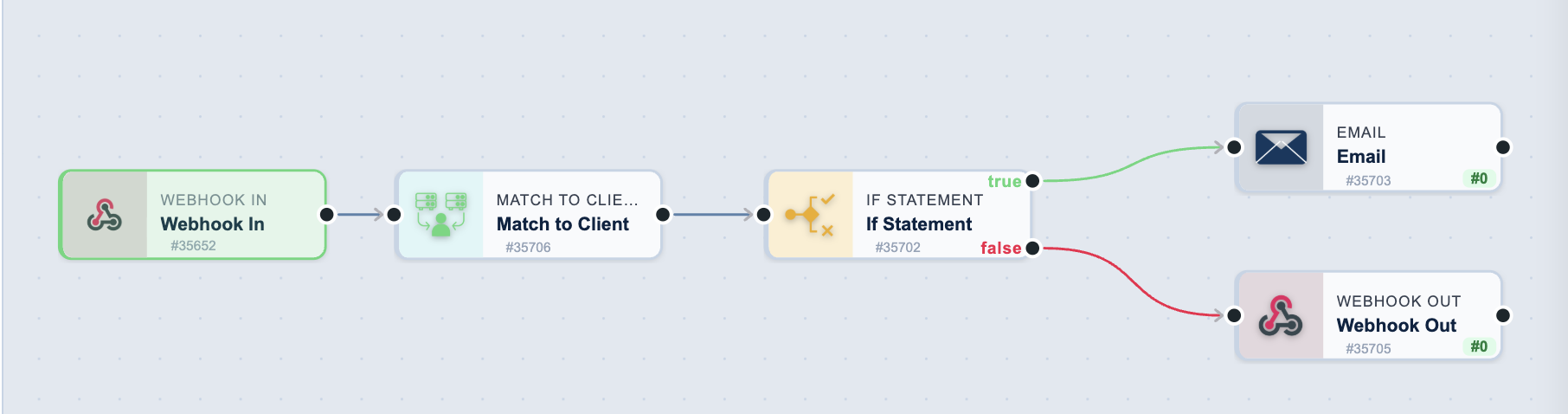
Example Workflow:
- Webhook In (trigger) — receives order data
- Match to Client — finds the existing customer record
- If Statement — checks whether they are a VIP customer
- True: Email sends a confirmation · False: Webhook Out updates the inventory system
Key Differences
| Aspect | Trigger Tasks | Action Tasks |
|---|---|---|
| Purpose | Start workflows | Perform operations |
| Quantity per Workflow | Exactly 1 | Multiple (unlimited) |
| Position | Always first | After trigger |
| Examples | Webhook In, Schedule, CRM Trigger | Email, Webhook Out, If Statement |
| Icon Color | Green (typically) | Blue/Purple (typically) |
| When They Run | When event occurs | After trigger activates |
Building Your First Workflow
- Choose a Trigger - How should the workflow start?
- Add Actions - What should happen when triggered?
- Connect Tasks - Link tasks in the order they should run
- Test - Verify it works as expected
- Enable - Turn on the workflow for production
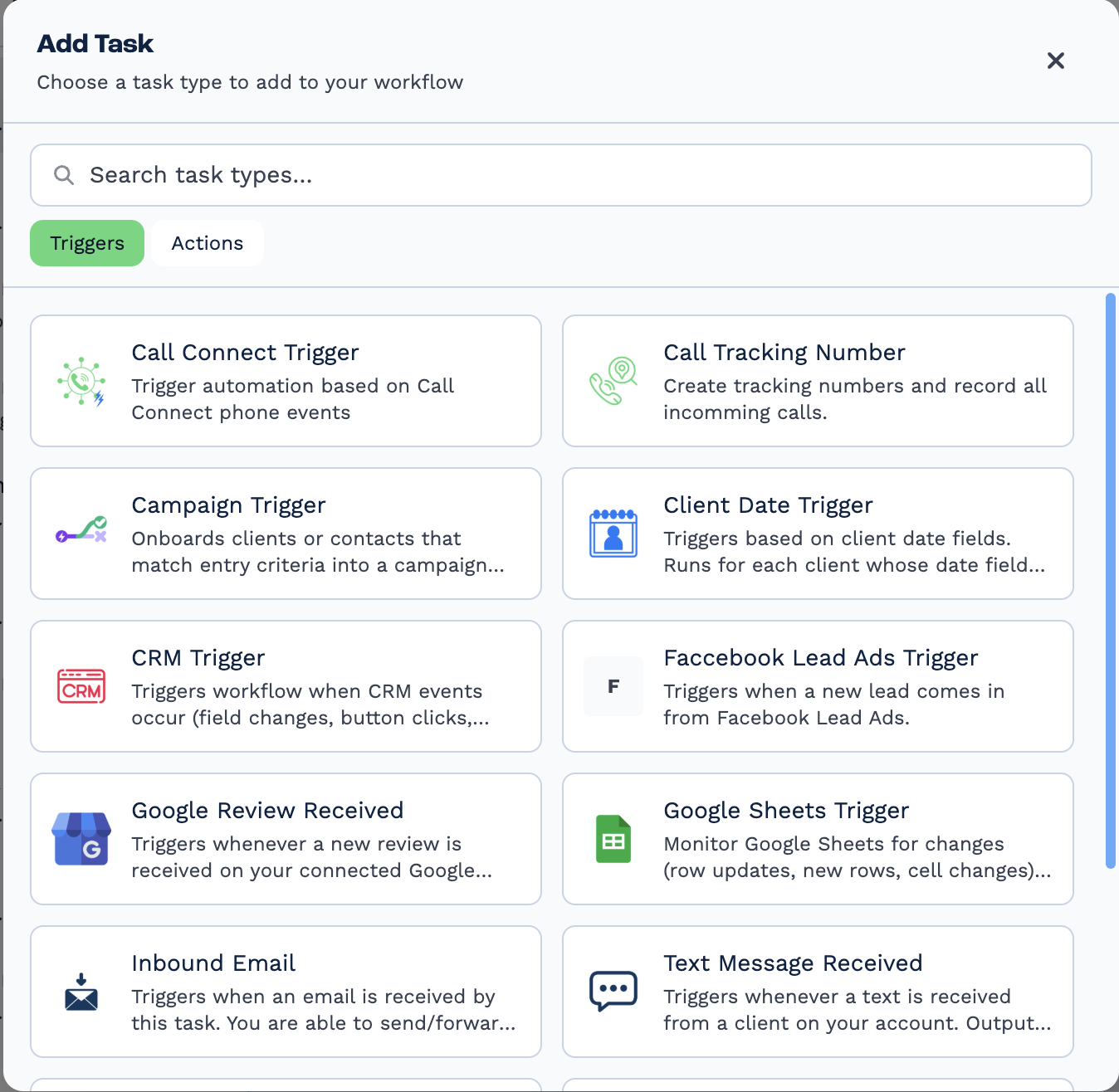
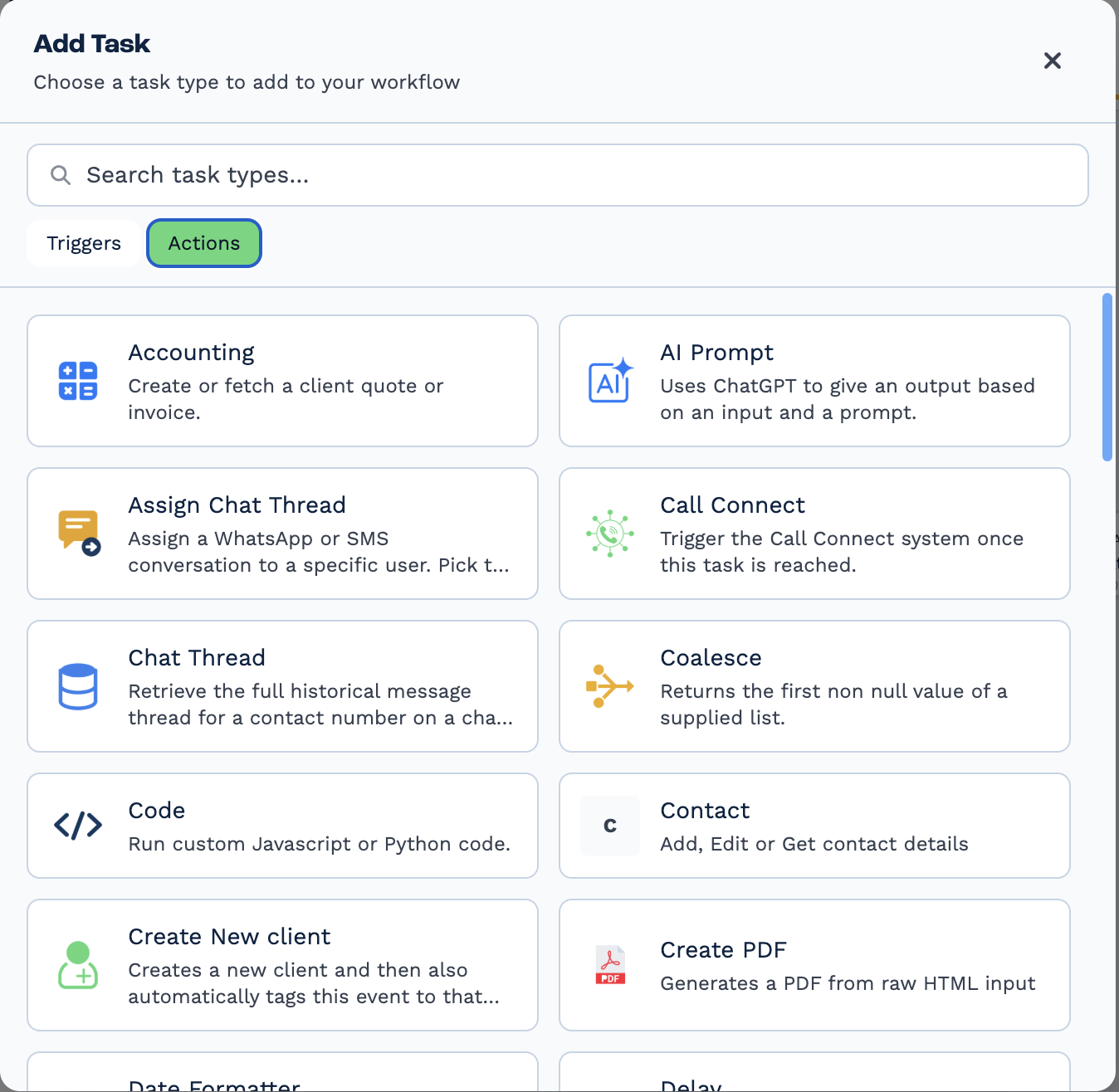
The Add Task panel is where you pick one. It opens on Triggers and switches to Actions, with a search box across both — the same split this page describes.
Understanding Task Data: JSON vs Flattened
Every task in BaseCloud receives input data and produces output data. Understanding how to access this data is crucial for building effective workflows.
How Task Data Works
When a task runs, it receives data from previous tasks and produces output for subsequent tasks. BaseCloud provides two ways to access this data:
The Output pane shows both. Vars lists the flattened fields; JSON shows the same response in its original shape. They are two views of one payload, not two payloads.
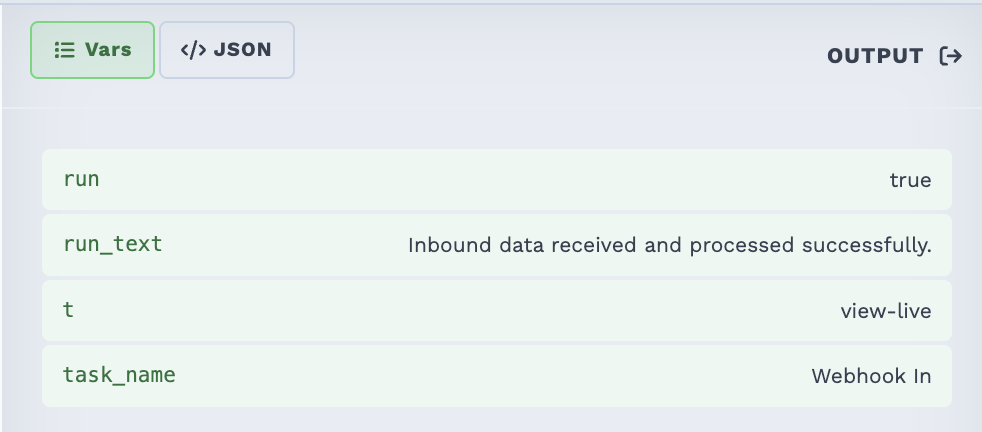
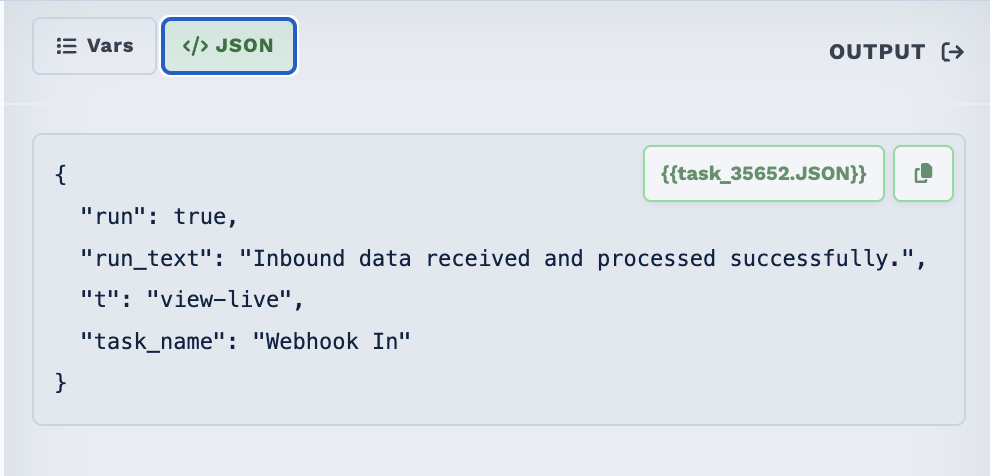
The chip on the JSON tab copies a reference to the whole object — useful when a later task wants the entire payload rather than one field from it.
1. Flattened Fields (Recommended for Most Cases)
BaseCloud automatically flattens nested JSON structures for easy access using simple variable names.
Example Input JSON:
{
  "customer": {
    "name": "Jane Doe",
    "email": "jane@example.com"
  },
  "order": {
    "id": "ORD-5560",
    "total": 109.97
  },
  "items": [
    { "name": "Product A", "quantity": 2, "price": 29.99 },
    { "name": "Product B", "quantity": 1, "price": 49.99 }
  ]
}
Access as Flattened Fields:
{{task_46171_customer_name}}      → "Jane Doe"
{{task_46171_customer_email}}     → "jane@example.com"
{{task_46171_order_id}}           → "ORD-5560"
{{task_46171_order_total}}        → 109.97
{{task_46171_items_0_name}}       → "Product A"
{{task_46171_items_0_quantity}}   → 2
{{task_46171_items_1_name}}       → "Product B"
Why Use Flattened Fields?
- Simple: Just use underscores instead of dots and brackets
- Compatible: Works in all tasks and text fields
- Clear: Easy to read and understand
- Reliable: No syntax errors from brackets or quotes
2. JSON Notation (For Advanced Scenarios)
Access the original JSON structure directly when you need more control.
Same data, JSON notation:
{{task_46171.JSON.customer.name}}       → "Jane Doe"
{{task_46171.JSON.order.id}}            → "ORD-5560"
{{task_46171.JSON.items[0].name}}       → "Product A"
{{task_46171.JSON.items[1].price}}      → 49.99
When to Use JSON Notation?
- Looping through arrays with unknown length
- Accessing deeply nested structures dynamically
- Working with complex data transformations
- Building advanced conditional logic
Viewing Task Output
Every task shows both formats in the OUTPUT panel:
Flattened View:
task_46171_customer_name     Jane Doe
task_46171_customer_email    jane@example.com
task_46171_items_0_name      Product A
task_46171_items_1_name      Product B
JSON View:
{
  "customer": {
    "name": "Jane Doe",
    "email": "jane@example.com"
  },
  "items": [{ "name": "Product A" }, { "name": "Product B" }]
}
Quick Reference
| Access Pattern | Flattened | JSON Notation |
|---|---|---|
| Top-level field | {{task_ID_fieldname}} |
{{task_ID.JSON.fieldname}} |
| Nested object | {{task_ID_parent_child}} |
{{task_ID.JSON.parent.child}} |
| Array item (first) | {{task_ID_items_0_name}} |
{{task_ID.JSON.items[0].name}} |
| Array item (second) | {{task_ID_items_1_name}} |
{{task_ID.JSON.items[1].name}} |
Common Status Fields
Every task also outputs these status fields:
{{task_ID_run}}- Whether the task succeeded (true/false){{task_ID_run_text}}- Status message describing what happened{{task_ID_task_id}}- The task's unique identifier
Example: Building an Email
Using flattened fields in an Email task:
Subject:
Body:
Hi {{task_46171_customer_name}},

Thanks for your order!

Order Details:
- Order #: {{task_46171_order_id}}
- Total: ${{task_46171_order_total}}

Items:
- {{task_46171_items_0_name}} (Qty: {{task_46171_items_0_quantity}})
- {{task_46171_items_1_name}} (Qty: {{task_46171_items_1_quantity}})

Thanks!
Pro Tip: Use the Variable Task
If you need to work with complex JSON, use a Variable task to extract and simplify the data first, then reference the cleaner output in subsequent tasks.
Trigger Tasks
Tasks that start your workflows based on events. Every workflow must begin with exactly one trigger task.
-
Receive incoming data from external applications via HTTP POST requests.
-
Trigger workflows on a repeating schedule — minutes, hours, days, weeks, months or years.
-
Capture data when forms are submitted on your website.
-
Start workflows when emails arrive matching specific criteria.
-
Trigger workflows when CRM contacts are created, updated, or tagged.
-
Trigger workflows based on dates in contact records (birthdays, renewals, anniversaries).
-
Start workflows when phone calls connect through your call tracking system.
-
Advanced call lifecycle tracking with multiple states (ringing, answered, completed, missed).
-
Capture leads directly from Facebook and Instagram Lead Ads campaigns.
Action Tasks
Tasks that perform operations in your workflow after the trigger starts execution.
-
Send emails with dynamic content, attachments, and HTML formatting.
-
Find an existing client by email, phone, ID or custom field. It never creates one — pair it with New Client.
-
Make decisions and route workflows based on conditions.
-
Update contact fields, manage tags, and append notes.
-
Pause workflow execution for specified time or until specific date.
-
Send Webhook Out requests to external APIs and webhooks.
-
Execute database queries for advanced data operations.
-
Execute custom JavaScript for complex logic and calculations.
-
Iterate through arrays and process multiple items.
-
Read and write data to Google Sheets spreadsheets.
-
Standardize phone numbers to E.164 and display formats.
-
Store temporary data for use later in the workflow.
-
Retrieve a contact's full WhatsApp/SMS message history — who sent each message and when — as structured entries plus a ready-to-use transcript. Backs the AI task's memory port.
-
Use AI to analyze, generate, classify, or extract information.
-
Transform data formats: dates, numbers, strings, case conversion.
-
Extract, validate, or replace patterns using regular expressions.
-
Generate PDF documents from templates with dynamic data.
-
Parse, format, and manipulate dates with timezone support.
-
Send text messages for notifications, reminders, and alerts.
-
Return first non-empty value from a prioritized list with fallbacks.
-
Create new client (company) records with optional primary contact.
-
Get, add, or edit contact records and link them to clients.
-
Consolidate parent task outputs into clean, named variables.
-
Create or fetch CRM tasks, activities, and communications.
-
Fetch and search data from custom tables in your CRM.
-
Dynamic lookups - match values against key-value pairs with fallback.
-
Randomly select one value from comma-separated list. Perfect for A/B testing.
-
Cycle sequentially through list with state persistence. Fair distribution guaranteed.
-
Evaluate mathematical expressions with functions, operators, and conditionals.
-
Generate cryptographic hashes (SHA-256/512, SHA-1, MD5) for integrity and signatures.
-
Multiple find-and-replace operations for text cleaning and normalization.
-
Download files, organize into folders, and create directory structures.
-
Initiate two-legged phone calls connecting two parties with whisper messages.
-
Paystack 💳
Process payments for African markets (Nigeria, Ghana, SA, Kenya) with stored payment methods or payment links.
-
Stripe 💳
Global payment processing with 135+ currencies, stored payment methods, and hosted payment pages.
-
Internal accounting with quotes, invoices, PDF generation, payment links, and tracking categories.
-
Sage 🧾
Integrate with Sage One accounting for South African businesses - quotes, invoices, and customer management.
-
Xero 🧾
OAuth-authenticated Xero integration with multi-organization support, contacts, and invoicing.
-
WATI 💬
WhatsApp messaging via WATI platform with templates, session messages, media handling, and contact sync.
-
Official Meta WhatsApp Business Cloud API with OAuth, multi-WABA support, and template management.
-
Ad performance analytics, GAQL queries, and offline conversion tracking with Google Ads API.
-
Campaign management and performance reporting across Facebook and Instagram ads.
-
Automated document creation, content extraction, and template management with Google Docs API.
-
Local rank grid on Google Maps with an optional map image, business lookups, and competitor snapshots.
Data Tasks
Tasks that transform and manipulate data.
Integration Tasks
Tasks that connect with external services.
-
Send marketing emails via Everlytic.
-
Integrate with Sage accounting software.
-
Send WhatsApp messages via WATI.
-
Connect with accounting systems.
Example: Complete Workflow
Here's how trigger and action tasks work together:
Scenario: Process new customer orders from website
graph LR
    A[Form Submission<br/>TRIGGER] --> B[Match to Client<br/>ACTION]
    B --> C[If Condition<br/>ACTION]
    C -->|New Customer| D[Email Welcome<br/>ACTION]
    C -->|Existing Customer| E[Email Thank You<br/>ACTION]
    D --> F[Webhook Out<br/>ACTION]
    E --> F
    F[Update Inventory]
Flow:
- Form Submission (Trigger) - Customer submits order form
- Match to Client (Action) - Find existing customer record
- If Condition (Action) - Check if new or existing customer
- Email (Action) - Send appropriate welcome or thank you email
- Webhook Out (Action) - Update inventory system
Finding the Right Task
By Use Case
- Receiving Data: Webhook In, Website Form, Inbound Email, Facebook Lead Ads
- Time-Based Automation: Schedule, Client Date Trigger, Delay
- CRM & Contact Events: CRM Trigger, Client Date Trigger
- Phone & Call Tracking: Call Connect, Call Tracking
- Lead Capture: Form Submission, Facebook Lead Ads
- Sending Notifications: Email, SMS, WATI
- API Integration: Webhook Out, Webhook Out
- Conditional Logic: If Statement, Switch
- Data Processing: Formatter, Regex, Table
By Difficulty
Beginner-Friendly
Start with these if you're new to automation:
Intermediate
Once you're comfortable with the basics:
- Inbound Email
- CRM Trigger
- Client Date Trigger
- Call Connect
- Facebook Lead Ads
- Webhook Out
- Loop
- Switch
- Regex
- Everlytic
- WATI
Advanced
For complex integrations:
- Call Tracking Trigger
- Sage
- BaseCloud Accounting
- Custom Code
- Advanced Regex patterns
Task Documentation Format
Each task documentation includes:
- Overview - What the task does
- Parameters - All configuration options
- Examples - Real-world usage
- Best Practices - Tips and recommendations
- Troubleshooting - Common issues and solutions
- Related Tasks - Similar or complementary tasks
Can't find what you need?
Check our Examples section for real-world workflow patterns, or contact support for help.