BaseCloud Accounting
Overview
The BaseCloud Accounting task provides integrated accounting functionality within your BaseCloud CRM system. It handles quotes, invoices, PDF generation, payment links, and automated payment tracking—all without requiring external accounting software.
Key Features:
- 4 Actions: Create quotes/invoices, fetch documents, mark as paid
- Invoice Layout System: Customizable HTML templates with placeholder support
- PDF Generation: Automatic document generation with S3 storage
- Payment Links: Integrated payment portal at
pay.basecloudglobal.com - Global Triggers: Fire CRM automations on invoice events
- Tracking Categories: Two-level project/department tracking
- Multi-Currency: Support for multiple currency symbols and formats
Use Cases:
- Automated invoicing workflows triggered by CRM events
- Quote-to-invoice conversion on client approval
- Subscription billing with recurring invoice generation
- Project-based invoicing with tracking categories
- Payment link distribution via email
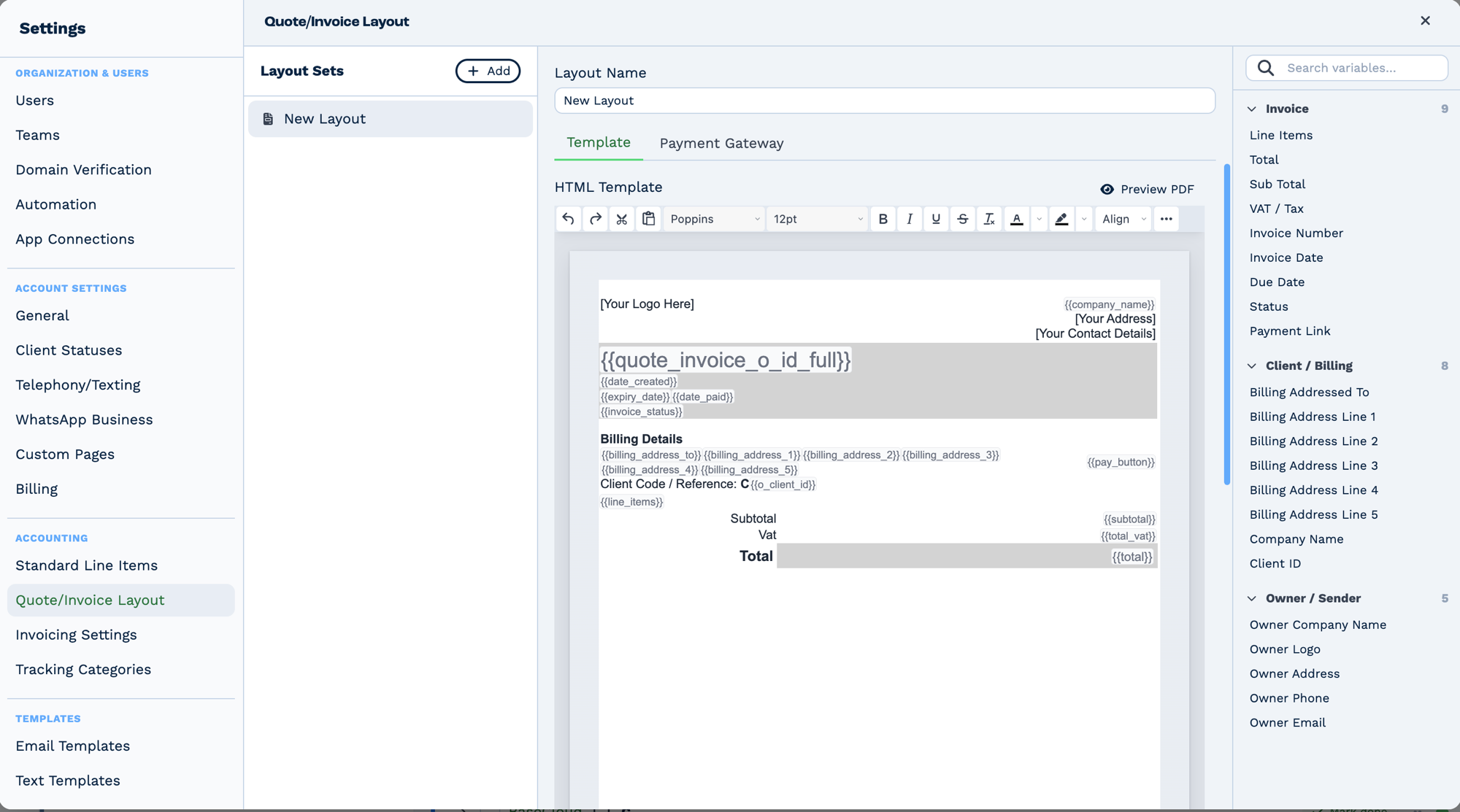
The layout is an HTML template, not a fixed form. Everything in double braces is replaced when the document is produced, and the right-hand panel lists every placeholder available — click one to insert it. {{line_items}} expands to the whole table rather than a single value.
Prerequisites
1. Invoice Layout Configuration
Before creating invoices, configure an invoice layout:
- Navigate to Settings → Quote/Invoice Layout in BaseCloud CRM
- Create or edit a layout with HTML template
- Use placeholders like
{{invoice_number}},{{client_name}},{{total_incl}}, etc. - Note the Layout ID (invoice_var_id) for task configuration
2. Client Records
- Clients must exist in your CRM with valid
client_id - Client details (name, email, address) populate invoice placeholders
3. Tracking Categories (Optional)
- Configure tracking categories for project/department tracking
- Navigate to Settings → Tracking Categories
- Create category values (e.g., Department: Sales, Marketing, Support)
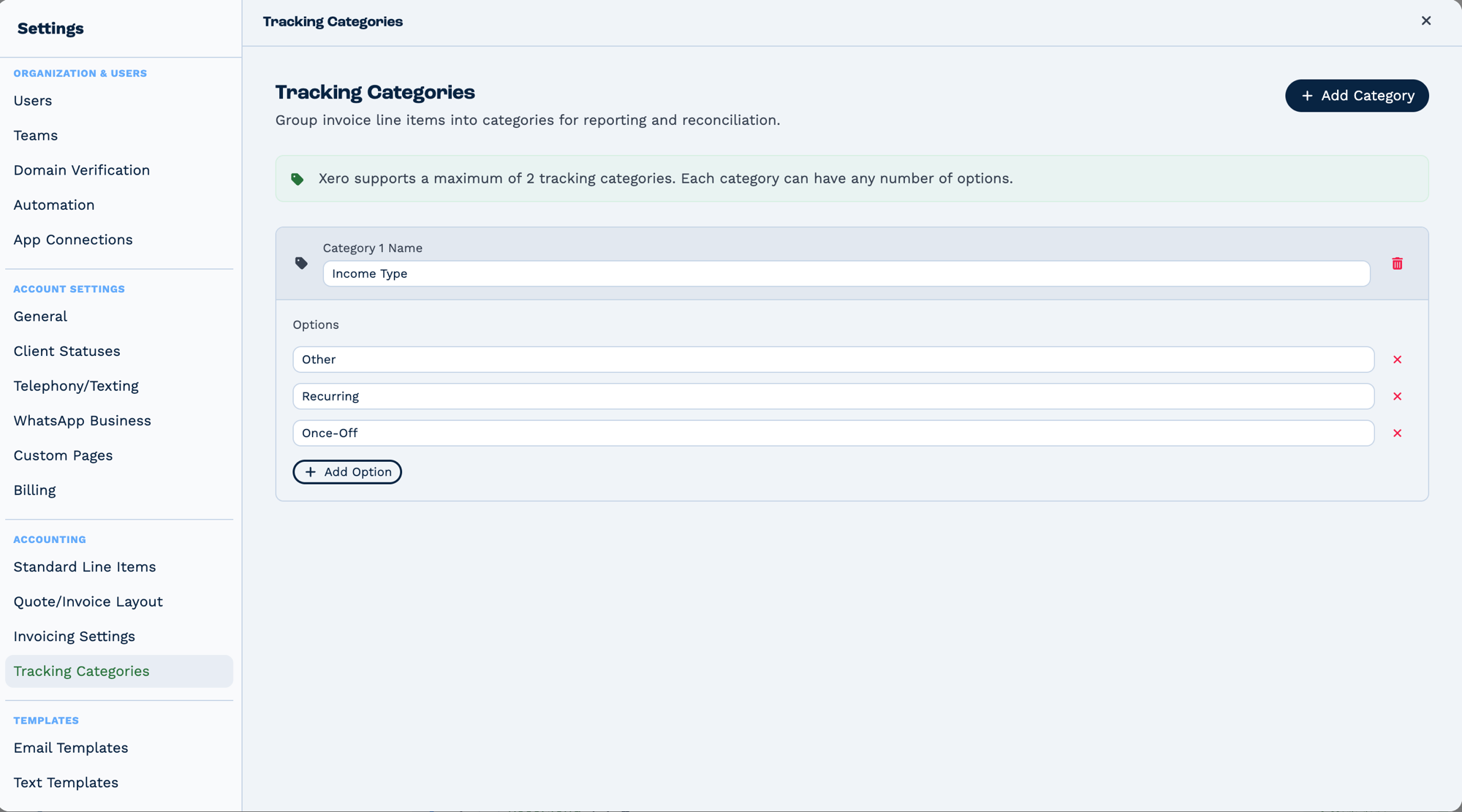
Two categories maximum, because that is Xero's limit — but each can hold any number of options. Categories group invoice line items for reporting and reconciliation, so the names here are what a task writes into when it sets a tracking value.
Outputs
A quote or invoice populates the quote_invoice_* group; line-item and tracking fields are filled per item.
Reference fields as {{task_<ID>_<field>}}.
| Field | Type | Notes |
|---|---|---|
client_id |
string | The client the document belongs to. |
quote_invoice_id |
string | BaseCloud's ID for the document. |
quote_invoice_o_id |
string | The document number. |
quote_invoice_o_id_full |
string | The document number with its prefix, e.g. QU1042. Present only on some actions. |
quote_invoice |
string | Whether the document is a Quote or an invoice. Present only on some actions. |
quote_invoice_status |
string | e.g. Unpaid. Present only on some actions. |
quote_invoice_date_paid |
string | When it was paid. Present only on some actions. |
item_description |
string | |
item_code |
string | |
item_quantity |
string | |
item_unit_price |
string | |
item_tax_rate |
string | |
tracking_category_1_label |
string | |
tracking_category_2_label |
string | |
tracking_category_1_value |
string | |
tracking_category_2_value |
string | |
quote_invoice_date_created |
string | When it was raised. |
quote_invoice_expiry_date |
string | Expiry date, for quotes. |
quote_invoice_sub_total |
string | Total excluding tax. |
quote_invoice_total |
string | Total including tax. |
doc_name |
string | The generated document name. Present only on some actions. |
document_url |
string | Link to the generated PDF. Present only on some actions. |
payment_link |
string | A payment link for the document. |
date_paid |
string | Readable paid date. Present only on some actions. |
error |
string | Set when the document could not be created. Present only on some actions. |
Always emitted
| Field | Type | Notes |
|---|---|---|
run |
boolean | Whether the task succeeded. |
run_text |
string | What happened, including the reason on failure. |
Fields marked as action-dependent may be absent
This task does several different things depending on its action setting, and only the fields relevant to that action are emitted. Check a real run in the OUTPUT panel before referencing one downstream.
Configuration
Builder fields
The Field column is the label as it appears in the task builder; Key is the name the value is stored under and referenced by.
| Field | Key | Type | Default | Notes |
|---|---|---|---|---|
| Action | accounting_action |
select | create_invoice |
Options: Create Quote · Create Invoice · Fetch Quote / Invoice · Mark Quote / Invoice Paid |
| Quote / Invoice ID | Quote/Invoice ID |
text | – | |
| Date Paid | Date Paid |
text | – | |
| Invoice Layout | invoice_var_id |
select | – | |
| Client ID | client_id |
text | – | |
| Item Description(s) | item_Description |
text | – | |
| Item Code(s) | item_Code |
text | – | |
| Item Quantity(ies) | item_Quantity |
text | – | |
| Unit Cost(s) | item_Unit_Cost |
text | – | |
| Tax Rate(s) | item_Tax_Rate |
text | – |
Action 1: fetch_quote_invoice
Retrieve an existing quote or invoice with all details, generate PDF if needed, and create payment link.
| Field | Required | Description | Example |
|---|---|---|---|
| accounting_action | Yes | Must be "fetch_quote_invoice" | fetch_quote_invoice |
| Quote / Invoice ID | Yes | Document ID (formats: "INV123", "QU456", or just "123") | INV-{{client_invoice_number}} |
Output Variables:
task_22001_client_id; // Client ID associated with invoice
task_22001_id; // Internal invoice database ID
task_22001_invoice_number; // Display number (e.g., 123)
task_22001_o_inv_id; // Full formatted ID ("INV123" or "QU456")
task_22001_type; // "Quote" or "Invoice"
task_22001_status; // "Unpaid", "Void", or "Paid"
task_22001_date_paid; // Date paid (if status=paid)
task_22001_date_created; // Creation date (DD/MM/YYYY HH:mm)
task_22001_date_expiry; // Expiry/due date (DD/MM/YYYY HH:mm)
task_22001_subtotal; // Subtotal before tax
task_22001_total; // Total including tax
task_22001_item_description; // Pipe-delimited descriptions
task_22001_item_code; // Pipe-delimited item codes
task_22001_item_quantity; // Pipe-delimited quantities
task_22001_item_unit_price; // Pipe-delimited unit prices
task_22001_item_tax_rate; // Pipe-delimited tax rates (%)
task_22001_tracking_1_label; // Pipe-delimited TC1 labels
task_22001_tracking_1_value; // Pipe-delimited TC1 value IDs
task_22001_tracking_2_label; // Pipe-delimited TC2 labels
task_22001_tracking_2_value; // Pipe-delimited TC2 value IDs
task_22001_file_name; // Slugified filename for PDF
task_22001_document_url; // S3 URL to generated PDF
task_22001_payment_link; // Payment portal URL
How It Works:
- Extracts numeric ID from input (removes non-digits: "INV123" → 123)
- Retrieves invoice from
invoicestable with all line items - Fetches tracking category labels for each line item
- Generates PDF if not already generated (via Puppeteer + S3 upload)
- Creates 36-character payment token for payment portal link
- Returns complete invoice data with pipe-delimited line items
Action 2: paid_quote_invoice
Mark an invoice as paid, optionally convert quote to invoice, and trigger global CRM automation.
| Field | Required | Description | Example |
|---|---|---|---|
| accounting_action | Yes | Must be "paid_quote_invoice" | paid_quote_invoice |
| Quote / Invoice ID | Yes | Document ID to mark as paid | {{automation_invoice_id}} |
| Date Paid | No | Payment date (defaults to today) | {{payment_received_date}} |
Output Variables:
Same as fetch_quote_invoice action (returns full invoice data after update).
How It Works:
- Validates invoice exists and is currently unpaid (status=0)
- If document is a quote (quote_invoice=0), converts to invoice (quote_invoice=1)
- Updates status to paid (status=1)
- Sets
date_paidfield (defaults to today if not provided) - Nullifies
file_urlto force PDF regeneration with "PAID" stamp - Triggers Global CRM Automation: Type 3 trigger with
var_id='invoice_paid' - Returns complete updated invoice data
Error Scenarios:
- "No quote/invoice found": Invalid document ID provided
- "Invoice already marked as paid": Status is not 0 (unpaid)
- "Invalid Date Paid provided": Date string cannot be parsed
Global Trigger:
When an invoice is marked as paid, BaseCloud automatically runs all CRM automations configured with:
- Trigger Type: Quote/Invoice Changes
- Variable:
invoice_paid
This enables automated workflows like:
- Send payment confirmation emails
- Update client status to "Active"
- Trigger fulfillment/provisioning tasks
- Create workflow notes for accounting team
Action 2b: void_quote_invoice
Void an unpaid quote or invoice. This does the same as Void on the Accounting page. Nothing is deleted: the document stays on the Accounting page with the status Void.
| Field | Required | Description | Example |
|---|---|---|---|
| accounting_action | Yes | Must be "void_quote_invoice" | void_quote_invoice |
| Quote / Invoice ID | Yes | Document number to void | {{automation_invoice_id}} |
Output Variables:
found: whether the document existsvoided:truewhen this run voided italready_void:truewhen it was void before this run (nothing changed, no trigger fired)client_id,quote_invoice_id,quote_invoice_o_id,quote_invoice_o_id_full,quote_invoice,quote_invoice_status
How It Works:
- Reads one document number:
1024,INV1024,QU1024,INV-1024or#1024. Anything else (a list such as1024,1031, a decimal such as1024.00) stops the task, rather than joining the digits into a different number. To void many documents, put this task inside a Loop over Get Quotes / Invoices. - Looks up the document by its number. No match returns
found: false, and the workflow continues. The task stops if two documents share the number, or if the prefix names the wrong kind of document (QU1024that has since become invoiceINV1024). - A paid document is never voided. The task stops with the error "INV… is marked as paid, so it was
not voided." and the tasks after it do not run. The void is written with
status = 0in the WHERE clause, so a payment that lands while the task runs is also refused. - Sets the status to void (status=3) and clears the cached PDF.
- Triggers Global CRM Automation: Type 3 trigger with
var_id='invoice_deleted', only when this run voided the document.
Action 3: create_quote
Create a new quote (quote_invoice=0) with line items, tracking categories, and automatic PDF generation.
| Field | Required | Description | Example |
|---|---|---|---|
| accounting_action | Yes | Must be "create_quote" | create_quote |
| Client ID | Yes | Valid client ID from CRM | {{client_id}} |
| Invoice Layout ID | Yes | Template/layout ID from Settings | 5 |
| item_Description | Yes | Pipe-delimited descriptions | Consulting Services\|Design Work\|Development |
| item_Code | Yes | Pipe-delimited item codes | CONSULT\|DESIGN\|DEV |
| item_Quantity | Yes | Pipe-delimited quantities | 10\|5\|20 |
| item_Unit_Cost | Yes | Pipe-delimited unit costs | 150.00\|200.00\|100.00 |
| item_Tax_Rate | Yes | Pipe-delimited tax rates (%) | 15\|15\|15 |
| tracking_category_1 | No | Pipe-delimited TC1 value IDs | 12\|12\|13 |
| tracking_category_2 | No | Pipe-delimited TC2 value IDs | 45\|45\|45 |
Output Variables:
Same as fetch_quote_invoice action (returns full quote data after creation).
How It Works:
- Validates
client_idexists in CRM - Validates
invoice_var_id(layout) exists ininvoice_varstable - Splits pipe-delimited line item arrays (all must be same length)
- Generates next sequential
o_inv_id(e.g., "QU001") - Sets
quote_invoice=0(indicates quote, not invoice) - Sets
expiry_dateto +7 days from today (hardcoded) - Creates invoice record in
invoicestable - Batch inserts line items in
invoice_line_itemstable - Triggers Global CRM Automation: Type 3 trigger with
var_id='invoice_created' - Generates PDF document via Puppeteer (HTML template → PDF → S3)
- Returns complete quote data with PDF URL and payment link
Line Item Calculation:
For each line item:
Subtotal = Quantity × Unit_Cost
Tax_Amount = Subtotal × (Tax_Rate / 100)
Line_Total = Subtotal + Tax_Amount
Invoice totals:
Total_Subtotal = SUM(all line subtotals)
Total_Tax = SUM(all line tax amounts)
Total_Including_Tax = Total_Subtotal + Total_Tax
Action 4: create_invoice
Create a new invoice (quote_invoice=1) with line items. Configuration and process identical to create_quote with one difference:
| Field | Value |
|---|---|
| accounting_action | create_invoice |
| quote_invoice | Set to 1 (indicates invoice) |
| o_inv_id | Sequential ID with "INV" prefix (e.g., "INV001") |
All other fields, validation, and output identical to create_quote action.
Special Features
Invoice Layout/Template System
BaseCloud uses HTML-based invoice templates with placeholder replacement:
Common Placeholders:
| Placeholder | Description | Example Value |
|---|---|---|
{{invoice_number}} |
Display invoice number | 123 |
{{o_inv_id}} |
Full formatted ID | INV123 or QU456 |
{{client_name}} |
Client name | Acme Corporation |
{{client_email}} |
Client email | billing@acme.com |
{{client_address}} |
Client address | 123 Main St, City |
{{date_created}} |
Creation date | 15/01/2024 14:30 |
{{date_expiry}} |
Due/expiry date | 22/01/2024 14:30 |
{{subtotal}} |
Subtotal before tax | 1000.00 |
{{total_vat}} |
Total tax amount | 150.00 |
{{total_incl}} |
Total including tax | 1150.00 |
{{currency_symbol}} |
Currency symbol | $, R, £ |
{{status}} |
Payment status | Unpaid, Paid, Void |
{{payment_link}} |
Payment portal URL | Full URL with token |
Line Items Loop:
Templates include special section for line item iteration:
<table>
  <tr>
    <th>Description</th>
    <th>Quantity</th>
    <th>Unit Price</th>
    <th>Tax Rate</th>
    <th>Total</th>
  </tr>
  {{#line_items}}
  <tr>
    <td>{{description}}</td>
    <td>{{quantity}}</td>
    <td>{{currency_symbol}}{{unit_price}}</td>
    <td>{{tax_rate}}%</td>
    <td>{{currency_symbol}}{{line_total}}</td>
  </tr>
  {{/line_items}}
</table>
PDF Generation Process
- Template Retrieval: Fetches HTML template from
invoice_layoutstable - Placeholder Replacement: Substitutes all
{{...}}placeholders with actual data - Puppeteer Rendering:
- Launches headless Chrome
- Renders HTML to PDF
- Settings: A4 size, print background, margins
- S3 Upload: Uploads PDF to S3 bucket with slugified filename
- URL Storage: Saves S3 URL in
file_urlfield - Special Handling: Detects BaseCloud internal billing (owner_id 10/11) for custom formatting
- Grouped Line Items: Supports grouping by tracking categories (TC1=76, TC2=77)
PDF Filename Format:
Payment Link Generation
Payment links enable clients to pay invoices directly via the BaseCloud payment portal:
Link Format:
Token Generation:
- 36-character alphanumeric token
- Stored in
invoicestable inpayment_tokenfield - Unique per invoice, never reused
Payment Portal Features:
- Client-facing payment page (BC_PAYMENT_FE)
- Displays invoice details, line items, totals
- Accepts credit card payments
- Automatically marks invoice as paid on successful payment
- Triggers
invoice_paidglobal automation
Global Trigger System
BaseCloud fires CRM automations on invoice events:
Trigger Type: Quote/Invoice Changes
Events:
invoice_created- Fired when quote or invoice createdinvoice_paid- Fired when invoice marked as paidinvoice_edited- Fired when invoice updatedinvoice_deleted- Fired when invoice deleted
Usage Example:
Create automation with:
- Trigger: Quote/Invoice Changes
- Variable:
invoice_paid - Tasks: Send receipt email → Update client status → Create workflow note
When any invoice is marked as paid (via task or payment portal), automation runs automatically.
Tracking Categories
Track invoices by project, department, cost center, or custom categories:
Configuration:
- Navigate to Settings → Tracking Categories
- Create categories (e.g., "Department", "Project")
- Add category values (e.g., Department: Sales, Marketing, Support)
- Note value IDs for use in line items
Two-Level Tracking:
- Tracking Category 1: Primary classification (e.g., Department)
- Tracking Category 2: Secondary classification (e.g., Project)
Line Item Assignment:
item_Description: 'Consulting Services|Design Work';
tracking_category_1: '12|13'; // 12=Sales, 13=Marketing
tracking_category_2: '45|45'; // 45=Website Project
Reporting:
Query invoices by tracking categories for departmental/project revenue reports.
Number Management
Sequential Generation:
- Quotes and invoices share same sequence per owner
- Function: Get current max
invoice_number+ 1 - Format: Numeric (e.g., 1, 2, 3, ..., 123)
Full ID Format:
- Quotes:
QU{invoice_number}(e.g., QU001) - Invoices:
INV{invoice_number}(e.g., INV001)
Sequence Reset:
Contact BaseCloud support to reset invoice numbering sequence.
Real-World Examples
Quote a client when an enquiry arrives
Form Submission
  └─ Match to Client            look the client up
      └─ BaseCloud Accounting   create a quote
          └─ Email              send {{task_22001_document_url}}
Turn an accepted quote into an invoice
CRM Trigger  (status changed to "Quote accepted")
  └─ BaseCloud Accounting   create the invoice
      └─ Email              send the payment link, {{task_22001_payment_link}}
Chase an unpaid invoice
Schedule
  └─ Match to Client            look the client up
      └─ BaseCloud Accounting   fetch the invoice
          └─ If Statement       {{task_22001_quote_invoice_status}} is "Unpaid"
              └─ Email          send the reminder
Troubleshooting
Error: "No quote/invoice found"
Cause: Invalid document ID provided to fetch_quote_invoice or paid_quote_invoice
Solutions:
- Verify invoice ID exists in database:
-
Check format - accepts "INV123", "QU456", or numeric "123"
-
Ensure invoice belongs to correct owner (multi-tenant system)
-
Use
{{task_22001_o_inv_id}}from create action for subsequent fetches
Error: "Invoice already marked as paid"
Cause: Attempting to mark invoice as paid when status is not 0 (unpaid)
Solutions:
- Check current invoice status:
-
Only mark unpaid invoices (status "Unpaid")
-
Voided invoices (status=2) cannot be marked as paid
-
Add conditional check before marking paid:
Error: "Invalid Date Paid provided"
Cause: Date string cannot be parsed by JavaScript Date constructor
Solutions:
- Use standard date formats:
DD/MM/YYYY HH:mm✓YYYY-MM-DD✓-
MM/DD/YYYY✓ -
Leave blank to default to today's date
-
Use Date Formatter task to standardize date format
-
Validate date before passing:
Error: "Client ID not found"
Cause: client_id does not exist in clients table
Solutions:
-
Verify client exists in CRM
-
Use valid
{{client_id}}from trigger or previous task -
Create client first with New Client task if needed
-
Check for typos in client ID variable reference
Error: "Invoice Layout ID not found"
Cause: invoice_var_id does not exist in invoice_vars table
Solutions:
-
Navigate to Settings → Quote/Invoice Layout in CRM
-
Verify layout exists and note correct ID
-
Ensure layout belongs to current owner (multi-tenant)
-
Use default layout ID if unsure (check with admin)
Error: "Line items length mismatch"
Cause: Pipe-delimited arrays have different lengths
Solutions:
- Count pipe delimiters in each field - must match:
item_Description: "A|B|C"  // 3 items
item_Code: "X|Y|Z"         // 3 items
item_Quantity: "1|2|3"     // 3 items
item_Unit_Cost: "10|20"    // 2 items ✗ MISMATCH
-
Use Formatter task to ensure consistent array lengths
-
Validate data source before creating invoice
-
Use Loop task with individual line item creation if arrays are dynamic
PDF Generation Failed
Cause: Puppeteer/Chrome error during PDF rendering
Solutions:
-
Check invoice layout HTML is valid (no unclosed tags)
-
Ensure all placeholders in template have values
-
Verify S3 credentials configured correctly (server-side)
-
Check server has sufficient memory for Puppeteer
-
Retry: Call
fetch_quote_invoiceagain - regenerates PDF -
Contact BaseCloud support for persistent PDF failures
Payment Link Not Working
Cause: Payment token not generated or payment portal misconfigured
Solutions:
-
Verify
{{task_22001_payment_link}}is not empty -
Check payment portal is accessible: https://pay.basecloudglobal.com
-
Ensure invoice belongs to owner with payment portal enabled
-
Regenerate link by calling
fetch_quote_invoiceagain -
Use payment portal directly with token:
Tracking Category Values Not Showing
Cause: Invalid tracking category value IDs provided
Solutions:
- Verify value IDs exist in
tracking_categories_valuestable:
-
Use correct numeric IDs (not labels)
-
Leave blank if no tracking needed (not "null" string)
-
Ensure tracking categories belong to correct owner
Global Trigger Not Firing
Cause: No automations configured for invoice_created or invoice_paid event
Solutions:
-
Create automation with Trigger Type: Quote/Invoice Changes
-
Select Variable:
invoice_paidorinvoice_created -
Ensure automation is Active (not disabled)
-
Check trigger conditions (if any) are met
-
Verify automation owner matches invoice owner
-
Test by manually marking invoice as paid
Best Practices
Invoice Layout Design
-
Test Templates: Create test invoice first to preview PDF output
-
Responsive Design: Use tables and fixed widths for consistent PDF rendering
-
Placeholder Validation: Ensure all placeholders have fallback values in template
-
Branding: Include company logo, colors, and contact information
-
Legal Requirements: Include tax registration numbers, terms, and payment instructions
Line Item Management
-
Consistent Arrays: Always ensure all pipe-delimited fields have same number of items
-
Item Codes: Use meaningful codes for reporting (e.g., "CONSULT", "DEV", "DESIGN")
-
Descriptions: Be specific - helps clients understand charges
-
Tax Rates: Verify correct tax rates per jurisdiction/product type
-
Tracking: Assign tracking categories for financial reporting
Payment Collection
-
Always Include Payment Links: Even if not primary payment method
-
Email Timing: Send invoices during business hours for better engagement
-
Payment Terms: Clearly state due dates and late payment policies
-
Reminders: Set up automated reminders at 7, 14, and 30 days
-
Multiple Channels: Send via email, SMS, and portal notifications
Automation Strategy
-
Global Triggers: Leverage
invoice_paidandinvoice_createdfor centralized workflows -
Error Handling: Use If Conditions to handle invoice creation failures gracefully
-
Logging: Always create workflow notes for invoice events (audit trail)
-
Testing: Test automations with quotes first (less impact than invoices)
-
Reconciliation: Regularly compare CRM invoices with accounting records
Security & Compliance
-
Access Control: Limit invoice creation to authorized users/automations
-
Data Privacy: Don't include sensitive client data in email bodies (use PDFs)
-
Audit Trail: Use workflow notes to log all invoice actions
-
Backup: Regular database backups include invoice data
-
Tax Compliance: Ensure invoice layouts meet local tax authority requirements
FAQ
Q: Can I edit an invoice after it's created?
A: Not directly via task. Invoices are edit-protected once created. Options:
- Void and create new invoice
- Manually edit via database (not recommended)
- Contact BaseCloud support for invoice edits
Q: What's the difference between quotes and invoices?
A:
- Quotes (quote_invoice=0): Pre-sale documents, prefixed "QU", can be converted to invoices
- Invoices (quote_invoice=1): Post-sale documents, prefixed "INV", used for payment collection
Both use same database table and share invoice numbering sequence.
Q: Can I delete or void invoices?
A: Yes, but not via task action:
- Set
status=2in database to void - Triggers
invoice_deletedglobal automation - Voided invoices still appear in reports (not deleted)
Q: How do I handle refunds or credit notes?
A: BaseCloud Accounting task doesn't support credit notes. Options:
- Create negative amount invoice (workaround)
- Handle refunds via payment processor directly
- Request credit note feature from BaseCloud support
Q: Can I use custom invoice numbering?
A: Partially:
invoice_numberfield is auto-generated sequentialo_inv_idis formatted as "INV{number}" or "QU{number}"- Custom numbering requires database changes (contact support)
Q: What currencies are supported?
A: All currencies supported via currency_symbol in invoice layout:
- Set per invoice layout in Settings
- Default: $ (USD)
- Examples: R (ZAR), £ (GBP), € (EUR), ¥ (JPY)
Note: BaseCloud Accounting doesn't handle currency conversion - use single currency per owner.
Q: How do I invoice multiple clients at once?
A: Use Loop task:
- Google Sheets: get_rows — the list of clients to invoice
- Loop: Iterate through results
- Inside Loop: Create Invoice task per client
See Example 3 (Subscription Billing) for complete implementation.
Q: Can I send invoices to multiple recipients?
A: Yes:
- Use Email task with comma-separated addresses
- Or use Loop to send individual emails per recipient
- Payment portal link works for any recipient
Q: What happens if PDF generation fails?
A: Invoice is still created, but file_url is NULL:
- Call
fetch_quote_invoiceto retry PDF generation - Check invoice layout HTML for errors
- Contact support if persistent failures
Q: How do I integrate with external payment gateways?
A:
- Use global trigger on
invoice_paidevent - Trigger Stripe/Paystack/PayPal webhook task
- Or include payment link in invoice emails
- Payment portal supports credit card processing
Q: Can I schedule invoice generation?
A: Yes, use Timer Trigger:
- Set schedule (e.g., monthly on 1st at 09:00)
- Add Create Invoice task
- See Example 3 (Subscription Billing)
Q: How do I query invoices for reporting?
A: Read the list from a sheet with Google Sheets:
-- Total revenue this month
SELECT SUM(total) as monthly_revenue
FROM invoices
WHERE status = 1  -- Paid
  AND MONTH(date_paid) = MONTH(CURDATE())
  AND owner_id = {current_owner}

-- Unpaid invoices by client
SELECT c.first_name, c.last_name, i.o_inv_id, i.total
FROM invoices i
JOIN clients c ON i.client_id = c.client_id
WHERE i.status = 0  -- Unpaid
  AND i.quote_invoice = 1  -- Invoice
ORDER BY i.date_created DESC
Q: What's the maximum number of line items per invoice?
A: No hard limit, but practical limits:
- Database limit: 100+ line items supported
- PDF rendering: Very long invoices may have formatting issues
- Recommendation: Group similar items for better readability
Q: How do I add discounts to invoices?
A: BaseCloud Accounting doesn't have dedicated discount field. Workarounds:
- Discount Line Item: Add negative amount line item
- Pre-calculate: Subtract discount from unit cost
- Use Tracking: Mark discount items with specific tracking category
Q: Can I customize email templates for invoice emails?
A: Yes:
- Email task allows full HTML customization
- Use placeholders from
task_22001_*variables - Include PDF attachment:
{{task_22001_document_url}} - Include payment link:
{{task_22001_payment_link}}
Q: How do I handle partial payments?
A: BaseCloud Accounting is binary (paid/unpaid). For partial payments:
- Create workflow note with partial amount
- Use custom client field to track balance
- Mark fully paid only when complete
- Or split invoice into multiple invoices per payment
Q: What happens when invoice is paid via payment portal?
A:
- Client pays via
https://pay.basecloudglobal.com/{token} - Payment processed by integrated gateway
- Invoice status updated to paid (status=1)
date_paidset to today- Global trigger fires
invoice_paidautomation - Client receives payment confirmation email
Q: Can I use BaseCloud Accounting with external accounting software?
A: Yes, common integrations:
- Export: append invoice data to a sheet with Google Sheets
- Xero/Sage: Create invoices in BaseCloud, sync to external system via API
- QuickBooks: Export CSV and import
- Custom Integration: Use global triggers + Webhook Out tasks
Q: How do I archive old invoices?
A: Invoices never deleted, only voided:
- Query by date range to show recent invoices
- Void old invoices: Set
status=2 - Use tracking categories to mark archived periods
- Database retains all historical invoice data
Related Tasks
- Email - Send invoice PDFs and payment reminders
- Webhook Out - Integrate with external accounting systems
- Loop - Bulk invoice creation
- If Statement - Handle invoice creation success/failure
- Workflow Note - Log invoice events
- Timer Trigger - Schedule recurring invoicing
- CRM Trigger - Quote/Invoice Changes trigger
Technical Details
- Type ID: 22
- Function:
taskBaseCloudAccounting()in automationService.js (lines 5029-5650) - Database Tables:
invoices,invoice_line_items,invoice_vars,invoice_layouts,tracking_categories_values - External Services: AWS S3 (PDF storage), Puppeteer (PDF generation)
- Output Prefix:
task_22001_* - Global Triggers: Type 3 (Quote/Invoice Changes) with
var_idvalues:invoice_created,invoice_paid,invoice_edited,invoice_deleted