User rights
Who can do this
Anyone with Manage Users.
A right is a switch that lets a user do something — see every client, delete an invoice, add a user. Rights are set in one of two places:
- On a team, for everyone working in it. This is the usual way.
- On the user, for someone who isn't in a team.
A team's rights replace the user's own
While someone works in a team, the team's rights are the ones that count. Their own are kept, but not used.
Set the rights of someone in a team
Their Access tab is locked, and says so:
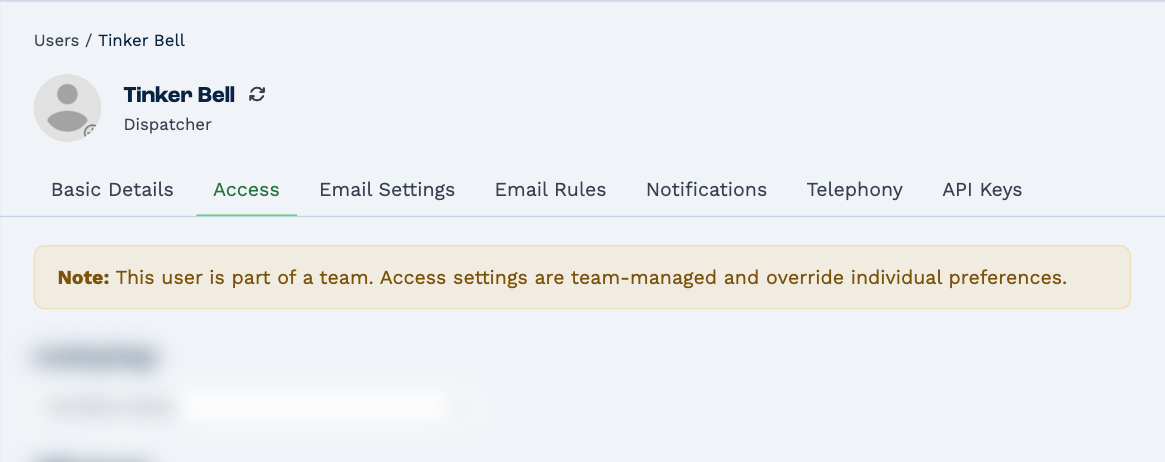
Change the team instead: open Settings → Teams, pick the team, and go to Access Settings. See Manage teams. The switches are the same ones described below.
Set the rights of someone who isn't in a team
Open Settings → Users, click the user, and go to Access. Tick or untick a right; it saves at once.
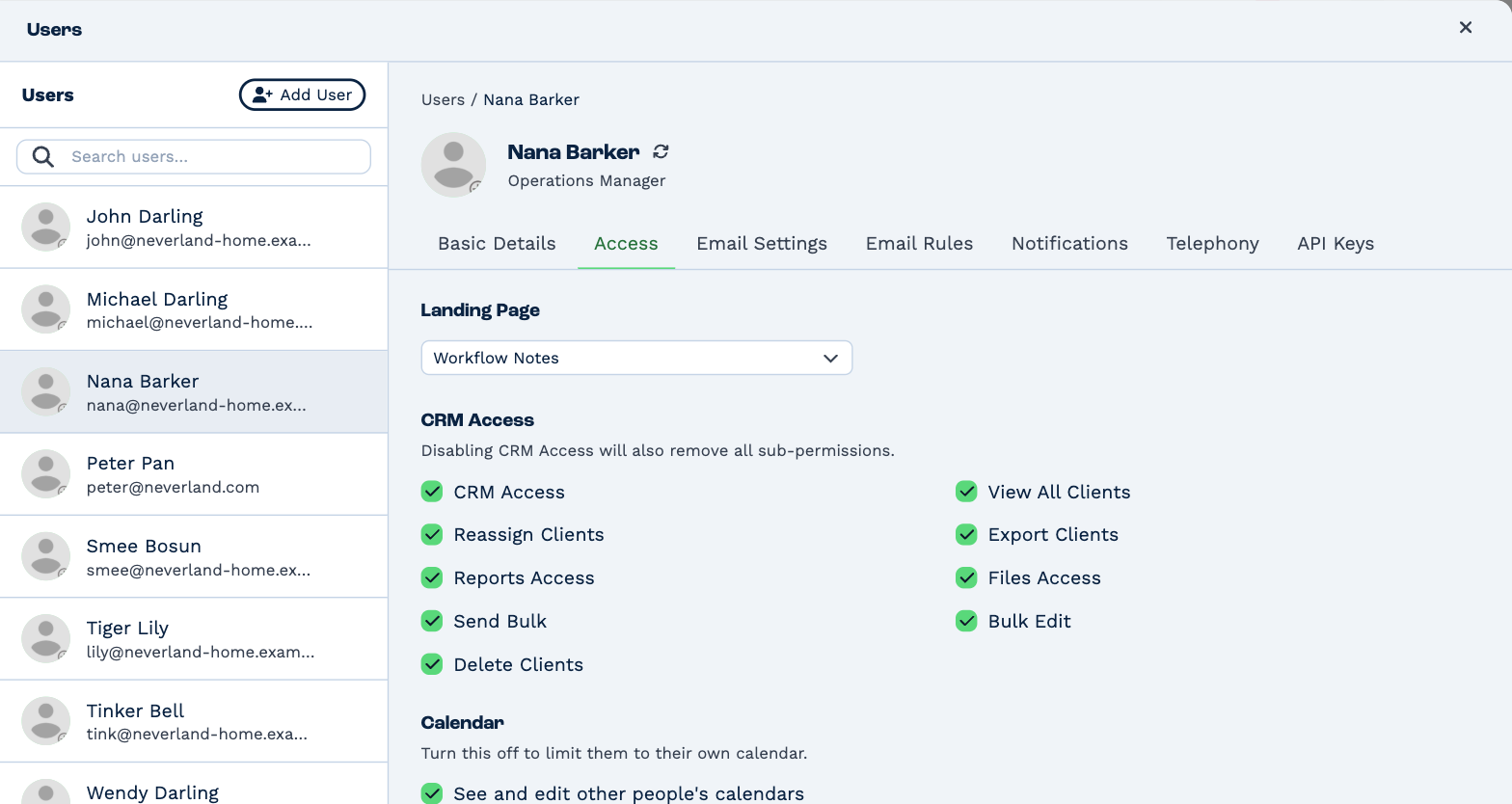
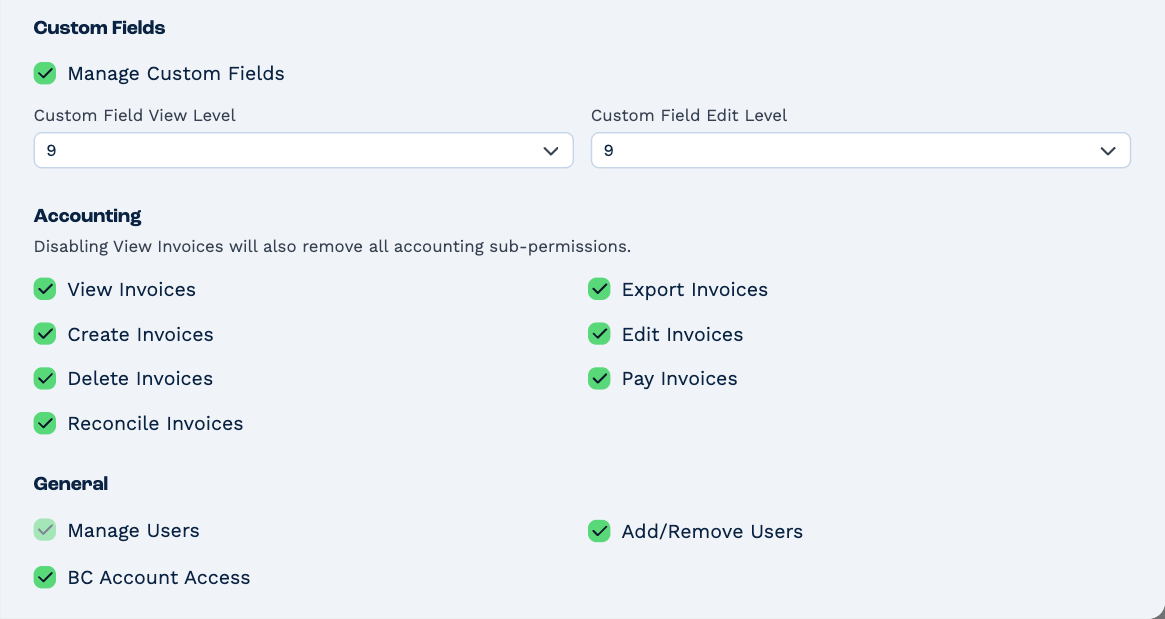
What each right lets someone do is listed in Why can't I see something?
Rights that go together
- CRM Access is the main switch. Turn it off and the rights beside it — and Manage Custom Fields — go off with it. Turn it back on and they all come back on, so untick any they shouldn't have.
- View Invoices works the same way for the other six invoice rights.
- Add/Remove Users needs Manage Users.
- BC Account Access stands alone: it opens Billing.
If you've just turned one of the main switches back on, click the beside the user's name to see what they now have.
You can't take Manage Users away from yourself. Ask someone else who has it.
Landing Page
The page they start on when they open the account: Workflow Notes, Clients, CRM Reports or Invoices. If they don't have the right to see it, they start on the next one they can.
Custom field levels
Every custom field has a level, from 1 to 10. A user sees a field when their Custom Field View Level is at least the field's level, and can fill it in when their Custom Field Edit Level is. Level 1 fields are for everyone.
So to keep a field for managers, give the field level 5, say, and give only managers a level of 5 or more.