Add a note
Who can do this
Anyone with CRM Access who can see the client.
- Open the client and click Note under their name. The client's Communications panel opens with the note editor at the bottom. (Comms opens the same panel.)
- Write the note.
- Choose who it's for under Tag users.... It starts with you — add or remove people. A note must be assigned to at least one person.
- Set the priority: L (Low), M (Medium) or H (High). Low is the default.
- Set the Due date. It starts as today. Click the clock to set a Time as well.
- Click Send.
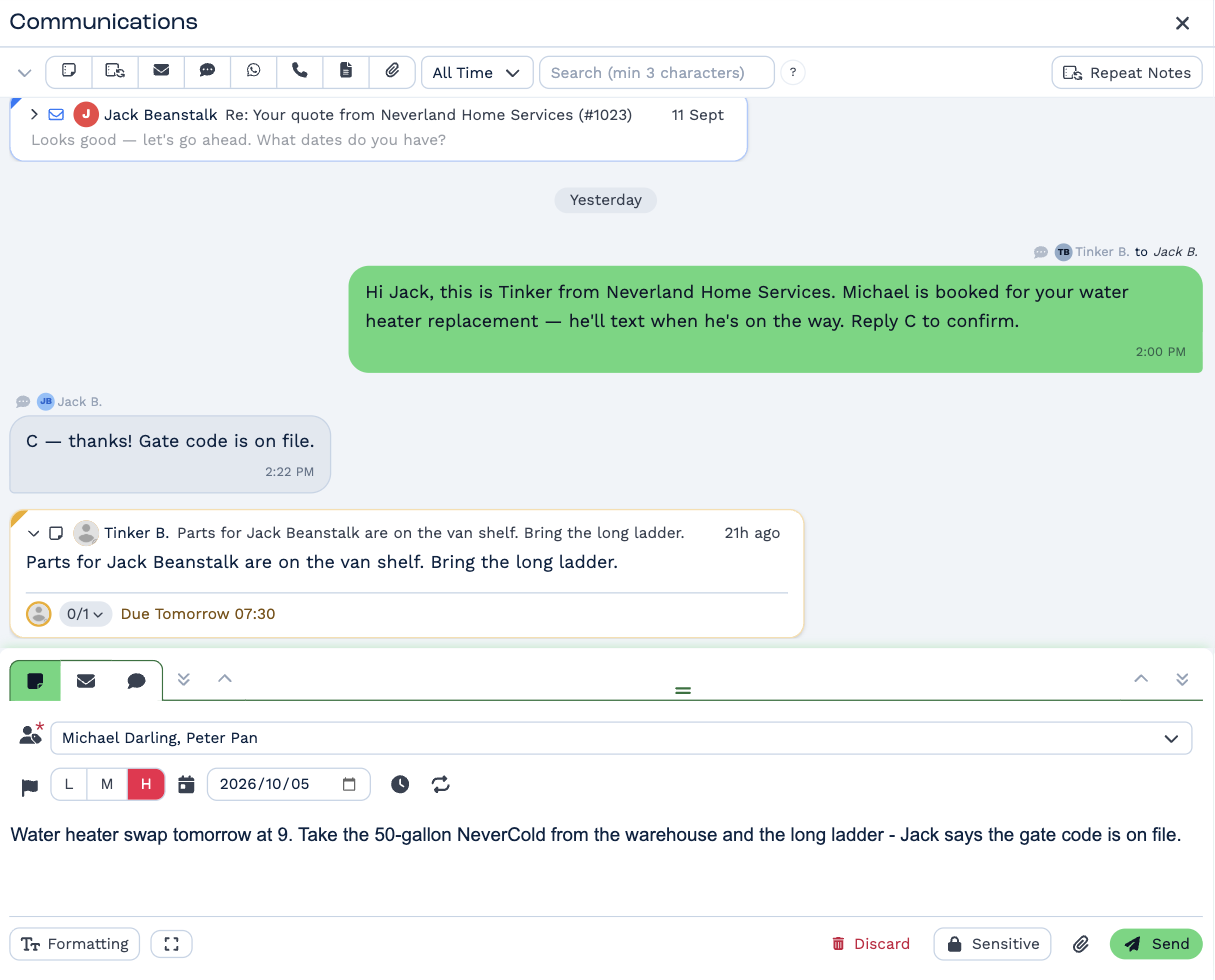
The note appears in the client's history straight away, and in each tagged person's Inbox once it's due.
Who gets told
Everyone you tag gets a notification when the note is due — on their phone and computer, if they've switched notifications on. You don't get one for a note you've tagged yourself on.
A note with a due date later than now stays out of everyone's Inbox until then. A note due today with no time is due straight away.
More options
- Sensitive — only you and the people you tag can read it. See Sensitive notes.
- Attach files (the paperclip) — or drag files onto the editor.
- Formatting — style the note's text.
- Recurring (the repeat button) — make the note come round every week, month or year. See Recurring notes.
Your note is saved as a draft while you write, so you can close the panel and come back to it. Discard throws the draft away.
Reply to a note
Click Reply on a note in the Inbox or the client's history. The editor shows Replying to with the original note, and tags the person who wrote it plus everyone already tagged.