Weekly team report by email
Someone opens Reports every Monday, reads off last week's numbers and types them into an email. This workflow sends that email by itself, with the chart in it.

Before you start
- A card on your Reports page for the number you want to send. This example uses Calls by team member, shown as a bar chart, on the Call center dashboard.
- A user on a verified email domain to send from.
The workflow
| Step | Task | Type | What it does |
|---|---|---|---|
| 1 | Every Monday | Timer Trigger | Starts the workflow once a week |
| 2 | Calls last week | Report Card | Reads the card for last week and the week before |
| 3 | Send the report | Emails the numbers and the chart to the team |
About the variables
Values such as {{task_36502_…}} carry the number of the task they come from, so yours will
differ. Do not type them: click into a field and pick the value from an earlier task.
1. Every Monday
Task: Timer Trigger. Starts the workflow once a week.
| Field | Set it to |
|---|---|
| Frequency | 1 |
| Unit | Weeks |
| Time of Day | 08:00 |
| Day(s) of week | Monday |
2. Calls last week
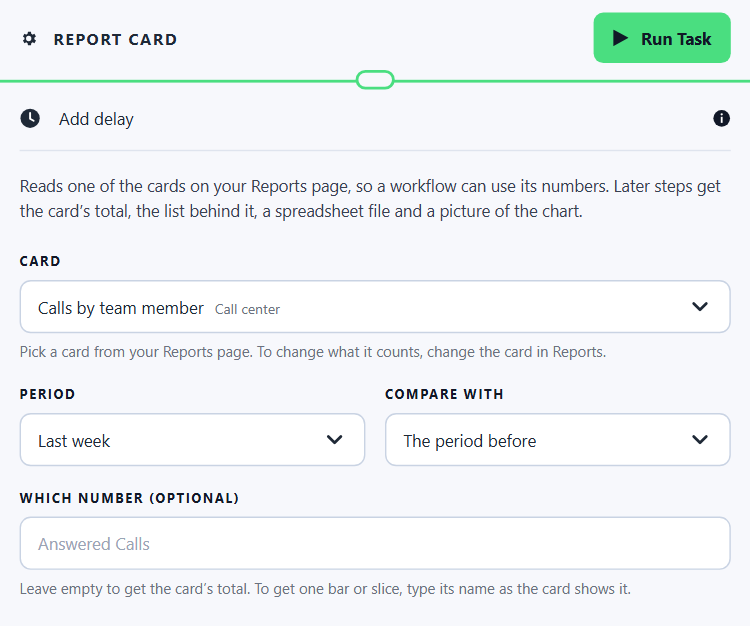
Task: Report Card. Reads the card for last week and the week before.
| Field | Set it to |
|---|---|
| Card | Calls by team member |
| Period | Last week |
| Compare with | The period before |
| Which number (optional) | Leave empty, for the card's total |
The step gives the total as {{task_36502_value}}, the list of people as {{task_36502_rows_html}} and the
chart as {{task_36502_chart_url}}.
3. Send the report
Task: Email. Emails the numbers and the chart to the team.
| Field | Set it to |
|---|---|
| Outgoing Email User | Wendy Darling |
| To | team@neverland-home.example |
| Subject | Weekly call report |
Body
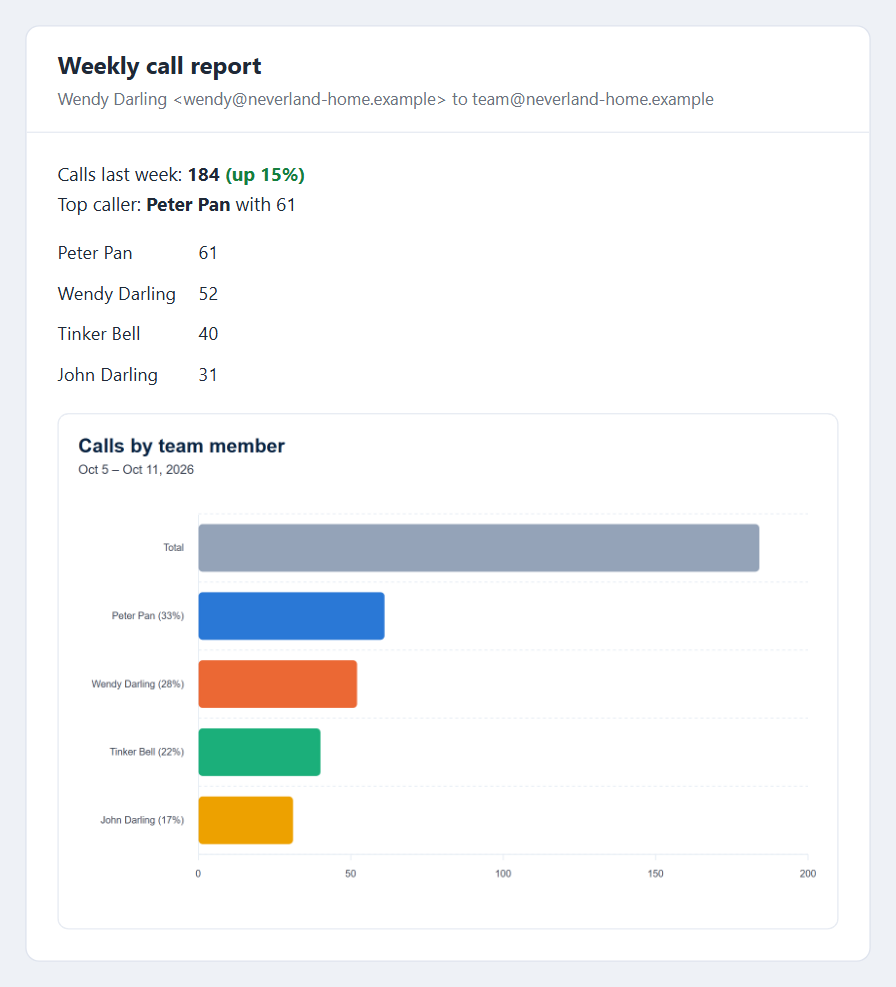
Calls last week: {{task_36502_value_text}} ({{task_36502_trend}} {{task_36502_change_percent}}%)
Top caller: {{task_36502_top_label}} with {{task_36502_top_value}}
{{task_36502_rows_html}}
the chart picture, added as an image with the address
{{task_36502_chart_url}}
To add the chart, insert an image in the body and use {{task_36502_chart_url}} as its address.
The team receives:
Test it
- Put your own address in To.
- Open the Report Card step and click Run Task. Check
valueagainst the card in Reports, with the dashboard's date range set to last week. - Run the Email step and check the email, including the chart.
- Put the team's address back and enable the workflow.
Make it yours
- More than one number. Add a Report Card step for each card (notes completed, payments received) and use them all in the one email.
- Only when something is wrong. Put an If Statement after the Report
Card step, such as
{{task_36502_trend}}exactly matchesdown, and send the email only then. - A number each. Add a Loop over
{{task_36502.JSON.rows}}to send each person their own figure. Each row has the person's name aslabeland their number asvalue. - Attach the spreadsheet.
{{task_36502_csv_url}}is a link to the list as a spreadsheet file. - Monthly instead. Set the trigger's Unit to
Monthsand the Period toLast month.
What can go wrong
| Symptom | Cause |
|---|---|
| The step stops with The report card this step reads was deleted | The card was removed from Reports. Pick another card in the step. |
| The number is the count of people, not the count of calls | The card is shown as a table. Show it as a bar or pie chart in Reports. |
| There is no chart in the email | A card shown as a table or as numbers has no picture. |
| The number is not what Reports shows | The dashboard is on a different date range. Set it to the step's Period and compare again. |
| The percentage is empty | The week before had none, so there is nothing to take a percentage of. |
Related
- Send reports automatically
- Daily report by email: the same idea, from a spreadsheet
- Quote follow-up
- Call summaries on the client