Campaign Trigger
Overview
The Campaign Trigger runs a workflow for every client or contact that matches a set of criteria you define, and keeps watching them afterwards so the workflow can branch again the moment they reach a goal.
It is the trigger to use for nurture sequences, onboarding journeys and win-back campaigns — anywhere you want "everyone who looks like this" to enter a flow, and "everyone who then does that" to be handled differently.
Unlike the CRM Trigger, which fires on a single event as it happens, the Campaign Trigger continuously evaluates your CRM against the criteria and manages membership: who is in the campaign, what stage they are at, and whether they have achieved the goal.
flowchart LR
    A[Campaign Trigger] -->|Entry port| B[Main flow]
    A -->|Goal port| C[Goal flow]
    B --> D[Send email]
    D --> E[Wait 3 days]
    C --> F[Notify sales]
Evaluation is scheduled, not instant
Campaign membership is worked out by a background evaluator, not at the instant a field changes. A client who becomes eligible is picked up on the next evaluation run rather than within the same second. For same-instant reaction, use the CRM Trigger.
The two output ports
This is the part that makes the Campaign Trigger different from every other trigger: it has two output ports, and children are routed by which port they are connected to.
| Port | Fires when | Typical use |
|---|---|---|
| Entry | A client or contact first matches the entry criteria | The campaign itself — emails, delays, SMS |
| Goal | A member later matches the goal criteria | Stop nurturing and hand over: notify sales, tag as converted |
A member entering the flow queues only the tasks wired to the entry port. When they later satisfy the goal criteria, a second run queues only the tasks wired to the goal port.

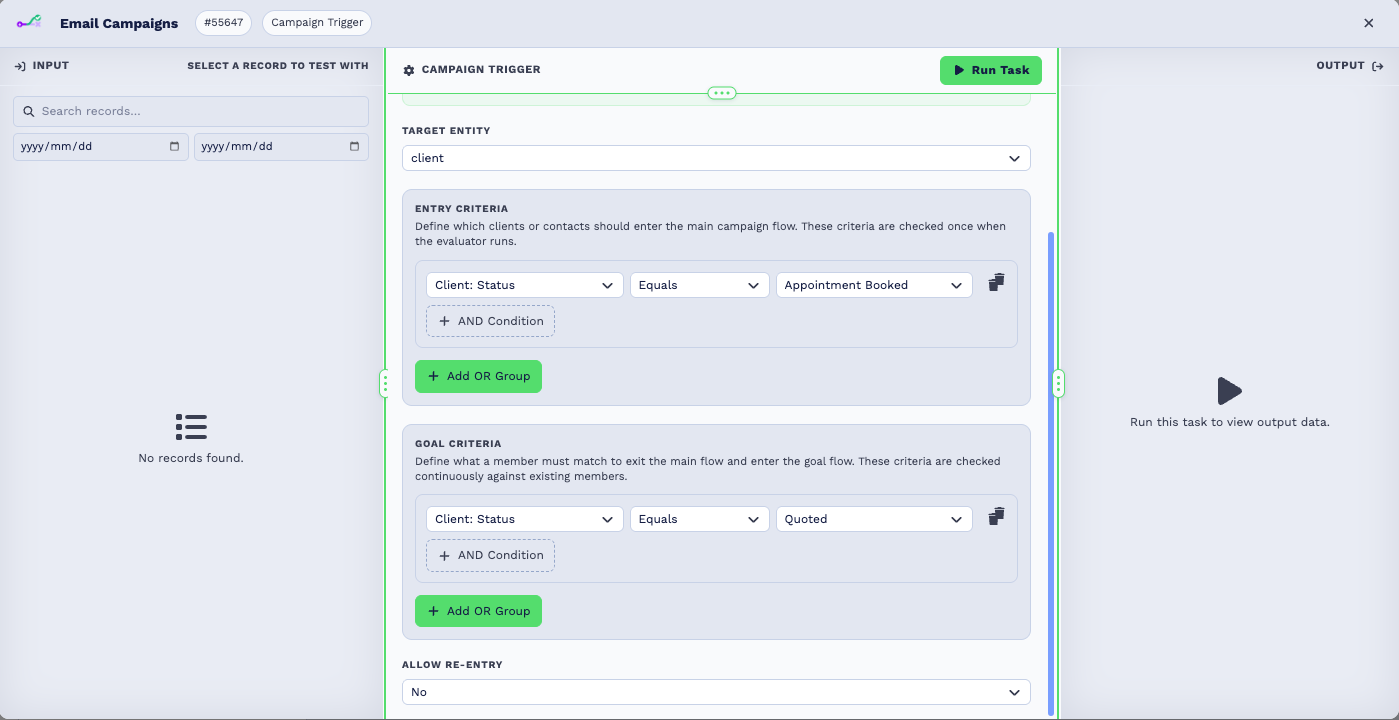
Two ports, two different jobs. The main port is the nurture sequence; the goal port is what happens when someone does the thing you wanted. They are not a success and failure pair — reaching the goal aborts the main flow partway through and moves the member onto the goal chain.
The asymmetry in how the two criteria are evaluated is the part worth remembering:
| When it is checked | |
|---|---|
| Entry criteria | Once, when the evaluator runs |
| Goal criteria | Continuously, against everyone already in the flow |
So a member can be three emails into the nurture chain, change status, and be pulled out mid-sequence. That is the intended behaviour, not a race — and it is why a goal chain usually starts with something that makes sense arriving out of order.
Allow re-entry decides whether someone who has already been through can be onboarded again.
Configuration
Builder fields
The Field column is the label as it appears in the task builder; Key is the name the value is stored under and referenced by.
| Field | Key | Type | Default | Notes |
|---|---|---|---|---|
| Target Entity | entity_type |
select | clients |
Options: Clients · Contacts |
| Entry Criteria | entry_criteria |
campaign-criteria-builder | – | |
| Goal Criteria | goal_criteria |
campaign-criteria-builder | – | |
| Allow Re-entry | allow_re_entry |
select | no |
Options: No · Yes |
| Re-entry Cooldown (hours) | re_entry_cooldown_hours |
number | 24 |
Only shown when allow_re_entry is yes |
| Field | Default | Notes |
|---|---|---|
| Entity type | client |
client evaluates company records; contacts evaluates individual people. |
| Entry criteria | empty (and, no conditions) |
The condition group that decides who joins the campaign. |
| Goal criteria | empty (and, no conditions) |
The condition group that marks a member as having converted. |
| Allow re-entry | no |
Whether someone who has already been through the campaign can enter again. |
| Re-entry cooldown hours | 24 |
With re-entry on, the minimum gap before the same member can re-enter. |
Entity type: client vs contacts
The choice changes what the trigger outputs, so pick it before you build the flow underneath.
client— the campaign operates on company records. The output is client-centric, the same shape a Match to Client task produces.contacts— the campaign operates on individual people. The matched contact's fields are the primary output at the top level, and client fields are prefixed so they cannot overwrite them. If the contact has a linked CRM user, that user's details are resolved too.
A deleted contact ends the run quietly
With entity type contacts, if the matched contact no longer exists when the workflow runs,
the trigger completes without queuing any children and reports
Campaign trigger configured for contacts but no matching contact was found. This is
deliberate — it avoids a half-run campaign against a deleted person.
Entry and goal criteria
Both are condition groups with an operator (and / or) and a list of conditions, built in the
campaign editor. Criteria are re-evaluated as records change — a client whose status, responsible
user, custom field or contact details change is re-checked against every active campaign.
An empty entry criteria group matches nobody. That is the default on a new task, so a campaign does nothing until you define at least one condition.
Re-entry
By default a member goes through a campaign once. Turning Allow re-entry on lets them enter again after the cooldown, which is what you want for recurring campaigns (a quarterly check-in) and what you do not want for one-off journeys (welcome onboarding).
Output Fields
The output depends on Entity type.
Always present:
| Field | Description |
|---|---|
{{task_ID_run}} |
true when a member was resolved for this run. |
{{task_ID_run_text}} |
Status message. |
Entity type client — client-centric output, the same fields a
Match to Client task produces, including the client record, its
custom field values, and a comma-separated list of the client's contact IDs.
Entity type contacts — the matched contact's fields at the top level, client fields under a
prefix, and the linked CRM user's name, surname, email and cell number when the contact has one.
Real-World Examples
Onboarding sequence with a goal
Campaign Trigger  entity: client
                  entry:  status = "New customer"
                  goal:   status = "Onboarded"
  ├─ Entry port ─ Email "Welcome"
  │                └─ Delay 3 days
  │                    └─ Email "Getting started guide"
  └─ Goal port ── Workflow Note "Onboarding complete"
                   └─ Email to account manager
New customers get the welcome sequence. The moment their status becomes Onboarded — however that happens, manually or from another workflow — the goal port fires and the account manager is notified.
Win-back with re-entry
Campaign Trigger  entity: client
                  entry:  last purchase older than 90 days
                  goal:   last purchase within 7 days
                  allow re-entry: yes, cooldown 2160 hours (90 days)
Lapsed customers enter, get the win-back sequence, and leave through the goal port when they buy. The cooldown stops the same customer being re-targeted immediately after lapsing again.
Best Practices
- Define the goal criteria, not just entry. Without a goal, members never leave the campaign and keep receiving it. The goal port is how someone exits.
- Start narrow. An entry condition that is too broad enrols your whole database on its first evaluation. Test with a tight condition, confirm the membership looks right, then widen it.
- Put the delays inside the campaign, not between workflows. A Delay on the entry branch is the intended way to space a sequence out.
- Choose entity type first. Switching from
clienttocontactslater changes every output variable name in the flow beneath it. - Leave re-entry off unless you mean it. It is the difference between a welcome email and a welcome email every quarter.
Troubleshooting
| Symptom | Cause and fix |
|---|---|
| Nobody ever enters the campaign | Entry criteria is empty, or the task or its workflow is disabled. An empty condition group matches nobody. |
| Children never run despite the trigger firing | The child tasks are wired to the wrong port. Entry-branch tasks must connect to the entry port, goal-branch tasks to the goal port. |
Campaign trigger configured for contacts but no matching contact was found. |
Entity type is contacts and the matched contact has been deleted. Expected behaviour, not an error to fix. |
| Members enter repeatedly | Allow re-entry is on. Turn it off, or raise the cooldown. |
| A change in the CRM did not re-evaluate someone | Only certain changes trigger re-evaluation — client status, responsible user, first contact, client and contact field updates, and contact create/update. Other edits are not evaluation triggers. |
| Enrolment lags behind a CRM change | Expected. Evaluation is scheduled; it is not instantaneous. |
Frequently Asked Questions
How is this different from the CRM Trigger? CRM Trigger fires once, on a single event, as it happens. Campaign Trigger maintains ongoing membership of a segment and gives you a separate goal branch. Use CRM Trigger for "when X happens do Y", Campaign Trigger for "everyone who looks like X gets this journey".
Can one client be in several campaigns at once? Yes. Membership is tracked per campaign task, so campaigns are independent.
What happens if I edit the criteria on a live campaign? The new criteria apply from the next evaluation. Existing members are not retrospectively removed by a narrowed entry condition.
Can I see who is currently in a campaign? Membership is held per campaign task and surfaced in the campaign view in the CRM.
Related Tasks
- CRM Trigger - Fire immediately on a single CRM event
- Client Date Trigger - Fire from a date on a contact record
- Match to Client - Produces the same client-shaped output
- Delay - Space out the steps of a campaign
- If Statement - Branch further inside the campaign