Google Sheets Task
Overview
The Google Sheets Task integrates with Google Sheets to read and write data. Use it to log leads, generate reports, sync data bidirectionally, track inventory, or collect form responses in spreadsheets.
When to use this task:
- Log leads to spreadsheet for sales team
- Export CRM data to shared reporting sheets
- Sync data between BaseCloud and Google Sheets
- Update inventory tracking sheets
- Read configuration data from sheets
- Generate automated reports
- Collect and process form responses
Key Features:
- OAuth2 authentication
- Read rows, ranges, or specific cells
- Append new rows
- Update existing rows
- Create new sheets
- Format cells and apply formulas
- Multiple operations per task
- Support for multiple Google accounts
Outputs
Which fields appear depends on the action — creating a spreadsheet populates different fields from reading rows.
Reference fields as {{task_<ID>_<field>}}.
| Field | Type | Notes |
|---|---|---|
spreadsheet_id |
string | ID of the spreadsheet created or acted on. Present only on some actions. |
spreadsheet_url |
string | Link to the spreadsheet. Present only on some actions. |
sheets |
string | The tabs in the spreadsheet. Present only on some actions. |
deleted_spreadsheet_id |
string | ID of the spreadsheet that was deleted. Present only on some actions. |
sheet_id |
string | ID of the tab created or acted on. Present only on some actions. |
sheet_title |
string | Name of the tab. Present only on some actions. |
deleted_sheet_id |
string | ID of the tab that was deleted. Present only on some actions. |
rows |
string | The rows read. Feed this into a Loop with action set to array. Present only on some actions. |
row_count |
string | How many rows were read. Present only on some actions. |
data |
string | Present only on some actions. |
updated_range |
string | Present only on some actions. |
updated_rows |
string | Present only on some actions. |
updated_cells |
string | Present only on some actions. |
action |
string | Present only on some actions. |
row_number |
string | Present only on some actions. |
dimension |
string | Present only on some actions. |
start_index |
string | Present only on some actions. |
end_index |
string | Present only on some actions. |
error |
object |
Always emitted
| Field | Type | Notes |
|---|---|---|
run |
boolean | Whether the task succeeded. |
run_text |
string | What happened, including the reason on failure. |
Fields marked as action-dependent may be absent
This task does several different things depending on its action setting, and only the fields relevant to that action are emitted. Check a real run in the OUTPUT panel before referencing one downstream.
Quick Start
Builder fields
The Field column is the label as it appears in the task builder; Key is the name the value is stored under and referenced by.
| Field | Key | Type | Default | Notes |
|---|---|---|---|---|
| Authentication | app_connection_id |
app-connection | – | |
| Action | sheets_action |
select | get_rows |
Options: Create Spreadsheet · Delete Spreadsheet · Create Sheet · Delete Sheet · Clear Sheet · Get Rows · Append Row · Update Row · Append or Update Row · Delete Rows / Columns |
| Spreadsheet ID | spreadsheet_id |
textarea | – | |
| Spreadsheet Name | spreadsheet_name |
textarea | – | Only shown when sheets_action is create_spreadsheet |
| Sheet Name | sheet_name |
textarea | Sheet1 |
Only shown when sheets_action is create_spreadsheet, create_sheet, delete_sheet, clear_sheet, get_rows, append_row, update_row, append_or_update_row, delete_rows_columns |
| Range | range |
textarea | A1:Z1000 |
Only shown when sheets_action is get_rows |
| Row Values (comma-separated) | row_values |
textarea | – | Only shown when sheets_action is append_row, update_row |
| Match Column | match_column |
textarea | A |
Only shown when sheets_action is append_or_update_row |
| Match Value | match_value |
textarea | – | Only shown when sheets_action is append_or_update_row |
| Update Values (comma-separated) | update_values |
textarea | – | Only shown when sheets_action is append_or_update_row |
| Row Number | row_number |
textarea | – | Only shown when sheets_action is update_row |
| Start Index | start_index |
textarea | – | Only shown when sheets_action is delete_rows_columns |
| End Index | end_index |
textarea | – | Only shown when sheets_action is delete_rows_columns |
| Dimension | dimension |
select | ROWS |
Options: Rows · Columns. Only shown when sheets_action is delete_rows_columns |
- Add Google Sheets task
- Connect Google account (OAuth)
- Select spreadsheet
- Choose operation (Read/Write/Update)
- Configure data mapping
- Test connection
- Save
Simple Example - Append Row:
Spreadsheet: Lead Log
Sheet: Leads
Operation: Append
Data: {{task_47001_full_name}}, {{task_47001_email}}, {{task_47001_phone}}
Connecting Google Account
First-Time Setup
- Click "Connect Google Account"
- Sign in to Google
- Grant permissions:
- View and manage spreadsheets
- See spreadsheet names and metadata
- Authorization complete
Required Permissions
BaseCloud requests:
https://www.googleapis.com/auth/spreadsheets- Full sheets accesshttps://www.googleapis.com/auth/drive.metadata.readonly- Find sheets
Privacy: BaseCloud only accesses sheets you explicitly configure in tasks. Credentials are encrypted.
Multiple Accounts
Use different Google accounts for different workflows:
- Select account when configuring task
- Each workflow can use different account
- Useful for client-specific sheets
Read Operations
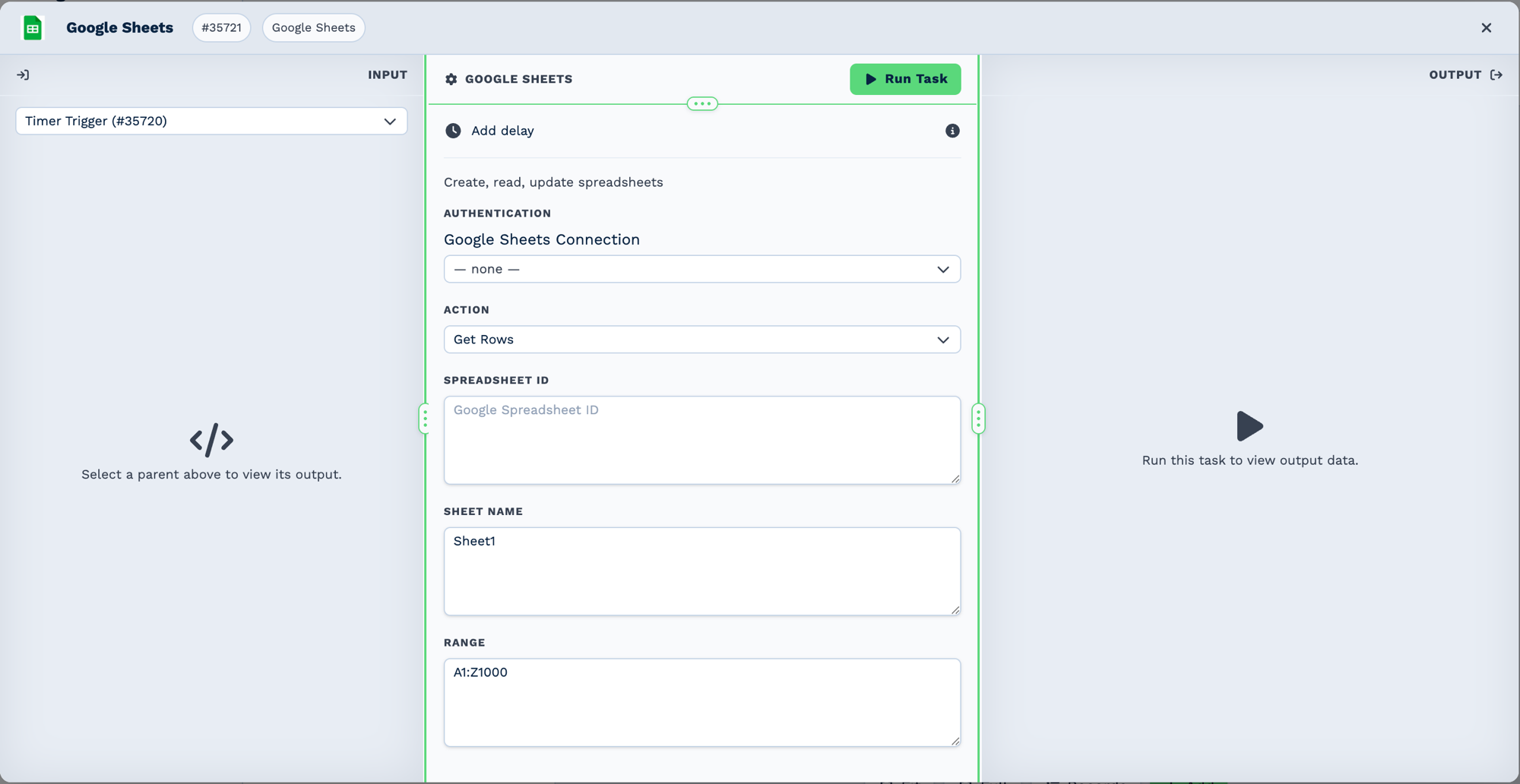
Get Rows is the read action. The Spreadsheet ID is the long identifier in the sheet's URL, not its title; Sheet Name is the tab. A wide Range like A1:Z1000 is the usual starting point — it returns what exists rather than failing on empty cells.
Read Entire Sheet
Configuration:
Output:
{{task_44001_rows_JSON}} - Array of all rows
{{task_44001_row_count}} - Number of rows
{{task_44001_first_row_column_A}} - First row, column A
Read Specific Range
Configuration:
Reads cells A2 through D10.
Output:
{{task_44001_cell_A2}} - Cell A2 value
{{task_44001_cell_B3}} - Cell B3 value
{{task_44001_range_JSON}} - All cells as JSON
Read Single Column
Configuration:
Reads entire column B.
Read with Headers
Configuration:
Output fields use header names:
{{task_44001_rows_JSON}} contains:
[
  {"Name": "John", "Email": "john@example.com", "Phone": "123-456-7890"},
  {"Name": "Jane", "Email": "jane@example.com", "Phone": "098-765-4321"}
]
Access individual fields:
Write Operations
Append New Row
Adds row at bottom of sheet.
Configuration:
Operation: Append
Spreadsheet: Lead Log
Sheet Name: Leads
Data:
  Column A: {{task_47001_full_name}}
  Column B: {{task_47001_email}}
  Column C: {{task_47001_phone}}
  Column D: {{task_48001_current_datetime}}
Alternative - Array format:
Row Data: [
  "{{task_47001_full_name}}",
  "{{task_47001_email}}",
  "{{task_47001_phone}}",
  "{{task_48001_current_datetime}}"
]
Update Existing Row
Modify specific row by row number.
Configuration:
Operation: Update
Row Number: 5
Data:
  Column A: {{task_16001_full_name}}
  Column C: "Contacted"
  Column D: {{task_48001_current_date}}
Update Specific Cell
Configuration:
Batch Update
Update multiple rows at once:
Configuration:
Sheet Management
Create New Sheet
Configuration:
Clear Sheet
Configuration:
Clears data while keeping headers (row 1).
Delete Sheet
Configuration:
Formatting
Apply Formatting
Bold header row:
Number Formatting
Currency:
Date:
Conditional Formatting
Highlight high values:
Formulas
Add Formula to Cell
Sum column:
Average:
Conditional:
Note: Formulas calculate in Google Sheets, not BaseCloud.
Using it with AI Prompt
Attach a Google Sheets task to an AI Prompt task’s tools port. Its Google account, Spreadsheet ID and Sheet Name are what the AI can reach — it can never use another sheet. The task’s own action is not used; under What the AI may do you choose instead:
| What the AI may do | On to begin with | What it does |
|---|---|---|
| Look at the sheet | Yes | Reads the sheet’s rows and searches them — a lead by email, for example. |
| Add rows | No — tick it | Adds new rows at the bottom. |
| Change rows | No — tick it | Changes rows already in the sheet. |
With both Add rows and Change rows ticked, the AI can also update a row or add it when it is not there yet, in one go.
Each change happens at most 5 times per reply. Creating or deleting spreadsheets and sheets, clearing a sheet and deleting rows are never available to the AI.
A prompt that uses it:
When someone asks to be kept up to date, find them in the Leads sheet by email. If they are not there, add a row: name, email, today’s date, “Chat”.
Real-World Examples
Log every new enquiry to a sheet
Work through a list someone maintains
Schedule
  └─ Google Sheets   get_rows
      └─ Loop        over {{task_44001.JSON.rows}}, action: array
          └─ Email   send to {{task_29001_loop_value_email}}
Keep a row in step with the CRM
CRM Trigger  (client updated)
  └─ Match to Client     look the client up
      └─ Google Sheets   append_or_update_row
Best Practices
Performance
- Batch operations - Update multiple cells at once
- Cache reads - Don't read same data repeatedly
- Limit frequency - Respect API quotas (100 requests/100 seconds/user)
- Use ranges - More efficient than cell-by-cell
- Pagination - Process large sheets in chunks
Data Quality
- Validate before write - Check required fields exist
- Handle duplicates - Check before appending
- Data types - Ensure numbers are numbers, dates are dates
- Trim whitespace - Clean data before writing
- Error logging - Track failed operations
Security
- Limit permissions - Only grant necessary access
- Separate accounts - Use different accounts for different clients
- Audit logs - Track who changed what
- Backup sheets - Keep copies of important data
- Encrypt sensitive data - Don't store passwords/keys in sheets
Maintainability
- Use named ranges - Easier than cell references
- Document formulas - Comment complex calculations
- Consistent formatting - Headers, dates, numbers
- Version sheets - Date-stamp sheet names
- Test with copy - Use test spreadsheet first
Troubleshooting
Authentication Failed
Error: "Could not connect to Google account"
Solutions:
- Reconnect Google account in task settings
- Check account has access to spreadsheet
- Verify spreadsheet still exists
- Re-authorize permissions
Spreadsheet Not Found
Error: "Spreadsheet ID not found"
Check:
- Spreadsheet deleted or moved?
- Account has access?
- Spreadsheet ID correct?
- Sharing settings allow access?
Solution: Re-select spreadsheet in task configuration.
Could Not Write Data
Error: "Failed to append row"
Causes:
- Sheet protected
- Invalid data format
- Cell limit reached
- API quota exceeded
Solutions:
- Check sheet protection settings
- Verify data format (arrays for ranges)
- Check sheet size (max 5M cells)
- Add delay between requests
Formula Not Calculating
Issue: Formula appears as text
Solution:
Ensure formula starts with =:
Date Format Issues
Issue: Dates appear as numbers (44928)
Solution: Format column as date in Google Sheets, or use date formula:
API Quota Exceeded
Error: "Rate limit exceeded"
Solution:
- Add Delay task between requests (1-2 seconds)
- Batch operations instead of individual writes
- Process in smaller batches
- Schedule during off-peak hours
Frequently Asked Questions
Is there a limit on spreadsheet size?
Google Sheets supports:
- Up to 5 million cells per spreadsheet
- 256 columns per sheet (A-IV)
- 40,000 new rows added per API request
Can I work with formulas?
Yes, you can:
- Write formulas to cells (they calculate in Google Sheets)
- Read calculated results
- Cannot execute formulas in BaseCloud
How do I handle multiple sheets in one spreadsheet?
Specify sheet name in task configuration:
Can I format cells programmatically?
Yes, use Format operation:
- Bold, italic, font size
- Background/text color
- Number/date/currency format
- Borders and alignment
What happens if workflow fails mid-update?
Google Sheets operations are atomic:
- Completed operations persist
- Failed operations don't execute
- No automatic rollback
- Best practice: Log operations for manual cleanup
Can I read from one sheet and write to another?
Yes, use two Google Sheets tasks:
- Read from Sheet A
- Process data
- Write to Sheet B
How do I prevent duplicate rows?
Use Find operation before Append:
1. Google Sheets - Find email in column B
2. If Task - Check {{task_44001_found}} = false
3. If not found: Google Sheets - Append row
Can I use Google Sheets as a database?
For small datasets (<1000 rows), yes. For larger data or complex queries, use MySQL Query task instead.
How often can I sync data?
Respect API quotas:
- 100 read requests per 100 seconds per user
- 100 write requests per 100 seconds per user
- Recommended: Every 5-15 minutes for continuous sync
Related Tasks
- MySQL Query - Alternative for large datasets
- Loop Task - Process multiple sheet rows
- Code Task - Format data for sheets
- If Task - Conditional sheet operations
- Webhook Out - Sync to external systems