Add and change cards
Who can do this
Anyone with Reports Access, on a computer. Cards are shared with everyone on the account.
A card is one report on a dashboard. Open the dashboard you want it on first.
Add a card
- Click Add Card, or click an empty part of the dashboard to put the card there.
-
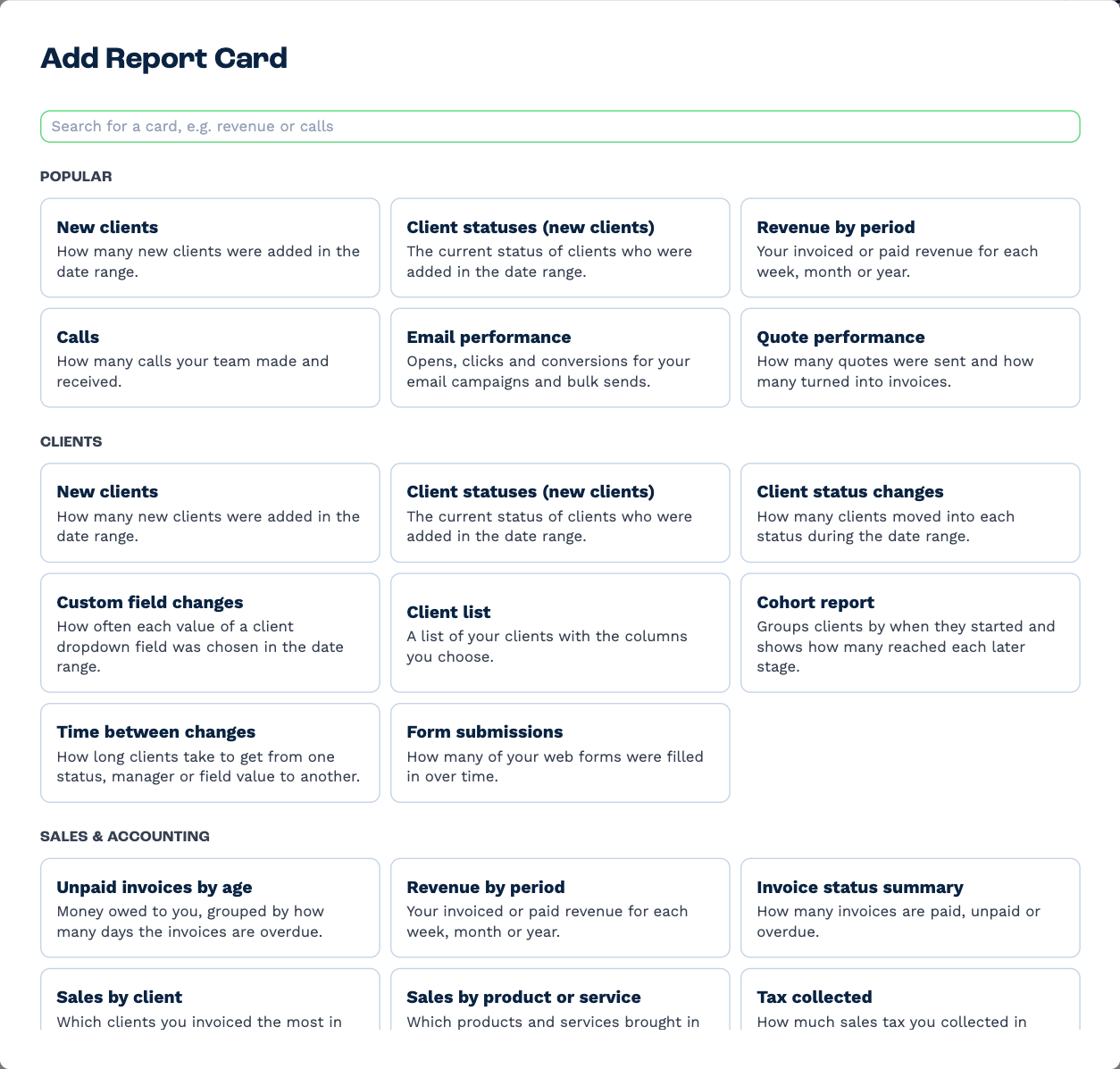
Pick the report you want. They're grouped — Popular, Clients, Sales & Accounting, Calls, Email, Messaging, Team, Workflow notes, Custom tables — and you can type in the search box to narrow them down, for example revenue or calls. Every card is listed in the Card reference.
-
Set the card up:
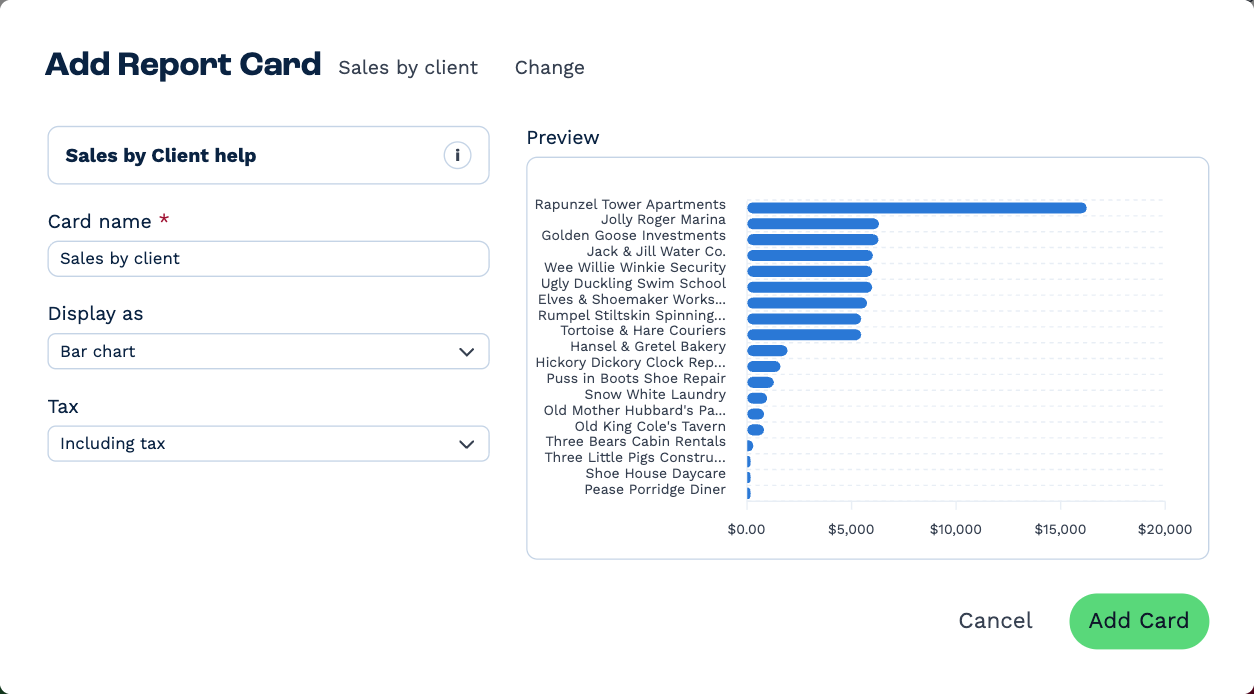
- Card name — what the card is called on the dashboard.
- Display as — how it's drawn. What's offered depends on the card: Bar chart, Line chart, Pie chart, Donut chart, Table, Number tiles and a few that belong to one card only.
- Any options that card has. Sales cards, for instance, have Tax: Including tax or Excluding tax.
The Preview on the right shows the card with your real figures as you change things. The i at the top explains, in plain words, what this card counts.
-
Click Add Card.
To pick a different report without starting over, click Change beside the card's name at the top. If something is missing, BaseCloud lists it under Before you can save this card.
The card menu
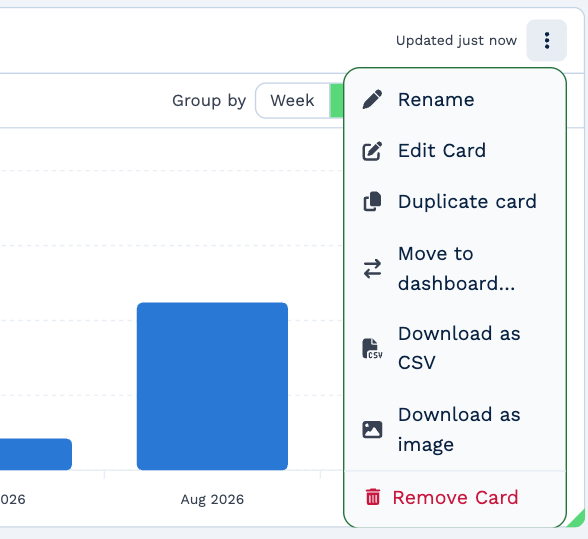
Each card has a ⋮ menu in its top-right corner.
| Choose | To |
|---|---|
| Rename | Change the card's name. Double-clicking the name does the same. |
| Edit Card | Reopen the set-up box and change anything. Finish with Save Changes. |
| Duplicate card | Make a copy, name (copy), on the same dashboard. |
| Move to dashboard… | Send the card to another dashboard. |
| Download as CSV, Download as image | See Download, share and show. |
| Remove Card | Take the card off the dashboard. Click Confirm Remove to go through with it. |
Closing the set-up box with changes you haven't saved asks first: Keep editing or Discard.
Filter a card
Many cards have a Filter button under their name. Use it to narrow the card to part of your business.
- Click Filter, then Add filter.
- Choose a Field — which ones you get depends on the card: for example Client Status, Manager, Client Origin, a dropdown custom field, a tracking category or an item code.
- Choose the Rule: Only include or Leave out.
- Choose the values. (No value) matches records where the field is empty.
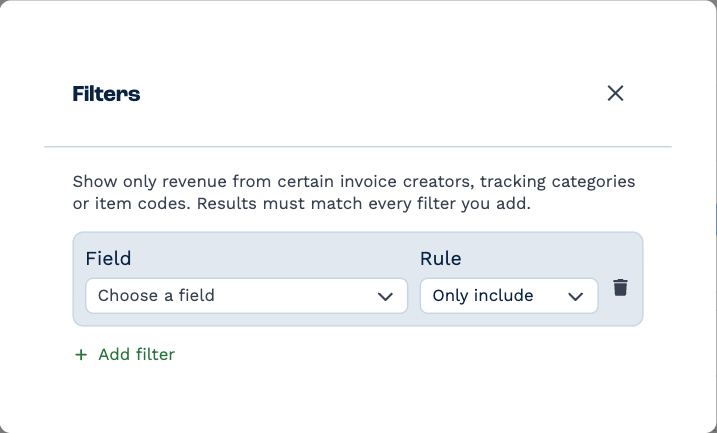
Add as many filters as you need. A record has to match every one of them to be counted.
Some cards have their own switch on the card as well. Revenue by period, for one, has Group by: Week, Month, Quarter or Year.
Arrange the dashboard
- Move a card — drag it by its header.
- Resize a card — drag its bottom edge, right edge or bottom-right corner.
The layout saves by itself, and it's the same for everyone.
Move or copy a card
- To another dashboard: ⋮, Move to dashboard…, choose the dashboard.
- A copy on the same dashboard: ⋮, Duplicate card.
- A whole dashboard's worth: duplicate the dashboard.