List Formatter Task
Overview
The List Formatter Task takes a list from an earlier step and lays it out as a table, a bullet list or one line per row. You choose which values to show from each row, and place the result in a workflow note, an email or a message with one variable.
When to use this task:
- Show a website form's visitor journey in a workflow note
- List invoice or quote lines in an email
- Show the rows a Table, Google Sheets or MySQL step found
- Send the latest few items of a longer list
Without it, showing a list means a Loop or a Code step.
Outputs
Reference fields as {{task_<ID>_<field>}}.
| Field | Type | Notes |
|---|---|---|
output |
string | The laid-out list, for a workflow note or an email — the field you use most. |
text |
string | The same list as plain text, one row per line — for an SMS or a WhatsApp message. |
count |
number | How many rows are shown. |
total |
number | How many rows the list holds. More than count when How many rows cut it. |
Always emitted
| Field | Type | Notes |
|---|---|---|
run |
boolean | Whether the task succeeded. |
run_text |
string | What happened, including the reason on failure. |
Quick Start
Builder fields
The Field column is the label as it appears in the task builder; Key is the name the value is stored under and referenced by.
| Field | Key | Type | Default | Notes |
|---|---|---|---|---|
| List | list |
textarea | – | |
| What to show from each row | columns |
dyn-rows | – | |
| Layout | layout |
select | table |
Options: Table with headings · Bullet list · One line per row |
| Order | order |
select | as_is |
Options: As the list is · Last row first |
| How many rows (optional) | limit |
number | – | |
| Dates and times | date_format |
select | us |
Options: Oct 6, 2026 2:02 PM · 6 Oct 2026 14:02 · 2026-10-06 14:02 · Leave as they are |
| If the list is empty, show (optional) | empty_text |
text | – |
What each setting does:
- List — the list to lay out, from an earlier step:
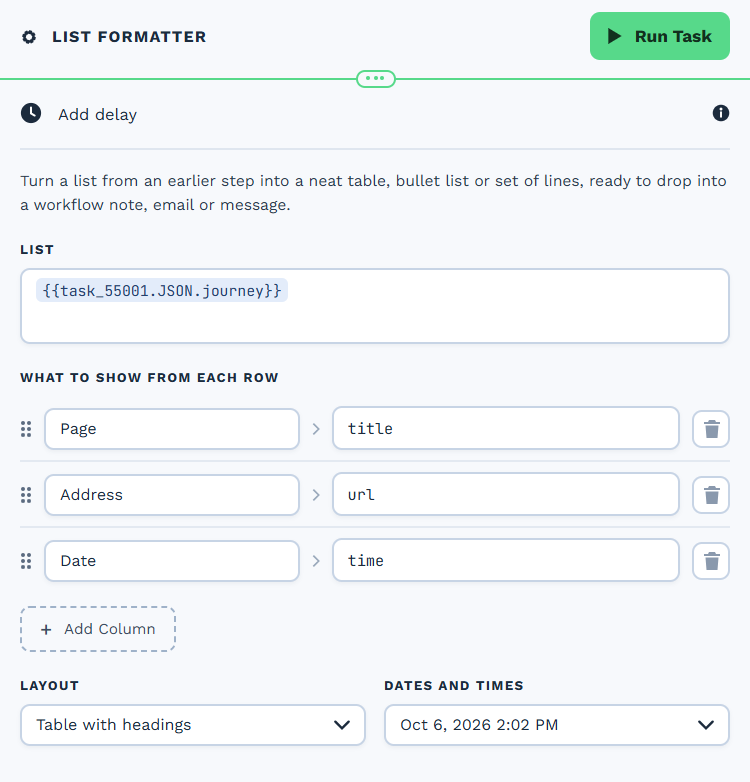
{{task_<ID>.JSON.<name>}}, the same value a Loop takes. - What to show from each row — one row per column: a heading, and the name of the value to show. Drag to reorder. With none, every value is shown.
- Order and How many rows — the row limit is counted after the order, so Last row first with
5shows the latest 5. Empty shows every row. - Dates and times — how a full date and time is shown, in your account's timezone.
-
If the list is empty, show — what
outputandtexthold when the list has no rows. -
Add the List Formatter task
- Set List to a list from an earlier step
- Add a column for each value to show, with a heading
- Choose the Layout
- Use
{{task_<ID>_output}}in a workflow note or an email
Simple Example:
List:     {{task_55001.JSON.journey}}
Columns:  Page → url
          Date → time
Layout:   Table with headings
Output:   {{task_72001_output}}

          Page                              Date
          https://example.com/              Oct 6, 2026 9:02 AM
          https://example.com/pricing       Oct 9, 2026 3:30 AM
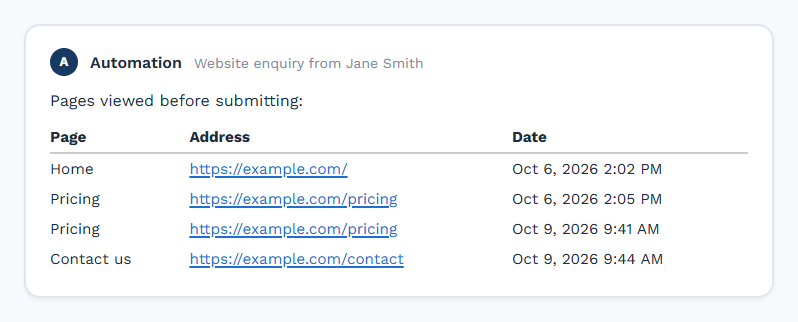
Placed in a workflow note, that reads:
Choosing What to Show
Each column has a heading and the name of the value to show, as it appears in the earlier step's
output. A row of a visitor journey holds type, url, title, time, visit and referrer, so url and
time give a page and a date; add title or visit for more.
| The row holds | Value name | Shows |
|---|---|---|
{ "url": "https://example.com/" } |
url |
https://example.com/ |
{ "contact": { "email": "sam@example.com" } } |
contact.email |
sam@example.com — a dot reaches a value kept inside another |
{ "lines": [{ "name": "Tent" }] } |
lines.0.name |
Tent — a number picks an item of a list inside the row, counting from 0 |
{ "tags": ["new", "vip"] } |
tags |
new, vip — a list of plain values is joined with commas |
With no columns, every plain value of the first row is shown, with headings made from their names.
To change the order of the columns, drag a column by the grip on its left. A table shows them left to right in that order; a bullet list or lines joins them in that order.
Give each column a heading
A column with no heading is not kept. In a bullet list or lines the headings are not shown, but they still say which column is which in the builder.
Dates and Times
A value that is a full date and time, such as 2026-10-06T14:02:11.000Z, is shown in the chosen style and
in your account's timezone. A date with no time, such as 2026-10-06, is left as it is. Choose Leave
as they are to change nothing.
Layouts
| Layout | In a note or email (output) |
As plain text (text) |
|---|---|---|
| Table with headings | A table, one column per value | One row per line, values joined with - |
| Bullet list | A bullet per row, values joined with - |
One row per line, each starting with - |
| One line per row | One row per line, values joined with - |
The same |
A web address becomes a link in output.
Values are always written as text. A value that holds HTML, such as a page title with <b> in it, is shown
as those characters and never as formatting.
Real-World Examples
A form's visitor journey in a workflow note
Form Submission
  └─ List Formatter    List: {{task_55001.JSON.journey}}   Columns: Page → url, Date → time
      └─ Workflow Note "Pages viewed before submitting: {{task_72001_output}}"
The latest five pages only
The rows a search found, in an email
Table (find rows)
  └─ List Formatter    List: {{task_44001.JSON.rows}}
      └─ Email         "{{task_72001_count}} open jobs: {{task_72001_output}}"
Best Practices
- Use
outputwhere formatting shows — workflow notes and emails; usetextfor SMS and WhatsApp - Set the empty text — so a note reads "No pages recorded" rather than ending in nothing
- Limit long lists — a note with the latest 10 rows is easier to read than one with 100
Troubleshooting
"The List setting does not hold a list"
List must be a list from an earlier step, written {{task_<ID>.JSON.<name>}}. The flattened form
({{task_<ID>_<name>}}) reaches single values, not the list itself.
A Column Is Empty
The value name does not match the row. Run the earlier step once and read its OUTPUT panel for the exact names; they are case-sensitive.
The Columns Are in the Wrong Order
Drag a column by the grip on its left to move it. A column added later goes last.
The Result Shows < or & Instead of < or &
Use {{task_<ID>_output}} rather than {{task_<ID>.JSON.output}} when placing the result in a note or an
email.
The List Is Empty
count is 0 and output holds the empty text. That is a successful run, so later steps still run —
branch on count with an If to skip them.
Next Steps:
- Loop - Run steps once for every item of a list
- Workflow Note - Place the result in a note
- Form Submission Trigger - The visitor journey a form sends