AI Prompt Task
Overview
The AI Prompt Task uses artificial intelligence to generate content, analyze text, extract information, classify data, or answer questions. Powered by OpenAI's GPT models, it brings advanced language understanding to your workflows.
When to use this task:
- Generate personalized email content
- Analyze customer sentiment
- Extract structured data from unstructured text
- Classify leads or support tickets
- Summarize long content
- Answer customer questions
- Translate languages
- Create product descriptions
- Draft responses or proposals
Key Features:
- GPT-4 and GPT-3.5 Turbo models
- Custom prompt templates
- Context from previous tasks
- JSON-structured responses
- Temperature control for creativity
- Token limit management
- Cost-effective operation
- Reliable error handling
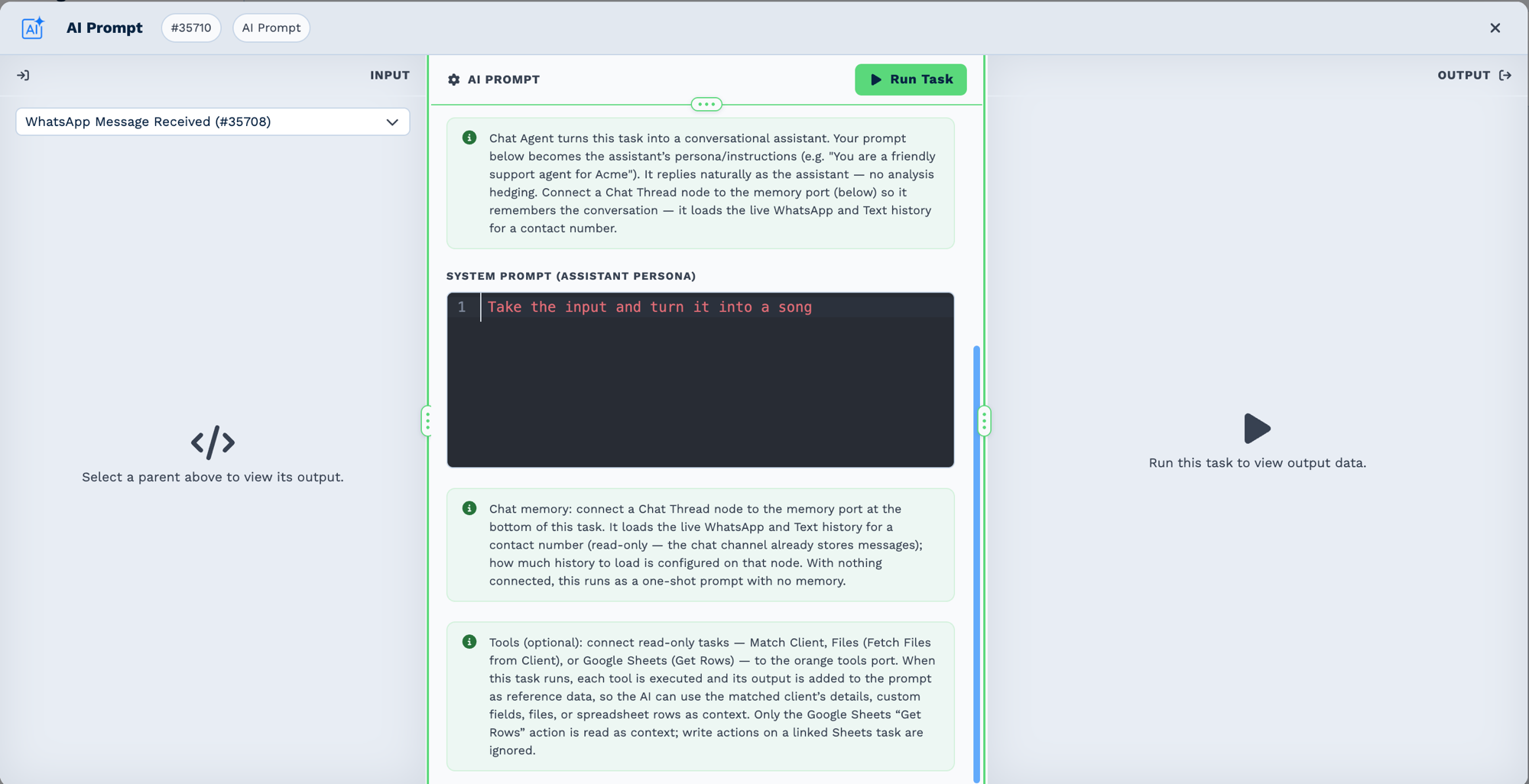
Memory and tools attach to the AI task on their own ports. They are reference nodes: they never run as a step in the flow, they are things the AI task reaches for while it runs:
flowchart TD
    A[Prompt and input data] --> B[AI Prompt]
    C[(Memory store)] -.->|memory port| B
    D[Tool tasks] -.->|tool port| B
    B --> E[Generated output]
Quick Start
Builder fields
The Field column is the label as it appears in the task builder; Key is the name the value is stored under and referenced by.
| Field | Key | Type | Default | Notes |
|---|---|---|---|---|
| Input | Input |
textarea | – | |
| AI model | ai_model |
select | gpt-5-mini-2025-08-07 |
Options: OpenAI · GPT-5 (Strong) · OpenAI · GPT-5 Mini (Balanced) · OpenAI · GPT-5 Nano (Fast) · Anthropic · Claude Opus 4.8 (Strong) · Anthropic · Claude Sonnet 5 (Balanced) · Google · Gemini Pro (Strong) · Google · Gemini Flash (Balanced) · Google · Gemini Flash Lite (Fast) |
| What type of analysis do you want to do? | analysisType |
select | summary |
Options: Summary · Sentiment · Extract Data · Custom Prompt · Chat Agent · Transcribe Recording |
| Max Words | Max Words |
number | – | Only shown when analysisType is summary |
| Fields to Extract | data_extraction_rows |
dyn-rows | – | Only shown when analysisType is data_extraction |
| Prompt | Prompt |
monospace | – | Only shown when analysisType is custom_prompt |
| System Prompt (assistant persona) | Prompt |
monospace | – | Only shown when analysisType is chat_agent |
| Output Format | outputFormat |
select | text |
Options: Text (default) · JSON. Only shown when analysisType is custom_prompt |
| Translate to English | Translate |
select | false |
Options: No · Yes. Only shown when analysisType is transcription |
- Add AI Prompt task
- Select AI model
- Write prompt with context
- Configure response format
- Test with sample data
- Save
Simple Example:
Prompt: Classify this lead as Hot, Warm, or Cold based on:
- Email: {{task_49001_email}}
- Message: {{task_49001_message}}
- Company: {{task_49001_company}}

Output: {{task_38001_response}}
Chat Memory
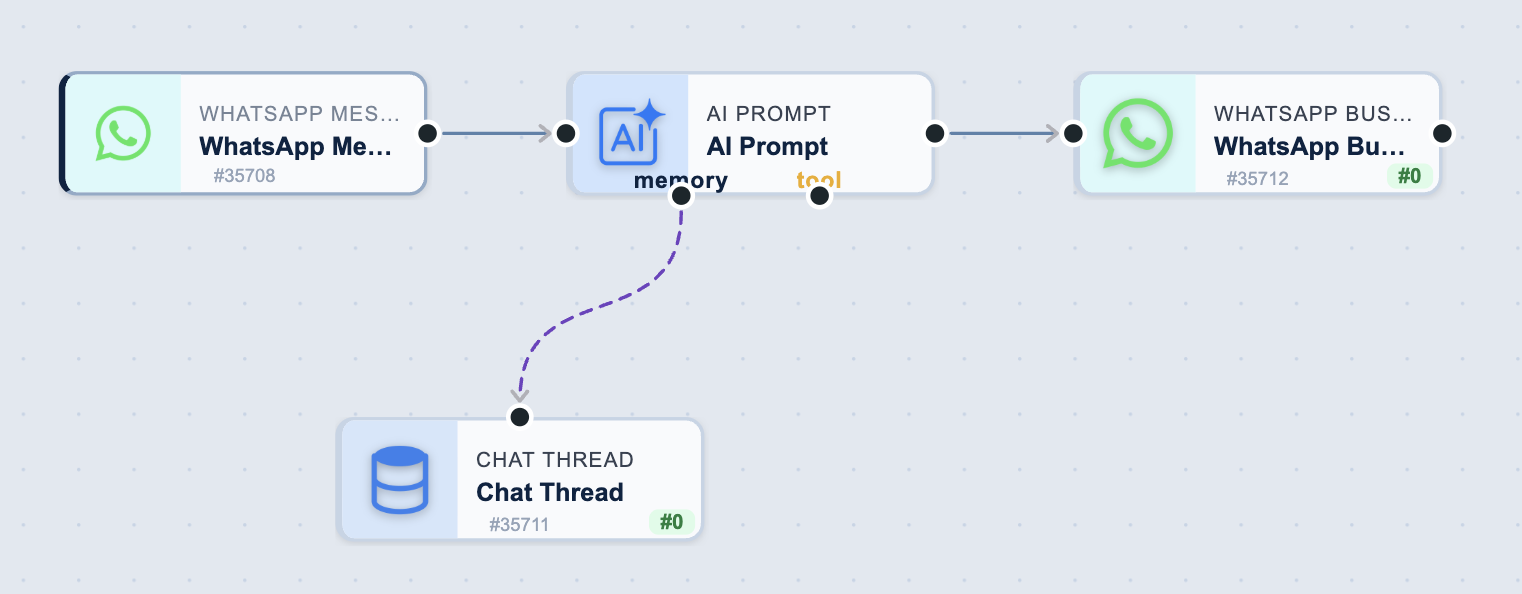
The Chat Thread node is not a step in the chain. It hangs off the AI Prompt's memory port, so it is read when the AI task runs rather than executed in sequence. The tool port works the same way for tasks the AI can use while it works on its reply — see Tools. Everything on the main line runs in order; anything on a memory or tool port is used by the AI task.
For the conversational analysis types (Custom Prompt and Chat Agent), the AI task can remember a conversation across runs — the same pattern as chat assistants — by connecting a memory node, exactly like N8N. You don't set any fields on the AI task itself.
How to set it up:
- Add a Chat Thread node.
- On that node, set the Contact Number (e.g. a
{{sender_number}}chip from a WhatsApp/SMS trigger), the Message Type (SMS or WhatsApp), and optionally the Limit (how many recent messages to load). - Drag from the AI task's memory port — the small handle at the bottom-centre of the AI task node — down into that node's top input. It shows a dashed purple connection.
How it works — on each run, when a memory node is connected, the AI task:
- Loads the most recent messages of that contact's live WhatsApp/SMS thread and prepends them to your prompt as a
Conversation so far:transcript. Inbound messages become the user turns; outbound (agent or automation) become the assistant turns. - Runs the model with that history plus the new input.
Important behaviours:
- Settings live on the memory node, not the AI task (mirrors N8N). Connect it and you're done.
- Read-only. Chat Thread memory never writes turns back — the chat channel already persists every message. The AI's reply reaches the contact (and is stored) via a downstream send task.
- Purely additive. With nothing connected to the memory port, the task behaves exactly as before — no memory. Existing AI tasks are unaffected.
- First message just works. An empty thread simply omits the history block; it doesn't error.
- Only Chat Thread nodes may connect to the memory port, and only on the Custom Prompt and Chat Agent analysis types.
Tools
Connect tasks to the AI Prompt’s orange tools port, and the AI can use them while it works on its reply — looking things up, and changing things where you allow it, as often as it needs:
| Task | What the AI may do |
|---|---|
| Calendar | Check when people are busy; find a guest’s booking; book a meeting (when ticked) |
| Google Sheets | Read rows; find rows; add a row, change a row, add or change a row (when ticked) |
| Match Client | Find the client this conversation is about, with the details set on the task |
| Files | List the files of the client set on the task |
This works with Chat Agent and with Custom Prompt set to text output. The other analysis types — and Custom Prompt with JSON output — get the tools’ results added to the prompt once, before the AI runs, and cannot change anything.
How it works. The AI reads the message, decides it needs something (“is 9 AM Tuesday free?”), asks the tool, reads the answer, and carries on — checking something else, booking, or replying. Each of these rounds is a step. Several lookups can happen in one step.
What you control:
- What the AI may do, on each attached task. Looking things up is on to begin with; anything that changes something is off until you tick it, and then happens at most 5 times per reply.
- The tool’s own settings set what it can reach: which spreadsheet, whose calendars, which client. The AI cannot go outside them.
- The prompt: when to use the tools, and whether to confirm with the person before changing anything.
Limits that always apply: a reply ends after 2 minutes for Chat Agent (5 minutes for Custom Prompt), and the AI then answers with what it has. A message that arrives while it works stops it before its next step, and nothing more is changed. If the task is retried after a failure, changes it already made are not made again.
Earlier in the conversation. With a Chat Thread connected, the AI is also told what its tools changed for this person in earlier replies — so “make it 10 instead” in a later message can find the meeting it booked.
Configuring the AI Task
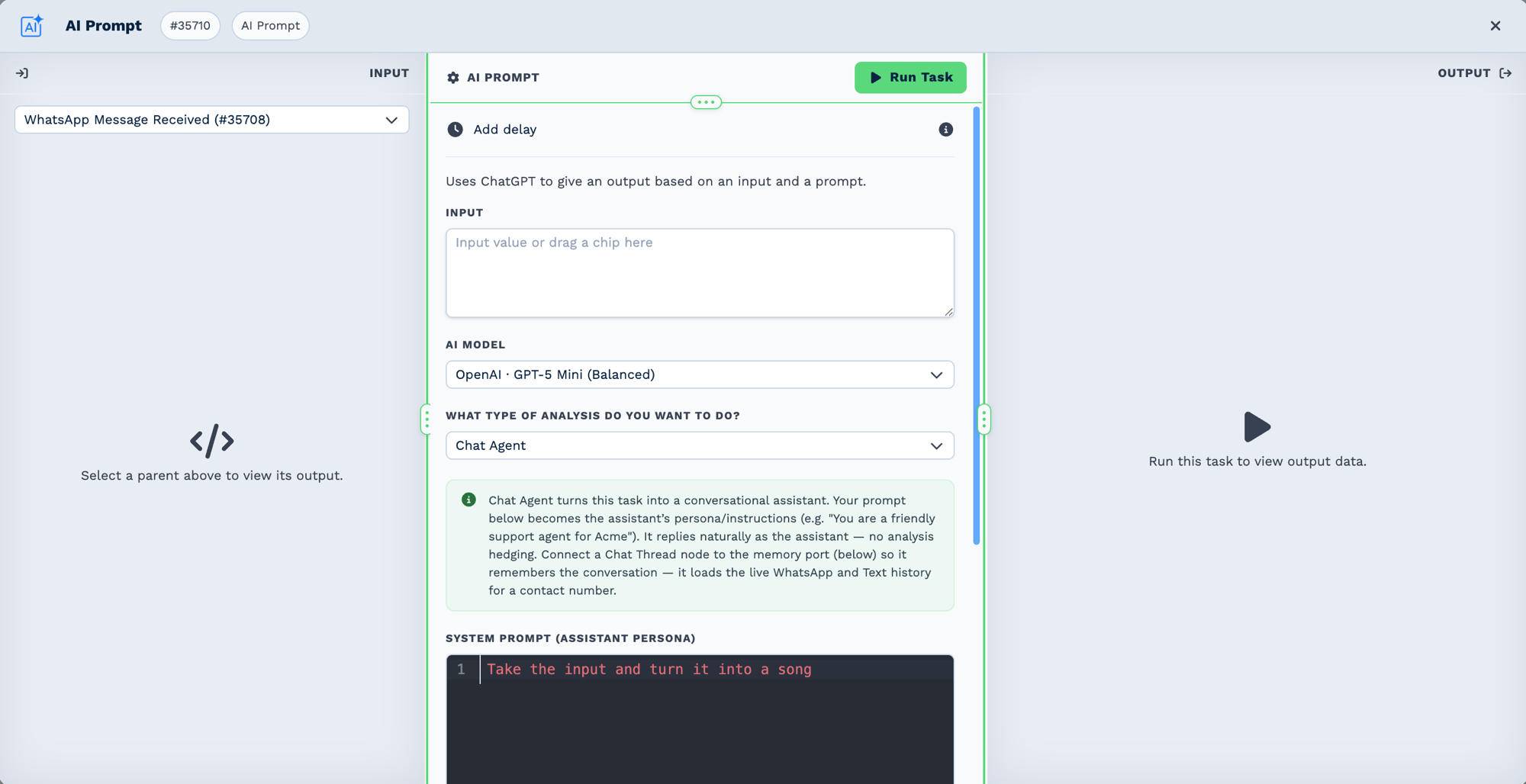
Model Selection
GPT-4 Turbo (Recommended for complex tasks)
- More accurate and nuanced
- Better reasoning
- Handles complex instructions
- Higher cost per token
GPT-3.5 Turbo (Recommended for simple tasks)
- Fast responses
- Cost-effective
- Good for straightforward tasks
- Lower cost per token
Selection Guide:
- Use GPT-4 for: Analysis, complex extraction, nuanced writing
- Use GPT-3.5 for: Classification, simple generation, formatting
Writing Effective Prompts
Structure:
- Context - What information does AI need?
- Task - What should AI do?
- Format - How should AI respond?
- Constraints - Any rules or limitations?
Example:
Context: You are a sales assistant analyzing leads.

Task: Classify this lead based on the information provided:
- Name: {{task_49001_name}}
- Email: {{task_49001_email}}
- Company: {{task_49001_company}}
- Message: {{task_49001_message}}

Format: Respond with only: Hot, Warm, or Cold

Constraints:
- Hot = Has company email + mentions budget/timeline
- Warm = Has company email or shows clear interest
- Cold = Generic inquiry or personal email
Using Dynamic Context
Include data from previous tasks:
Analyze this customer support ticket:

Subject: {{task_46001_subject}}
From: {{task_46001_email}}
Message: {{task_46001_body}}

Customer history:
- Total orders: {{task_43001_order_count}}
- LTV: ${{task_43001_lifetime_value}}
- Last contact: {{task_43001_last_contact_date}}

Determine the urgency (High/Medium/Low) and suggest a response category (Refund/Support/Sales).
Response Format Options
Plain Text:
JSON Structure:
Respond in JSON format:
{
  "category": "Support",
  "urgency": "High",
  "summary": "Brief description"
}

Access: {{task_38001_category}}, {{task_38001_urgency}}
List:
Temperature Setting
Controls creativity vs consistency:
| Temperature | Behavior | Use For |
|---|---|---|
| 0.0 - 0.3 | Deterministic, consistent | Classification, extraction, analysis |
| 0.4 - 0.7 | Balanced | General content generation |
| 0.8 - 1.0 | Creative, varied | Marketing copy, creative writing |
Configuration:
Token Limits
Max Tokens: Controls response length
- Short responses: 100-200 tokens
- Paragraphs: 300-500 tokens
- Long content: 1000-2000 tokens
Note: ~4 characters = 1 token on average
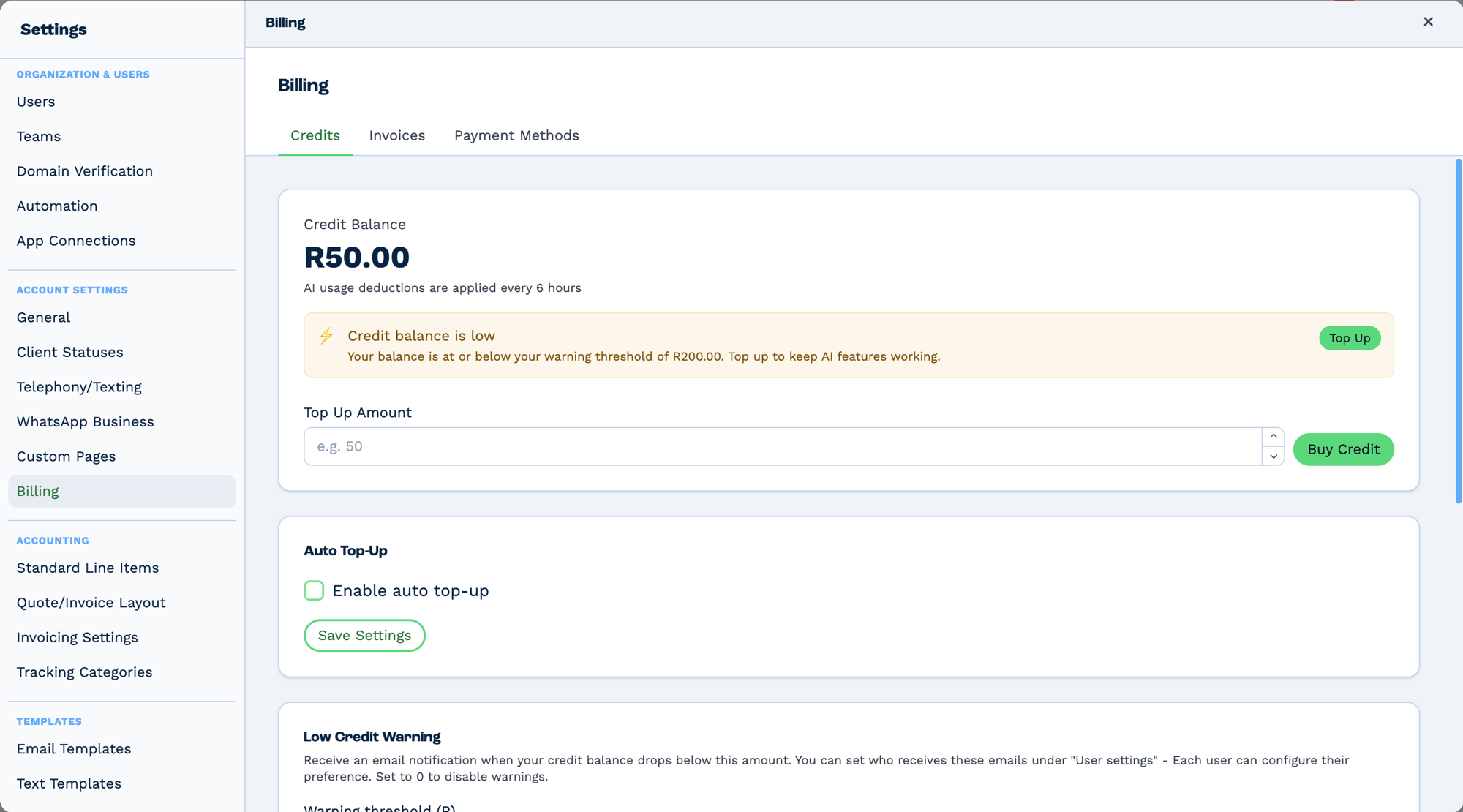
Credit is account-wide and shared. The same balance pays for AI usage, calls and SMS — running it down with one stops the others. It lives in Settings → Billing → Credits.
Two things worth knowing before you rely on it:
- The balance is not live. AI usage deductions are applied every 6 hours, so a burst of activity will not show up immediately and the figure on screen can lag real consumption.
- Low-credit warnings are opt-in per user. The threshold is set here, but who receives the email
is configured under each user's own settings. Setting the threshold to
0disables warnings entirely — including for everyone else.
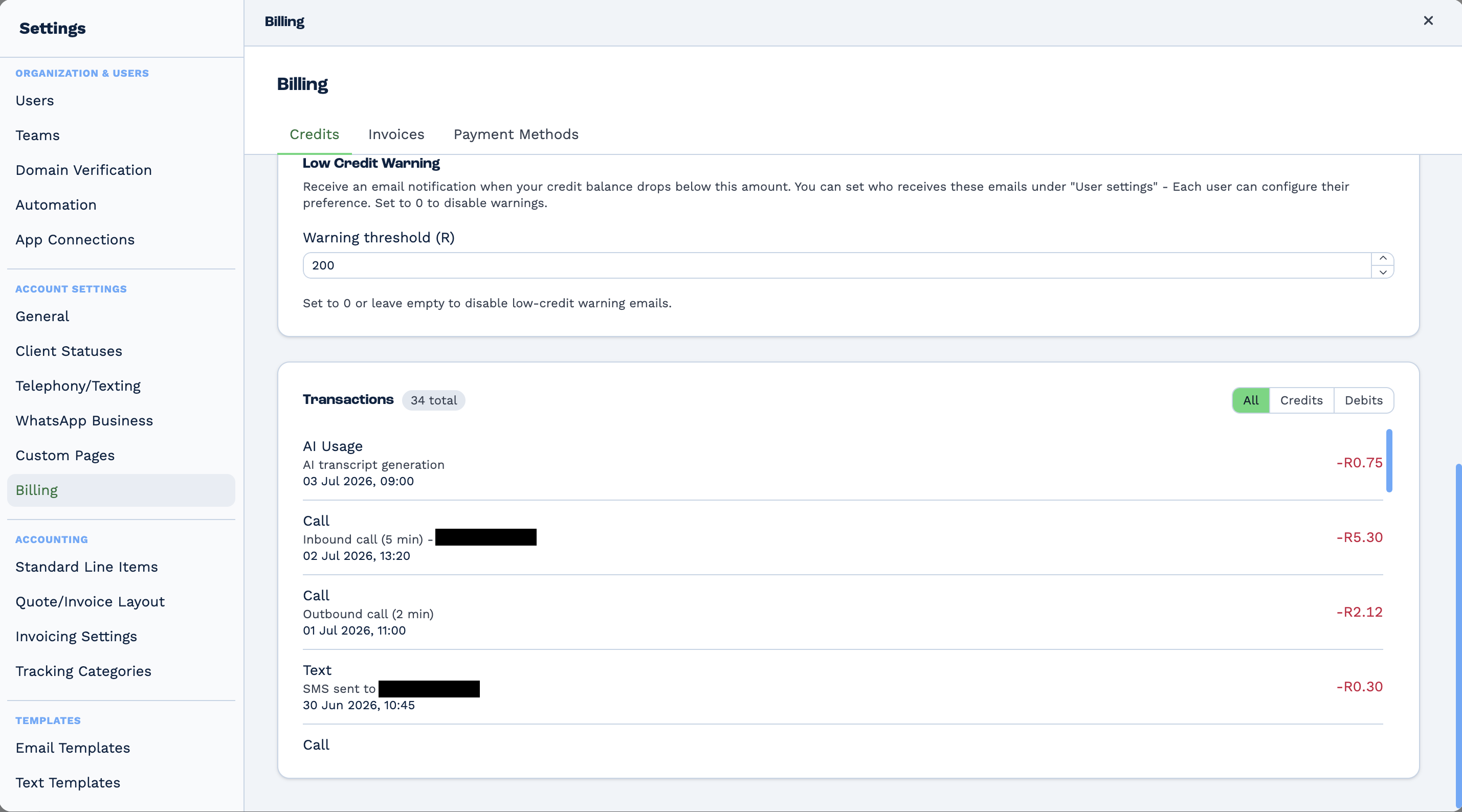
The transaction list is where the shared balance becomes obvious: AI usage, calls and SMS all appear in one ledger, drawing down the same credit.
Auto top-up is off by default. With it off and the balance exhausted, AI tasks stop rather than queue.
Outputs
| Field | Type | Example | Notes |
|---|---|---|---|
output |
string | Positive |
The generated result. The field you use downstream. |
ai_model |
string | gpt-4o |
Which model ran, after any default was applied. |
tokens_input |
number | 812 |
Tokens in the prompt. |
tokens_output |
number | 140 |
Tokens generated. |
tokens_total |
number | 952 |
Total tokens. |
billing_units |
number | 952 |
What the run was billed for. |
error |
string | … |
Set when the model call failed. |
outcome |
string | done |
With tools: done, needs_input (it asked the person something) or could_not_finish. |
outcome_summary |
string | Booked Jane for Tue 9 AM. |
With tools: what it did, in a sentence. |
steps_used |
number | 3 |
With tools: how many steps the reply took. |
tool_calls |
list | […] |
With tools: each call — tool, what it was asked, and what came back. |
run |
boolean | true |
|
run_text |
string | AI prompt completed. |
prevent_children stops the branch
On some failure paths the task sets prevent_children, which stops the tasks beneath it from
running rather than letting them run with an empty result. A branch that silently does nothing
after an AI task usually means this fired — check run_text.
This task consumes AI credits
billing_units records what was charged. If the account has insufficient credit the task fails
before calling the model.
Real-World Examples
Classify an inbound email and route it
Email Trigger
  └─ AI Prompt        "Classify this as Sales, Support or Billing"
      └─ Key Match    Sales → sales@…, Support → support@…
          └─ Email    forward it on
Draft a reply with the conversation as context
WhatsApp Message Received
  └─ Chat Thread          read the history
      └─ AI Prompt        draft a reply, memory key {{task_61001_session_id}}
          └─ WhatsApp Business   send it
Summarise a call
Call Tracking Trigger
  └─ Speech to Text       transcribe {{task_51001_recording_url}}
      └─ AI Prompt        "Summarise this call and list any commitments"
          └─ Workflow Note   log the summary
Advanced Techniques
Chain of Thought Prompting
For complex reasoning:
Prompt:
Think step-by-step to analyze this deal:

Deal Info: [data]

Step 1: List all positive signals
Step 2: List all red flags
Step 3: Compare to typical winning deals
Step 4: Provide final recommendation with confidence score
Few-Shot Learning
Provide examples in prompt:
Classify these leads:

Examples:
Input: "CEO of Acme Corp, interested in enterprise plan, budget approved"
Output: Hot

Input: "Student asking about features"
Output: Cold

Now classify:
Input: {{task_49001_message}}
Output:
Response Validation
Use Code task after AI:
const response = input.task_38001_response;
const validCategories = ['Hot', 'Warm', 'Cold'];

if (!validCategories.includes(response)) {
  return {
    validated: false,
    category: 'Cold', // Default fallback
  };
}

return { validated: true, category: response };
Best Practices
Prompt Engineering
- Be specific - Clear instructions yield better results
- Provide context - More context = more accurate
- Define format - Specify exact output structure
- Include constraints - Set boundaries and rules
- Test variations - Iterate to find best prompt
Cost Management
- Choose right model - GPT-3.5 for simple, GPT-4 for complex
- Limit tokens - Set max_tokens appropriately
- Reduce temperature for consistency - Fewer retries
- Cache common prompts - Use Variable task
- Batch similar requests - Process in loops
Reliability
- Always validate - Check AI response format
- Provide defaults - Fallback values if AI fails
- Handle errors - Use If task to check success
- Don't trust 100% - Human review for critical decisions
- Log responses - Track for quality monitoring
Security
- Sanitize inputs - Clean user data before AI
- Don't expose sensitive data - Mask PII when possible
- Validate outputs - Check for injection attempts
- Rate limit - Prevent abuse
- Monitor costs - Set alerts for unusual usage
Troubleshooting
Empty or Invalid Response
Check:
- Prompt clear and specific?
- Input data contains expected fields?
- Model appropriate for task complexity?
- Token limit sufficient?
Debug: View execution history → AI Prompt task → See full request/response
Inconsistent Classifications
Cause: Temperature too high or prompt ambiguous
Solution:
- Lower temperature to 0.0-0.2
- Add explicit classification rules
- Provide examples in prompt
Response Not in Expected Format
Issue: Asked for JSON, got plain text
Solution:
Prompt: You MUST respond with valid JSON only.
Do not include any text before or after the JSON.

{
  "field": "value"
}
Alternative: Use Code task to parse and clean response
Timeout or Slow Response
Causes:
- GPT-4 slower than GPT-3.5
- Very long prompts
- Max tokens set too high
Solutions:
- Switch to GPT-3.5 for simple tasks
- Reduce input context length
- Lower max_tokens setting
Costs Higher Than Expected
Check:
- Using GPT-4 when GPT-3.5 sufficient?
- Token limits set too high?
- Running in high-frequency loops?
- Inefficient prompts?
Optimize:
- Use GPT-3.5 for classification/extraction
- Set appropriate max_tokens
- Cache repeated AI calls
- Simplify prompts
Frequently Asked Questions
What models are available?
- GPT-4 Turbo - Most capable, best for complex tasks
- GPT-3.5 Turbo - Fast and cost-effective
How much does each API call cost?
Pricing varies by model and token usage:
- GPT-3.5: ~$0.002 per 1K tokens
- GPT-4: ~$0.03 per 1K tokens
Check OpenAI pricing for current rates.
Can AI access external data?
No, AI only sees data you include in the prompt from previous workflow tasks.
How accurate is the AI?
Depends on:
- Task complexity
- Prompt quality
- Model selection
- Input data quality
Always validate critical outputs.
Can I use my own OpenAI API key?
Check with BaseCloud support for custom API key configuration.
Is there a rate limit?
Yes, reasonable rate limits apply. Contact support for high-volume needs.
Can AI generate images?
This task is text-only. Image generation requires separate DALL-E integration.
How do I structure JSON responses?
Explicitly define schema in prompt:
Related Tasks
- Code Task - Process AI responses
- If Task - Route based on AI classification
- Variable Task - Cache AI results
- Formatter Task - Clean AI output
- Email Task - Send AI-generated content