Mark notes done
Who can do this
Anyone a note is assigned to. Items that don't belong to a client yet must be linked to a client first — they show Cannot mark done until then.
One note
Click Mark done on the note. It moves from your Inbox to the Done tab, and a message at the bottom of the screen offers Undo for five seconds.
To bring a finished note back, open it on the Done tab and click Re-open.
A note assigned to several people
Everyone a note is assigned to finishes their own part. When you mark it done, it leaves your Inbox — it stays in the others' Inboxes until they finish too.
The chip at the bottom of the note, such as ⅓, shows how many have finished. Click it to see who:
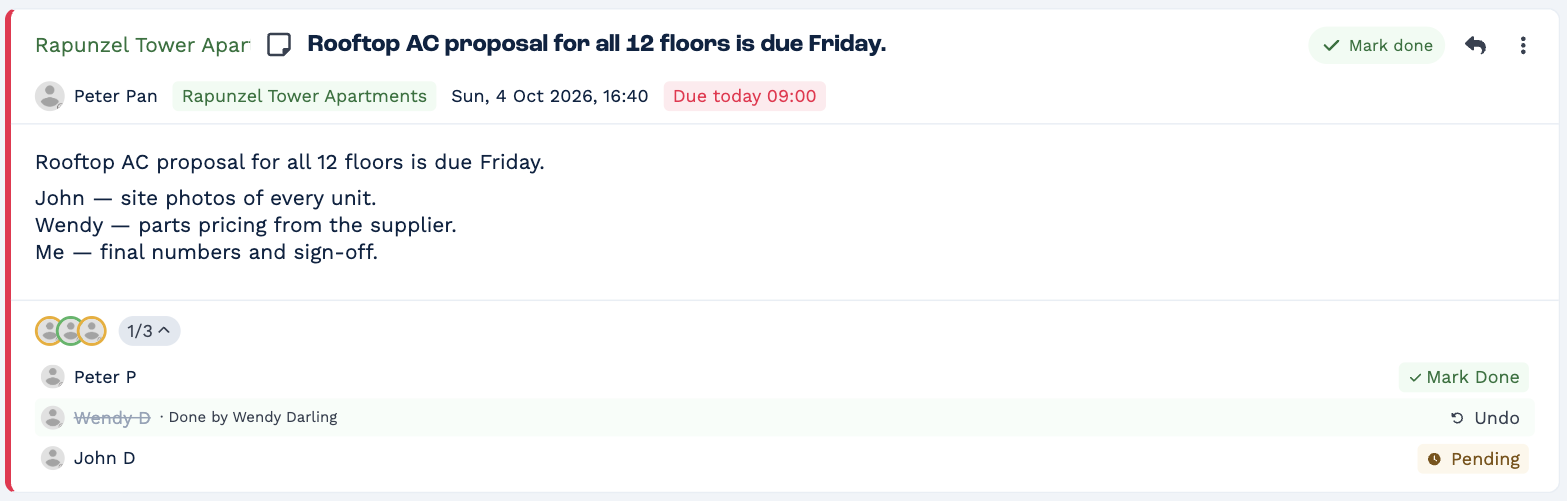
- Mark Done next to your name finishes your part.
- Pending next to someone else's name lets you finish their part for them — useful when you've done it yourself. Confirm with Sure?. It's recorded as done by you.
- Undo next to a finished name opens their part again.
Many at once
- Hover over a row and click Mark done to finish the whole group.
- Select several groups — click their avatars, or Shift-click and Ctrl-click (Cmd-click on a Mac) — then click Mark done in the bar that appears.
- In an open group, use the select button above the notes: Select visible, then Select all (up to 500).
- Right-click a group for Mark all done.
Actions work on up to 500 items at a time. A message such as 12 items updated. confirms it, with Undo.