WhatsApp chat assistant
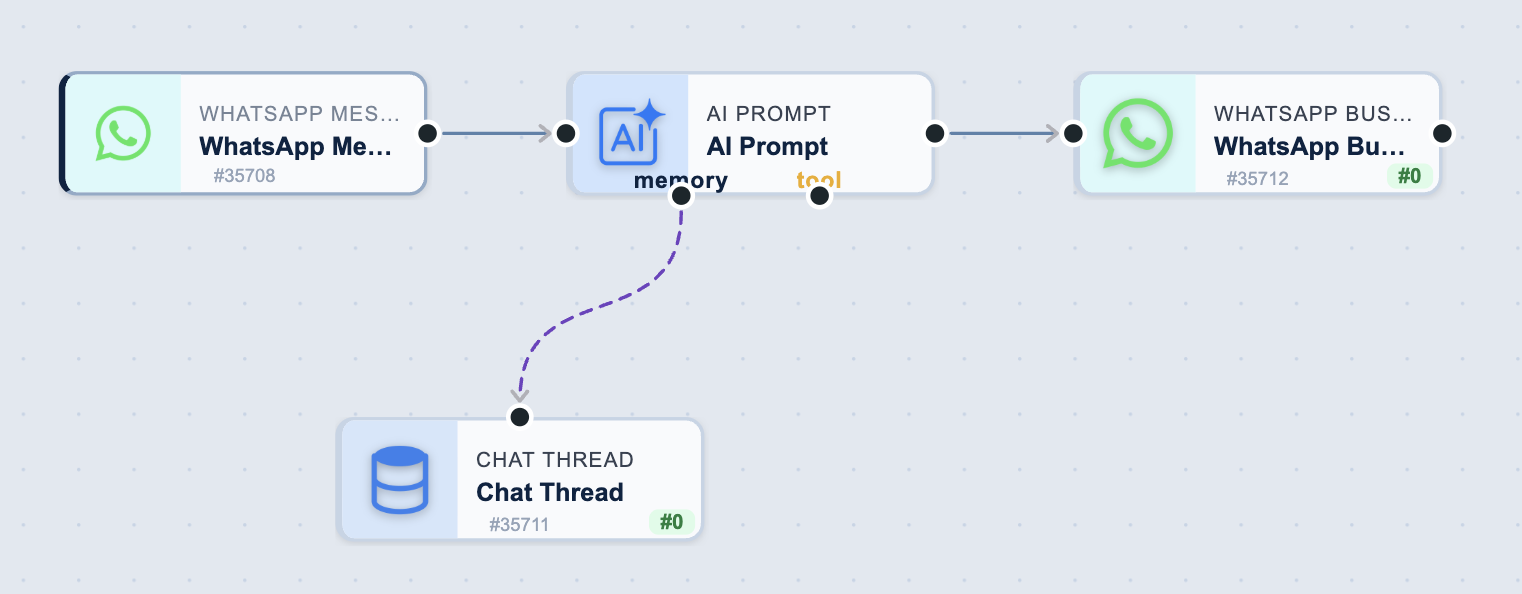
Customers message your WhatsApp number at all hours and expect an answer. This workflow replies automatically: every inbound message goes to an AI assistant that has read the conversation so far, and its reply goes straight back over WhatsApp. Four tasks, and the customer never waits.
The workflow
| Order | Task | Purpose |
|---|---|---|
| 1 | WhatsApp Message Received | Starts the workflow when a customer messages you |
| 2 | AI Prompt | Writes the reply, in Chat Agent mode |
| — | Chat Thread | Hangs off the AI task's memory port so the assistant can see the earlier messages |
| 3 | WhatsApp Business | Sends the reply back to the customer |
Chat Thread has no order number on purpose. It is not a step in the chain — it is a reference node the AI task reads from, which is why it sits below the flow rather than in it.
1. WhatsApp Message Received
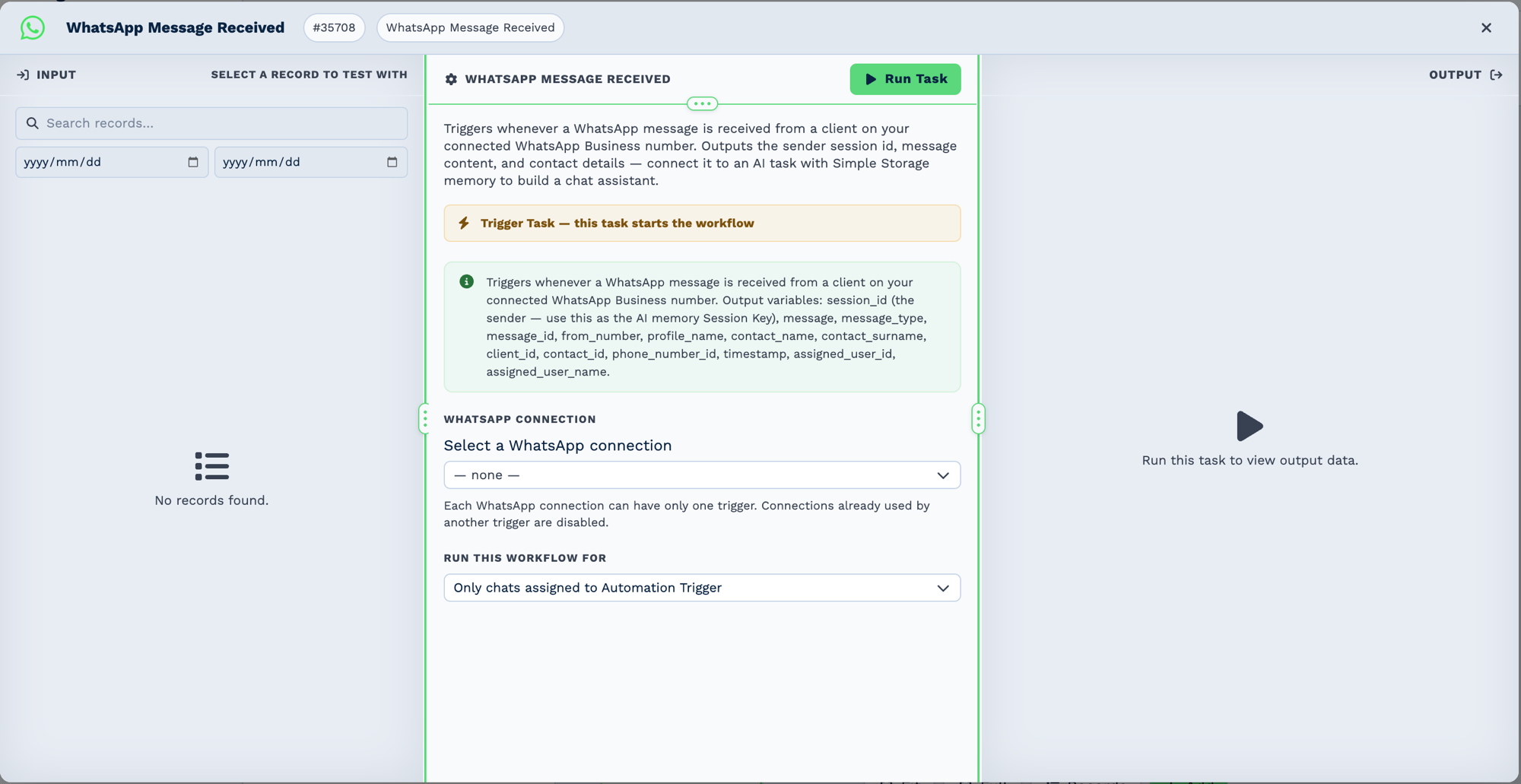
| Field | Set it to |
|---|---|
| WhatsApp Connection | The number customers message |
| Run this workflow for | Only chats assigned to Automation Trigger while you are testing |
One trigger per connection
A WhatsApp connection can only have one trigger. Once a connection is used, it is disabled in every other trigger task, so you cannot accidentally wire two assistants to the same number.
Run this workflow for decides how much of your traffic the bot handles. Leaving it on
Only chats assigned to Automation Trigger means the assistant answers only the conversations
you deliberately hand it. Every incoming message puts it in front of everyone.
The trigger passes on the sender and the message. The two the rest of the workflow needs are
{{task_35708_from_number}} and {{task_35708_message}}.
2. AI Prompt
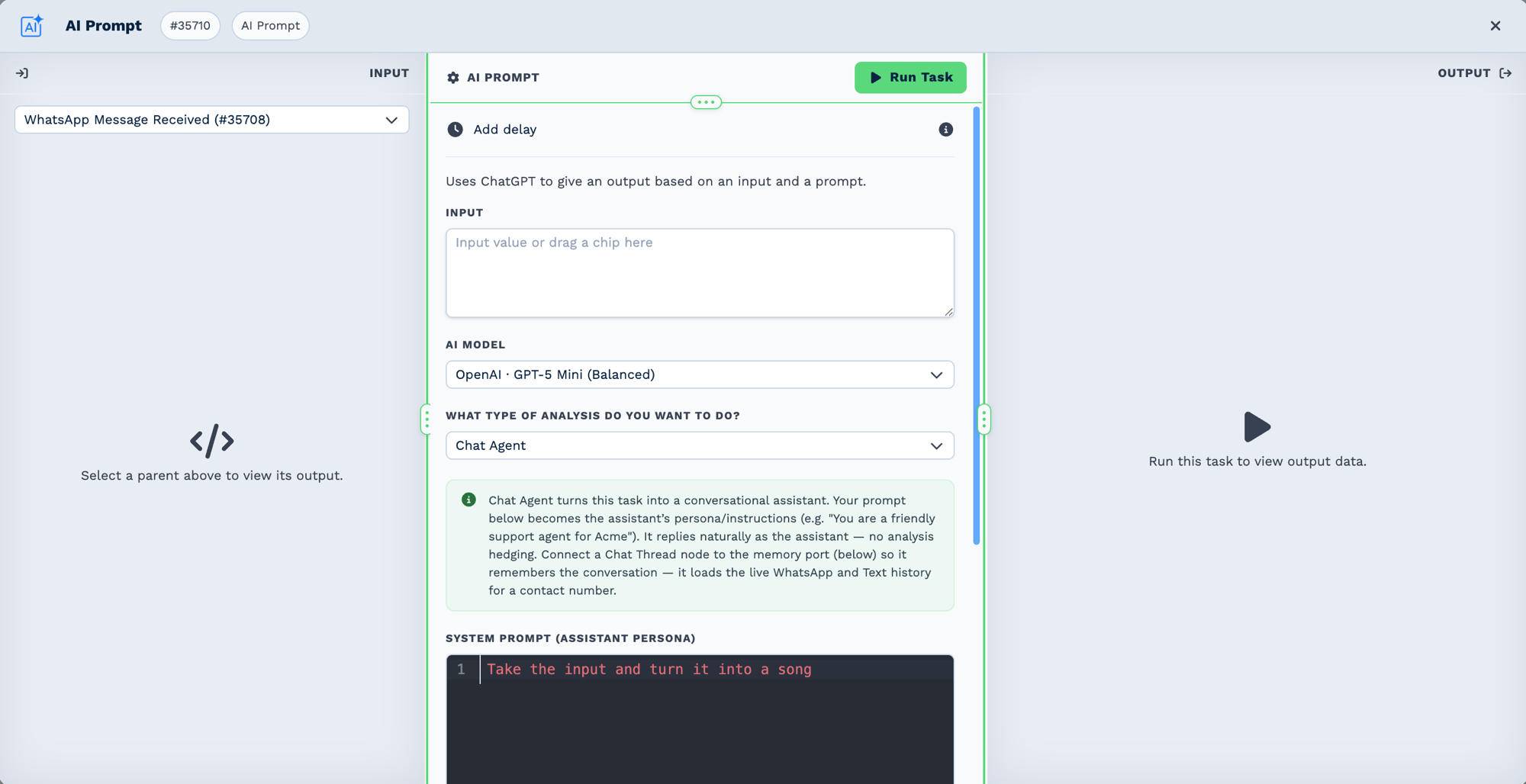
| Field | Set it to |
|---|---|
| Input | {{task_35708_message}} — what the customer just said |
| AI model | OpenAI · GPT-5 Mini (Balanced) is a sensible starting point |
| What type of analysis do you want to do? | Chat Agent |
| System Prompt (assistant persona) | Who the assistant is and what it may say |
System Prompt (assistant persona) only appears once you choose Chat Agent. It is the
assistant's character, not a question — write it as instructions:
You are a friendly support agent for Acme Plumbing.
Answer questions about our services, hours and pricing.
If you are not sure, say you will pass the question to a person.
Never quote a price for emergency callouts.
The reply comes back as {{task_35710_output}}.
The memory port
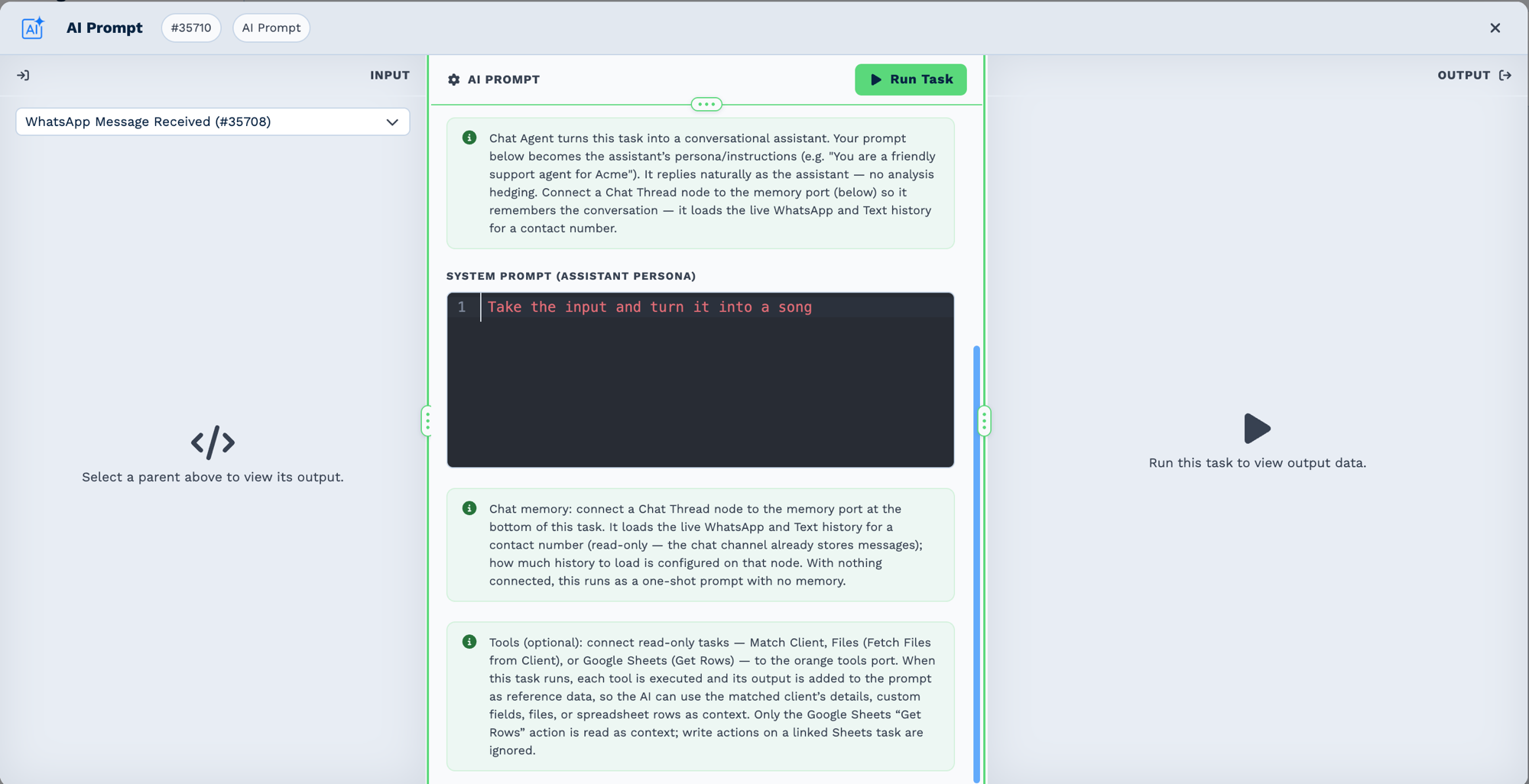
Without a memory node the assistant answers each message in isolation and will cheerfully ask a customer something they already told it. Connecting a Chat Thread node to the memory port fixes that.
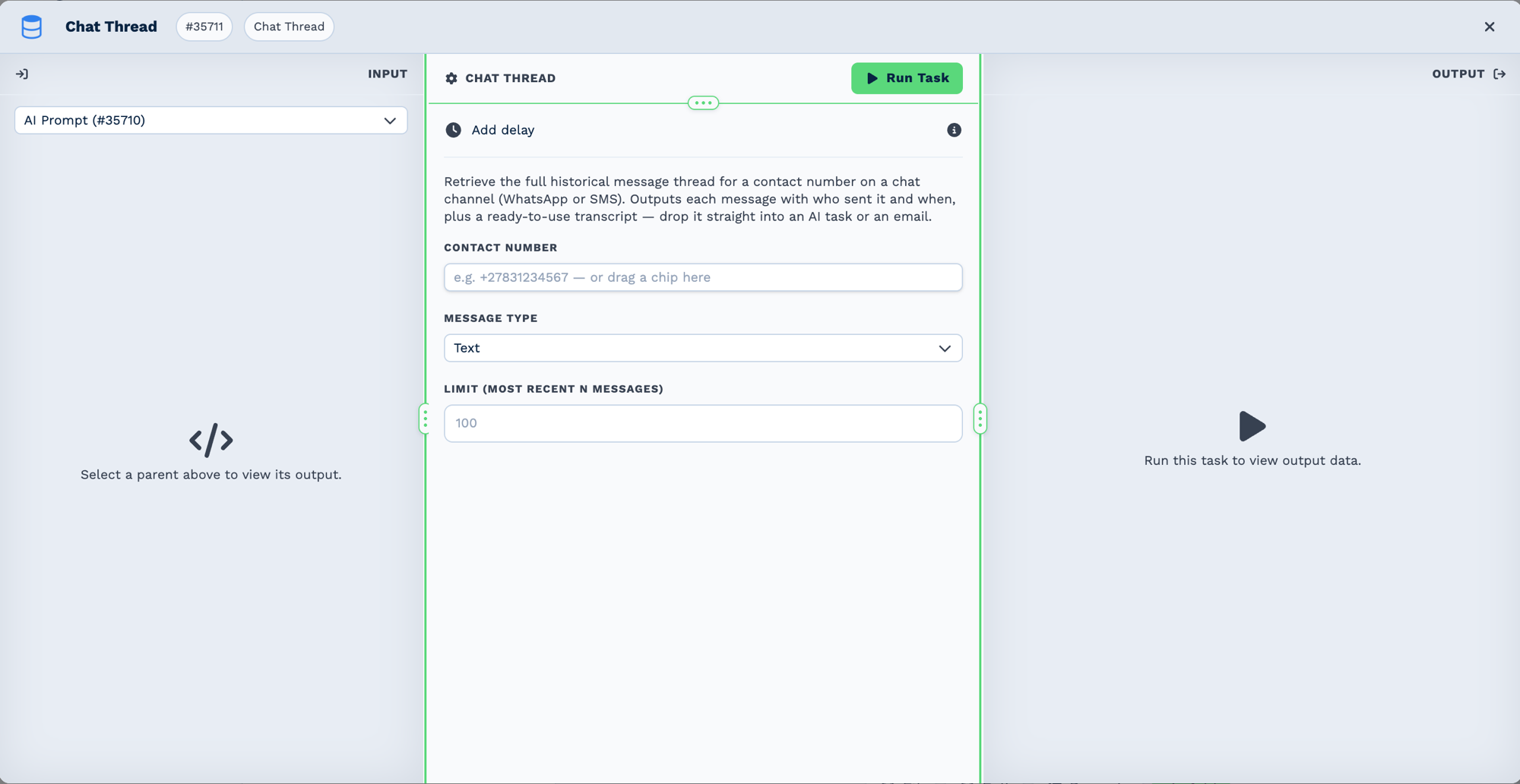
| Field | Set it to |
|---|---|
| Contact Number | {{task_35708_from_number}} |
| Message Type | WhatsApp |
| Limit (most recent N messages) | 100 is the default and is usually plenty |
Message Type defaults to Text, not WhatsApp
If you leave the dropdown alone, the node reads the customer's SMS history and the assistant will behave as though the WhatsApp conversation never happened.
Memory is read-only. The Chat Thread node loads the live history; it never writes the conversation back, because the chat channel already stores every message itself. Memory is also only available in Chat Agent and Custom Prompt modes — pick another analysis type and the memory node is ignored.
3. WhatsApp Business
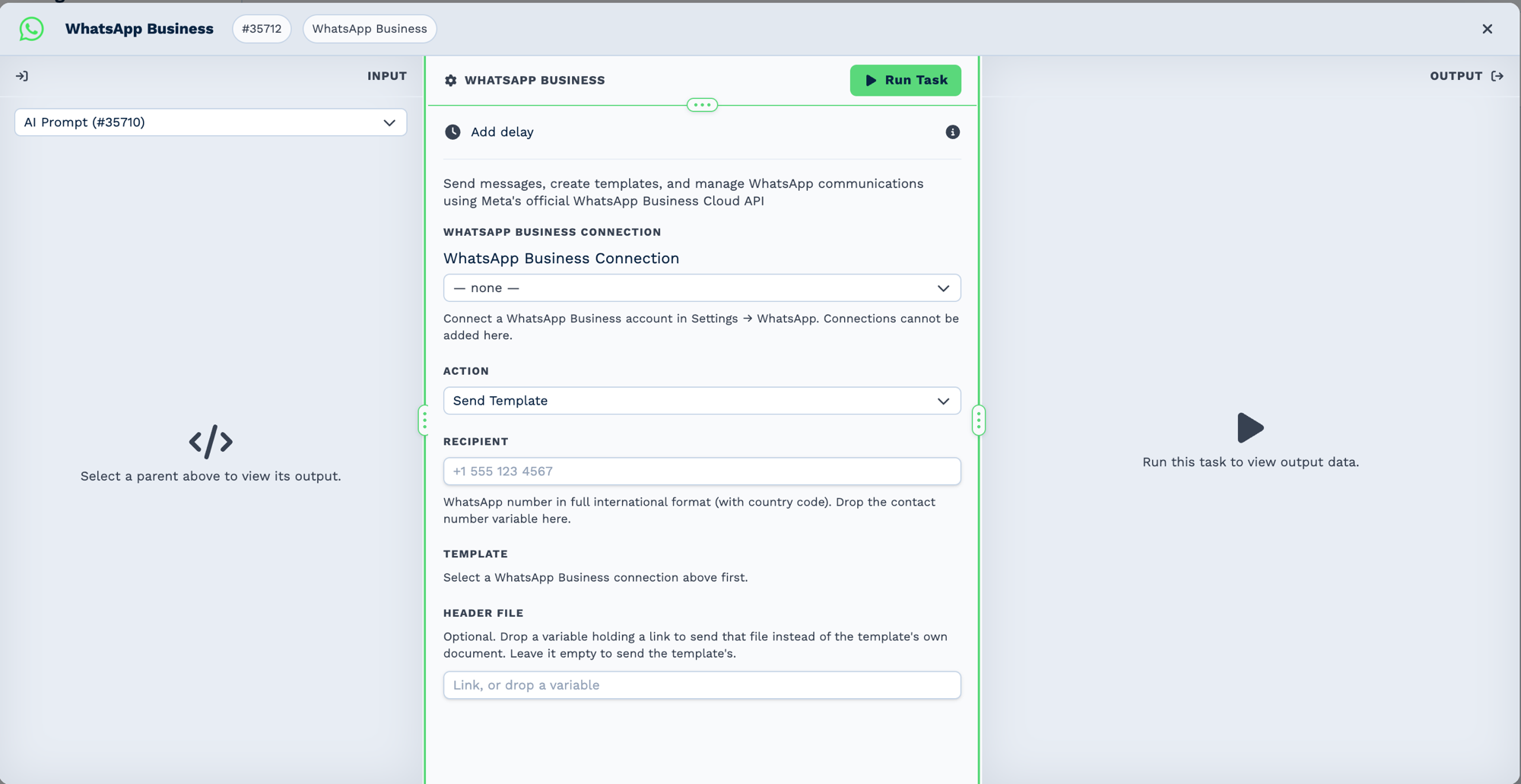
| Field | Set it to |
|---|---|
| WhatsApp Business Connection | The same number as the trigger |
| Action | Send Text (session only) |
| Recipient | {{task_35708_from_number}} |
| Message Text | {{task_35710_output}} |
The screenshot shows the default, which is not what you want here
Action defaults to Send Template, and that is what the panel above shows. A template is
for starting a conversation. An assistant is replying inside one, so change it to
Send Text (session only).
Free-form text can only be sent while the 24-hour customer service window is open. Because
this workflow is triggered by the customer's own message, that window is open by
definition — which is exactly why the assistant may reply in its own words. The task also
reports session_open and session_expires_at if you want to check.
Test it
- Leave Run this workflow for on
Only chats assigned to Automation Trigger. - Assign one chat — your own number is ideal — to the Automation Trigger user.
- Send yourself a message and watch the run.
- Read the AI task's OUTPUT panel to see the reply before it goes out.
- Send a follow-up that only makes sense in context, such as "and how much is that?", to prove the memory node is working.
- Switch to
Every incoming messagewhen you are happy.
What can go wrong
| Symptom | Cause |
|---|---|
| The assistant answers, but has forgotten everything | Message Type on the Chat Thread node is still Text, so it is reading SMS history. |
| No reply, and the WhatsApp task never ran | The AI task reported Not the latest chat message from user. See below. |
No open 24-hour session with … |
The window closed — more than 24 hours since the customer's last message. Only a template can reopen it. |
| The reply is empty | The AI task failed; check its run_text. The WhatsApp task will refuse an empty Message Text. |
| Nothing happens at all | The chat is not assigned to the Automation Trigger user and the filter is still set to assigned chats only. |
Three quick messages get one reply, not three
Before answering, a Chat Agent checks that the message that triggered it is still the newest
one in the thread. If the customer has typed again in the meantime, the run stops with
Not the latest chat message from user — no children tasks were run. and no tokens are
spent. The last message wins, which is almost always what the customer meant.
Related tasks
- WhatsApp Message Received
- AI Prompt
- Chat Thread
- WhatsApp Business
- Assign Chat Thread — hand a conversation to a person