Contact custom fields
Contacts have their own set of custom fields, separate from the client's — the best time to call someone, whether they have a gate remote. Every contact has the same set.
Who can do this
Filling them in: anyone who can edit the contact, within their Custom Field View Level and Custom Field Edit Level. Adding, changing and deleting the fields: Manage Custom Fields.
Fill them in
Open the client, go to the Contacts tab and edit the contact. Contact custom fields are at the bottom of the form, under Custom Fields. Click Save Changes when you're done.
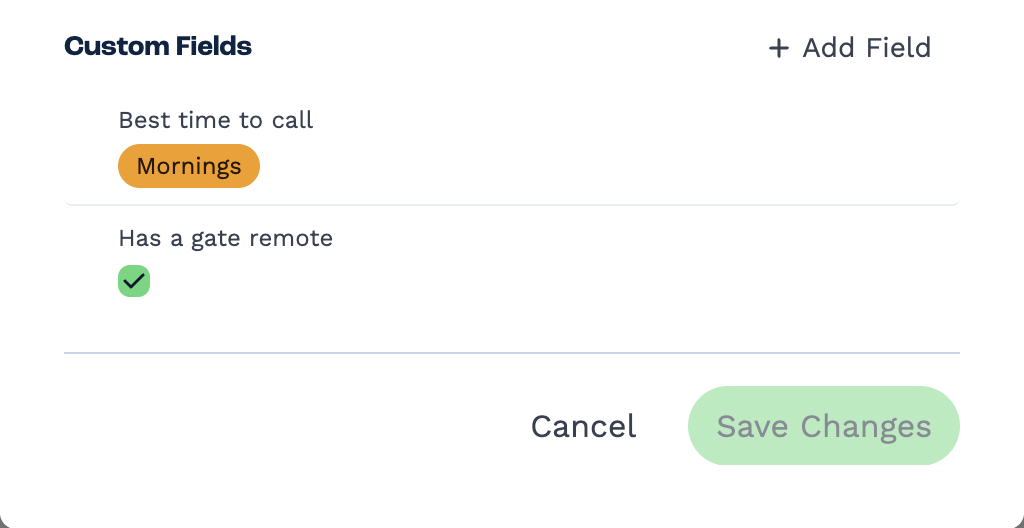
Filled-in contact fields also show on the contact's card in the Contacts tab — for example Best time to call: Mornings.
Manage them
Contact fields are added, changed and deleted from the same contact form, in the same way as client fields. They use the same access levels.
Contact fields can be text, numbers, amounts, dates, checkboxes, choices and locations, plus headings, spacing and lines. Users, clients, files and buttons are for client fields only.
Deleting a contact field removes its values from every contact, and can't be undone.