Property portal enquiry routing
Property portals send enquiries as emails, and the agent who answers first usually gets the viewing. This workflow reads the email, creates the buyer, shares enquiries between agents in turn, and has a text on the buyer’s phone before the agent has opened their Inbox.

Before you start
- An inbound email address in BaseCloud that the portal sends enquiries to
- Credit for the AI Prompt task
The workflow
| Step | Task | Type | What it does |
|---|---|---|---|
| 1 | Portal enquiry | Inbound Email | Starts when the portal’s email arrives |
| 2 | Read enquiry | AI Prompt | Pulls the name, contact details and property out of the email |
| 3 | Create buyer | Create New client | Creates the buyer, or reuses them if the email address is known |
| 4 | Next agent | Round Robin Select | Picks the next agent, in turn |
| 5 | Assign agent | Edit a Client | Makes that agent the responsible manager |
| 6 | Text the buyer | SMS | Texts the buyer that an agent will call |
| 7 | Brief the agent | Workflow Note | Briefs the agent with everything they need to call |
About the variables
Values such as {{task_36457_…}} carry the number of the task they come from, so yours will
differ. Do not type them: click into a field and pick the value from an earlier task.
1. Portal enquiry
Task: Inbound Email. Starts when the portal’s email arrives.
This task has no settings to fill in.
2. Read enquiry
Task: AI Prompt. Pulls the name, contact details and property out of the email.
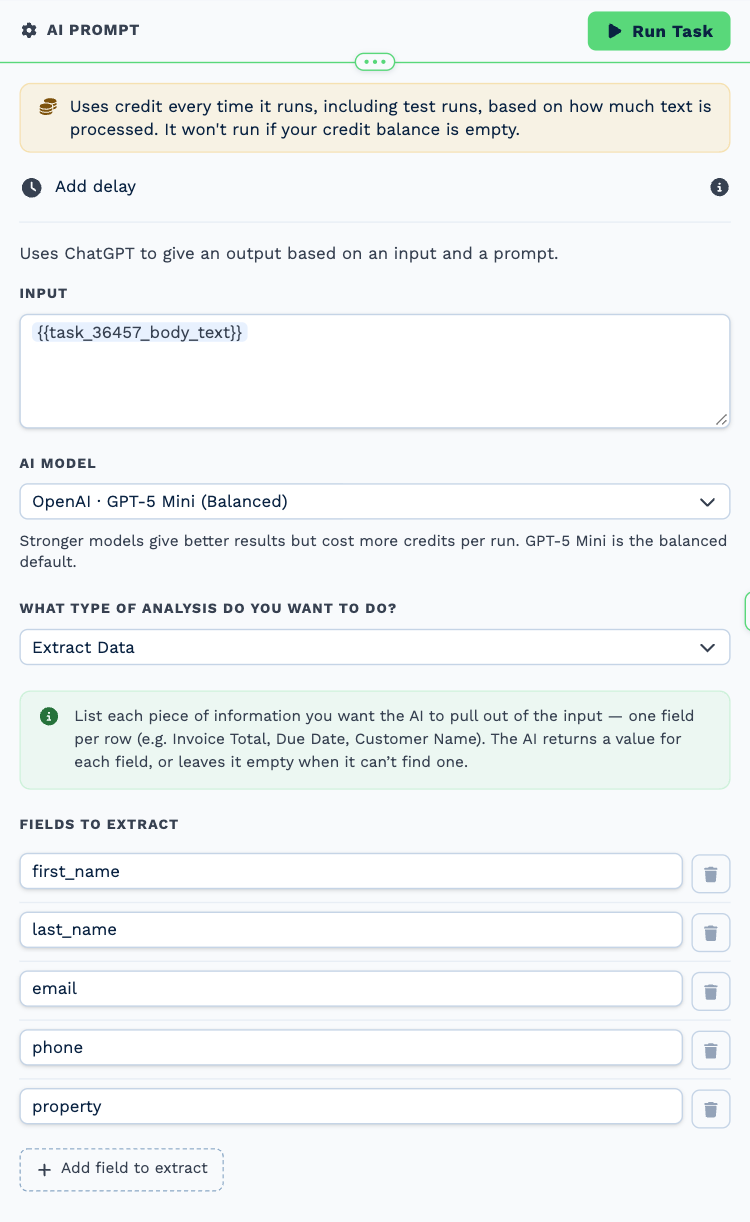
| Field | Set it to |
|---|---|
| Input | {{task_36457_body_text}} |
| AI model | OpenAI · GPT-5 Mini (Balanced) |
| What type of analysis do you want to do? | Extract Data |
| Fields to Extract | first_name, last_name, email, phone, property |
3. Create buyer
Task: Create New client. Creates the buyer, or reuses them if the email address is known.
| Field | Set it to |
|---|---|
| Match Before Creating | Contact email = {{task_36458_email}} |
| Client Status | New Lead |
| Responsible Manager | Wendy Darling |
| Client Name | {{task_36458_first_name}} {{task_36458_last_name}} |
| Contact First Name | {{task_36458_first_name}} |
| Contact Last Name | {{task_36458_last_name}} |
| Contact Email | {{task_36458_email}} |
| Contact Cell Number | {{task_36458_phone}} |
4. Next agent
Task: Round Robin Select. Picks the next agent, in turn.
| Field | Set it to |
|---|---|
| List | Peter Pan, Tinker Bell, Tiger Lily |
5. Assign agent
Task: Edit a Client. Makes that agent the responsible manager.
| Field | Set it to |
|---|---|
| Client | {{task_36459_match_client_id}} |
| Responsible Manager | {{task_36460_response}} |
6. Text the buyer
Task: SMS. Texts the buyer that an agent will call.
| Field | Set it to |
|---|---|
| Client | {{task_36459_match_client_id}} |
| To (phone number) | {{task_36458_phone}} |
Message
Hi {{task_36458_first_name}}, thanks for your enquiry about {{task_36458_property}}. One of our agents will call you shortly to arrange a viewing. Neverland Realty
7. Brief the agent
Task: Workflow Note. Briefs the agent with everything they need to call.
| Field | Set it to |
|---|---|
| Action | Create Note |
| Client ID | {{task_36459_match_client_id}} |
| Note Type | Note |
| Priority | High |
| Due Date | Now |
| Tag Users | {{task_36460_response}} |
Message
New portal enquiry for {{task_36458_property}}.
{{task_36458_first_name}} {{task_36458_last_name}}, {{task_36458_phone}}
Call within 15 minutes and offer two viewing times.
Make it yours
- Add an If Statement on the property to send each area to its own agent instead of taking turns.
- Add a Calendar task to offer viewing times in the first text.