Bulk actions
Select clients on the Clients page, then act on all of them at once.
Who can do this
| Action | Needs |
|---|---|
| Edit selected | Bulk Edit |
| Send email, Send Text | Send Bulk |
| Add workflow note | CRM Access |
| Delete selected | Delete Clients |
| Export | Export Clients |
Actions you don't have the right for show a lock and No access.
Select clients
- Tick the box at the start of each row, or Ctrl-click (Cmd-click on a Mac) the rows.
- Shift-click a second row to select everything in between.
- The box in the heading selects in steps:
- The first click selects the clients loaded on the page.
- The second click selects every client that matches your search and filters, across all pages.
- The third click clears the selection.
A bar appears at the bottom of the page with how many clients you've selected, the Bulk Actions menu, and Export.
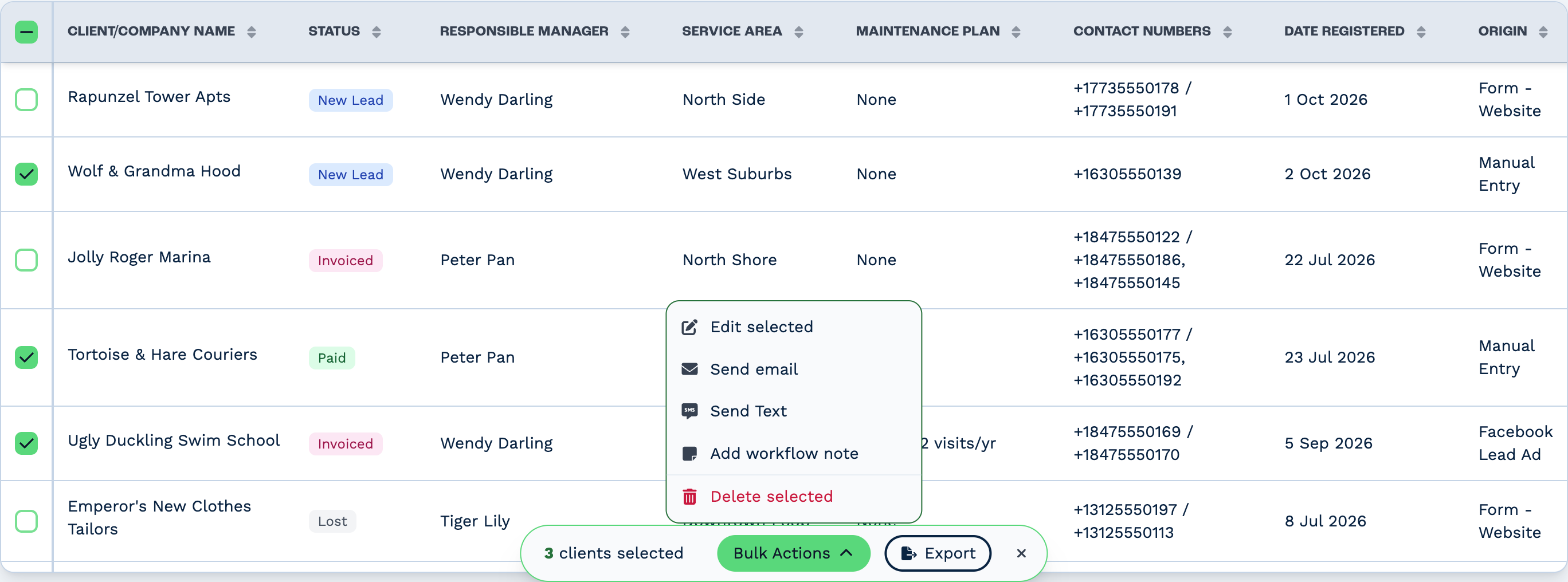
Edit many clients at once
- Choose Bulk Actions → Edit selected.
- Pick a Field and set its Value. Click Add another field to change more than one thing.
- Click Review Changes, check the summary, then Confirm & Update.
Every selected client gets the same values. You can change the Responsible Manager, the Status and most custom fields.
Warning
A bulk edit can't be undone. The review step lists exactly what will change — check it carefully.
Email, text or note many clients
- Choose Send email, Send Text or Add workflow note. A writing panel opens at the bottom of the page.
- Write your message. For an email, add a Subject, and choose Send from if you have more than one address. For a note, you can tag people, set a priority and a due date, and mark it Sensitive.
- Click Review & Send, check the preview, then Send now.
The panel shows progress as it sends. You can click Continue working and carry on — just don't refresh the page until it's finished.
- Bulk emails go to each client's contacts that have an email address, skipping contacts who unsubscribed from bulk emails. Texts likewise skip contacts who unsubscribed from bulk Text.
- Email attachments can add up to 20 MB.
- If sending stops part-way, Edit & Resend Anyway sends again to everyone — some clients may then get the message twice.
Delete many clients
- Choose Bulk Actions → Delete selected.
- Type
deleteto confirm.
Deleted clients can't be brought back from the CRM. See Merge or delete clients.
Export to a spreadsheet
- Click Export.
- Tick what to include: client details, the responsible manager, contacts, up to 20 custom fields and up to 20 custom tables — for each table, tick the columns you want.
- Click Export.
Your browser downloads a CSV file of the clients — plus one CSV per custom table you chose. Progress shows under the notifications bell at the top of the page.