Google Ads
Overview
The Google Ads task integrates BaseCloud CRM with Google Ads API v24, enabling automated campaign analytics, offline conversion tracking, and custom reporting using GAQL (Google Ads Query Language).
Key Features:
- 3 Actions: Get metrics, upload offline conversions, custom GAQL queries
- OAuth 2.0 Authentication: Secure Google integration with automatic token refresh
- GAQL Support: SQL-like query language for advanced reporting
- Offline Conversions: Enhanced conversion tracking with hashed PII
- Metrics Aggregation: Campaign performance across date ranges
- Developer Token: Enterprise-level API access
Use Cases:
- Automated daily performance reporting
- Offline conversion import from CRM
- Custom analytics dashboards
- Budget optimization workflows
- Multi-account management
- ROAS tracking and alerts
Prerequisites
1. Google Ads Account
Requirements:
- Active Google Ads account
- Manager account (MCC) recommended for agencies
- Campaigns with conversion tracking enabled
- Admin access to Google Ads account
2. Google Cloud Project
Setup Google Cloud:
- Go to https://console.cloud.google.com
- Create new project or select existing
- Enable Google Ads API
- Create OAuth 2.0 credentials:
- Application type: Web application
- Authorized redirect URIs:
https://yourapp.basecloudglobal.com/oauth/callback - Note Client ID and Client Secret
3. Google Ads Developer Token
Obtain Developer Token:
- Sign in to Google Ads
- Navigate to Tools & Settings → Setup → API Center
- Apply for Developer Token
- For testing: Use test account token
- For production: Apply for Basic or Standard access
- Approval process: 24-48 hours
Access Levels:
- Test Account: Limited to test account data
- Basic: Production access, rate limits apply
- Standard: Higher limits, requires spending threshold ($10,000+)
4. OAuth Configuration in BaseCloud
Create App Connection:
- Navigate to BaseCloud CRM → Settings → App Connections
- Click + New App Connection
- Select Google Ads from dropdown
- Enter credentials:
- Client ID: From Google Cloud Console
- Client Secret: From Google Cloud Console
- Developer Token: From Google Ads API Center
- Click Authorize with Google
- Authorize scope:
https://www.googleapis.com/auth/adwords - Select Google Ads account (Manager account if applicable)
- Save connection
OAuth Scopes Required:
5. Customer ID and Account Structure
Get Customer IDs:
- Manager Account (MCC): 10-digit ID without hyphens (e.g.,
1234567890) - Client Accounts: Sub-account IDs under manager
- Found in Google Ads top right corner or account selector
Account Hierarchy:
For automation:
- Use Manager ID for multi-account access
- Use specific Account ID for single-account operations
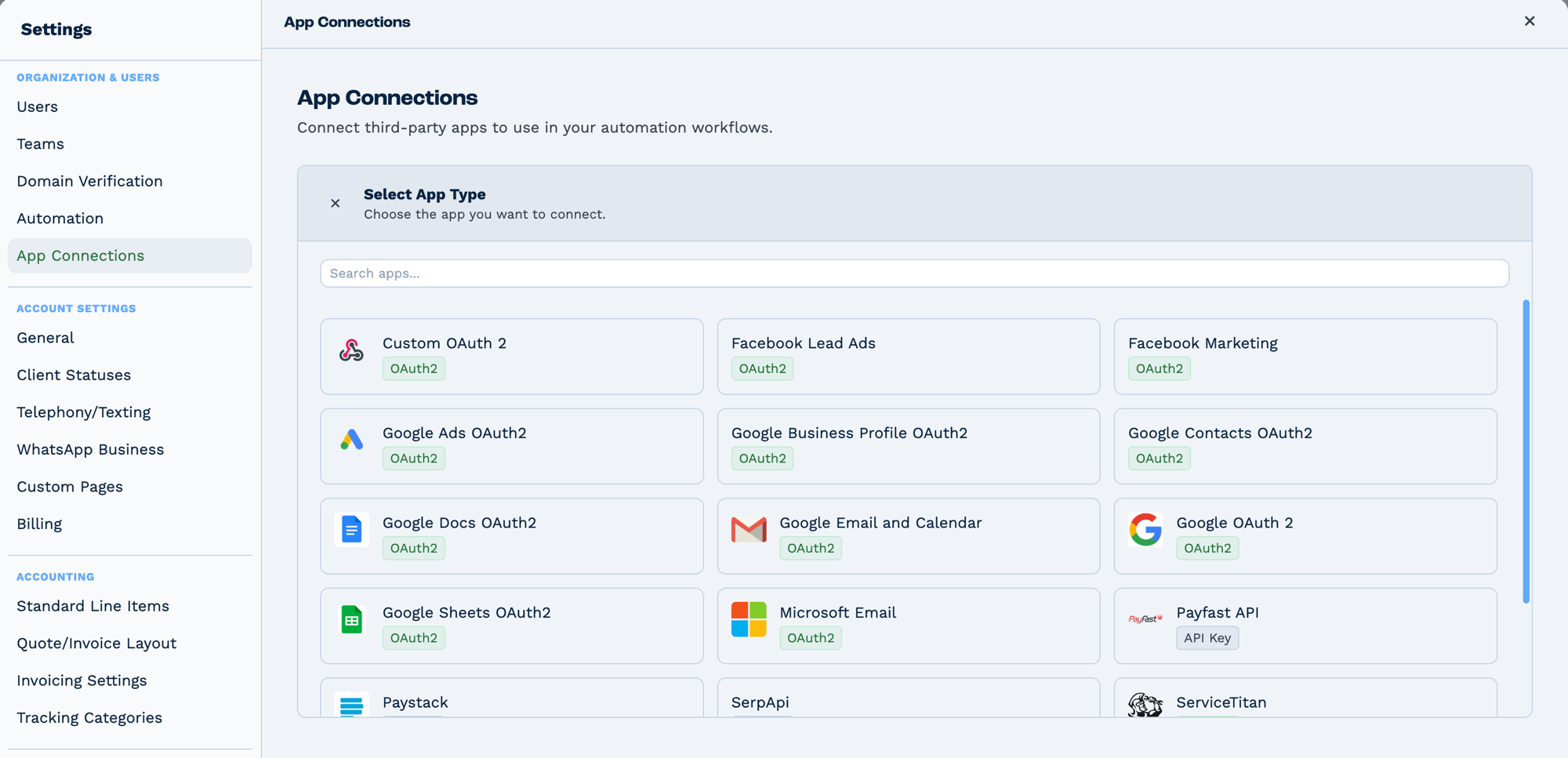
Connections live in Settings → App Connections, not on the task. Connect the app once and every task that needs it can use it. The badge on each tile says how it authenticates — OAuth2 sends you to the provider to sign in, API Key expects a key you paste in.
Outputs
Reporting actions populate query, data and row_count; a conversion upload populates result.
Reference fields as {{task_<ID>_<field>}}.
| Field | Type | Notes |
|---|---|---|
metrics |
string | The metrics requested. |
result |
string | The upload result, for offline conversion uploads. Present only on some actions. |
error |
string | Set when the upload failed. Present only on some actions. |
query |
string | The GAQL query as sent. Present only on some actions. |
data |
string | The rows returned by the query. Present only on some actions. |
row_count |
number | How many rows came back. Present only on some actions. |
Always emitted
| Field | Type | Notes |
|---|---|---|
run |
boolean | Whether the task succeeded. |
run_text |
string | What happened, including the reason on failure. |
Fields marked as action-dependent may be absent
This task does several different things depending on its action setting, and only the fields relevant to that action are emitted. Check a real run in the OUTPUT panel before referencing one downstream.
Configuration
Builder fields
The Field column is the label as it appears in the task builder; Key is the name the value is stored under and referenced by.
| Field | Key | Type | Default | Notes |
|---|---|---|---|---|
| Action | action |
select | get_metrics |
Options: Get Metrics · Upload Offline Conversions · Custom Query |
| Google Ads Connection | app_connection_id |
app-connection | – | |
| Customer Account | customer_id |
text | – | |
| Ads Account ID | account_id |
text | – | |
| Date Range | date_range |
select | LAST_30_DAYS |
Options: Today · Yesterday · Last 7 Days · Last Week (Mon-Sun) · Last 14 Days · This Month · Last Month · Last 1-30 Days · Last 30-60 Days · Last 1-60 Days · Last 1-90 Days · This Year · Last Year · Custom. Only shown when action is get_metrics |
| Start Date | start_date |
textarea | – | Only shown when date_range is CUSTOM |
| End Date | end_date |
textarea | – | Only shown when date_range is CUSTOM |
| Metrics | metrics |
textarea | ["impressions","clicks"] |
Only shown when action is get_metrics |
| User Identifiers | identifiers |
dyn-rows | – | Options: GCLID (most accurate) · GBRAID (iOS app) · WBRAID (iOS web) · Email address · Phone number. Only shown when action is upload_offline_conversions |
| Order ID | Order ID |
text | – | Only shown when action is upload_offline_conversions |
| Consent for Ad User Data | Consent for ad User Data |
select | CONSENT_STATUS_UNSPECIFIED |
Options: Unspecified · Granted · Denied. Only shown when action is upload_offline_conversions |
| Consent for Ad Personalisation | Consent for ad personalisation |
select | CONSENT_STATUS_UNSPECIFIED |
Options: Unspecified · Granted · Denied. Only shown when action is upload_offline_conversions |
| Conversion Action | conversion_action |
text | – | Only shown when action is upload_offline_conversions |
| Event Source | Event Source |
select | WEB |
Options: Web (browser) · App (mobile) · Other. Only shown when action is upload_offline_conversions |
| Timestamp | Timestamp |
text | – | Only shown when action is upload_offline_conversions |
| Conversion Value | Value |
text | – | Only shown when action is upload_offline_conversions |
| Currency | Currency |
select | USD |
Options: AED · AUD · BRL · CAD · CHF · CNY · DKK · EUR · GBP · HKD · INR · JPY · KRW · MXN · NOK · NZD · PLN · RUB · SAR · SEK · SGD · THB · TRY · USD · ZAR. Only shown when action is upload_offline_conversions |
| GAQL Query | Query |
monospace | – | Only shown when action is custom_query |
Action 1: get_metrics
Retrieve aggregated campaign performance metrics for specified date range.
| Field | Required | Description | Example |
|---|---|---|---|
| action | Yes | Must be "get_metrics" | get_metrics |
| app_connection_id | Yes | OAuth connection ID | Select from dropdown |
| customer_id | Yes | Manager/MCC account ID | 1234567890 |
| account_id | Yes | Target Google Ads account | 9876543210 |
| metrics_list | Yes | JSON array of metrics to fetch | ["impressions","clicks","cost"] |
| date_range | Yes | Date range preset or 'CUSTOM' | LAST_30_DAYS |
| start_date | Conditional | Start date if date_range='CUSTOM' | 2024-01-01 |
| end_date | Conditional | End date if date_range='CUSTOM' | 2024-01-31 |
Date Range Options:
| Preset | Description |
|---|---|
TODAY |
Today only |
YESTERDAY |
Yesterday only |
LAST_7_DAYS |
Last 7 days including today |
LAST_14_DAYS |
Last 14 days |
LAST_30_DAYS |
Last 30 days |
LAST_90_DAYS |
Last 90 days |
LAST_30_60_DAYS |
Days 31-60 in the past |
THIS_MONTH |
Current month to date |
LAST_MONTH |
Previous calendar month |
CUSTOM |
Custom date range (requires start_date & end_date) |
Available Metrics:
Basic Performance:
impressions- Ad impressionsclicks- Clicks on adsctr- Click-through rate (calculated)average_cpc- Average cost per clickcost- Total spend
Conversions:
conversions- Total conversionsconversions_value- Total conversion valueconversion_rate- Conversion rate (calculated)cost_per_conversion- Cost per conversionconversions_from_interactions_rate- Conversion rate from interactions
All Conversions (includes view-through):
all_conversionsall_conversions_valueall_conversions_from_interactions_ratecost_per_all_conversionsvalue_per_all_conversions
Impression Share:
search_impression_share- Percentage of eligible impressions receivedsearch_budget_lost_impression_share- Lost due to budgetsearch_rank_lost_impression_share- Lost due to ad rank
Note: Calculated metrics (ctr, conversion_rate, etc.) are computed post-aggregation.
Output Variables:
task_35001_run; // true/false
task_35001_run_text; // "Metrics fetched."
task_35001_metrics; // Complete metrics object
task_35001_impressions; // Individual metric values
task_35001_clicks;
task_35001_ctr;
task_35001_cost;
task_35001_conversions;
// ... all requested metrics
How It Works:
- Validates OAuth connection and developer token
- Builds GAQL query:
SELECT metrics.X FROM campaign WHERE segments.date DURING {range} - Fetches data from Google Ads API v24
- Aggregates metrics across all campaigns
- Calculates derived metrics (CTR, conversion rate, etc.)
- Converts cost from micros to currency (÷ 1,000,000)
- Returns unified metrics object
Example Metrics Object:
{
  impressions: 125000,
  clicks: 4500,
  ctr: 3.6,
  cost: 12500.50,
  average_cpc: 2.78,
  conversions: 450,
  conversions_value: 45000.00,
  conversion_rate: 10.0,
  cost_per_conversion: 27.79,
  search_impression_share: 85.5
}
Action 2: upload_offline_conversions
Upload offline conversion events to Google Ads for conversion tracking.
| Field | Required | Description | Example |
|---|---|---|---|
| action | Yes | Must be "upload_offline_conversions" | upload_offline_conversions |
| app_connection_id | Yes | OAuth connection ID | Select from dropdown |
| customer_id | Yes | Manager/MCC account ID | 1234567890 |
| account_id | Yes | Target Google Ads account | 9876543210 |
| conversion_action | Yes | Conversion action ID | 123456789 |
| Timestamp | Yes | Conversion datetime (ISO 8601) | 2024-02-08T14:30:00+00:00 |
| Value | Yes | Conversion value | 99.99 |
| Currency | Yes | Currency code (ISO 4217) | USD |
| Consent for ad User Data | Yes | GDPR consent status | GRANTED, DENIED, UNSPECIFIED |
| Consent for ad personalisation | Yes | Personalization consent | GRANTED, DENIED, UNSPECIFIED |
User Identifiers (at least ONE required):
Configure with setting_1 = 'upload_offline_conversions_identifier':
| Identifier | Description | Auto-Hashed |
|---|---|---|
| gclid | Google Click ID (preferred) | No |
| gbraid | iOS SKAN identifier | No |
| wbraid | iOS web-to-app identifier | No |
| Email address | Yes (SHA256) | |
| phone | Phone number (digits only) | Yes (SHA256) |
| mobile_id | Mobile advertising ID | No |
| third_party_user_id | Custom user identifier | No |
| address_info | Format: "Country Code, Postal Code" | No |
| customer_match_user_list | Customer Match user ID | No |
Additional Optional Fields:
| Field | Description | Example |
|---|---|---|
| order_id | Transaction/order identifier | ORDER-12345 |
Output Variables:
task_35001_run; // true/false
task_35001_run_text; // "Offline conversion uploaded successfully."
task_35001_result; // Upload result object
task_35001_result.success; // true/false
task_35001_result.message; // Status message
How It Works:
- Validates required fields and at least one identifier
- Hashes PII (email, phone) with SHA256 automatically
- Builds conversion payload with user identifiers
- Adds GDPR consent headers
- Calls:
POST https://datamanager.googleapis.com/v1/events:ingest(Data Manager API - versioned separately from the Google Ads API) - Returns success status
Click Identifiers vs Enhanced Conversions:
- With gclid/gbraid/wbraid: Standard click-based conversion
- Without click identifier: Enhanced conversion with hashed PII
Example Request:
{
  conversions: [{
    conversionAction: "customers/9876543210/conversionActions/123456789",
    conversionDateTime: "2024-02-08T14:30:00+00:00",
    conversionValue: 99.99,
    currencyCode: "USD",
    orderId: "ORDER-12345",
    gclid: "EAIaIQobChMI..." // Or userIdentifiers if no click ID
  }],
  partialFailure: true
}
GDPR Consent Headers:
Get Conversion Actions:
Use frontend dropdown or query:
SELECT conversion_action.id, conversion_action.name, conversion_action.type
FROM conversion_action
WHERE conversion_action.status = 'ENABLED'
  AND conversion_action.type IN ('WEBPAGE', 'UPLOAD_CLICKS', 'UPLOAD_CALLS')
Action 3: custom_query
Execute custom GAQL (Google Ads Query Language) queries for advanced reporting.
| Field | Required | Description | Example |
|---|---|---|---|
| action | Yes | Must be "custom_query" | custom_query |
| app_connection_id | Yes | OAuth connection ID | Select from dropdown |
| customer_id | Yes | Manager/MCC account ID | 1234567890 |
| account_id | Yes | Target Google Ads account | 9876543210 |
| Query | Yes | GAQL query string | See examples below |
Output Variables:
task_35001_run; // true/false
task_35001_run_text; // "Custom query executed successfully."
task_35001_query; // Executed query string
task_35001_data; // Array of result objects
task_35001_row_count; // Number of rows returned
GAQL Query Examples:
Get Campaign Names and Performance:
SELECT
  campaign.id,
  campaign.name,
  campaign.status,
  metrics.impressions,
  metrics.clicks,
  metrics.cost_micros
FROM campaign
WHERE segments.date DURING LAST_30_DAYS
ORDER BY metrics.impressions DESC
LIMIT 100
Get Ad Group Keywords:
SELECT
  ad_group_criterion.keyword.text,
  ad_group_criterion.keyword.match_type,
  metrics.impressions,
  metrics.clicks,
  metrics.cost_micros
FROM keyword_view
WHERE campaign.id = 12345
  AND segments.date DURING LAST_7_DAYS
ORDER BY metrics.clicks DESC
Get Conversion Actions:
SELECT
  conversion_action.id,
  conversion_action.name,
  conversion_action.type,
  conversion_action.category,
  conversion_action.status
FROM conversion_action
WHERE conversion_action.status = 'ENABLED'
Get Ad Performance by Device:
SELECT
  ad_group_ad.ad.id,
  ad_group_ad.ad.name,
  segments.device,
  metrics.impressions,
  metrics.clicks,
  metrics.ctr
FROM ad_group_ad
WHERE segments.date DURING THIS_MONTH
  AND ad_group_ad.status = 'ENABLED'
Get Search Terms Report:
SELECT
  search_term_view.search_term,
  search_term_view.status,
  metrics.impressions,
  metrics.clicks,
  metrics.conversions
FROM search_term_view
WHERE segments.date DURING LAST_30_DAYS
  AND metrics.impressions > 0
ORDER BY metrics.impressions DESC
LIMIT 500
GAQL Resources:
campaign- Campaign-level dataad_group- Ad group dataad_group_ad- Individual adsad_group_criterion- Keywords, placementskeyword_view- Keyword performancesearch_term_view- Search query performanceconversion_action- Conversion definitionscustomer- Account information
GAQL Segments:
segments.date- Date dimensionsegments.device- Device type (MOBILE, DESKTOP, TABLET)segments.ad_network_type- Network (SEARCH, DISPLAY, YOUTUBE)segments.conversion_action- Conversion breakdownsegments.hour- Hour of day
Documentation: https://developers.google.com/google-ads/api/fields/v24
Real-World Examples
Push an offline conversion when a deal is won
CRM Trigger  (status changed to "Won")
  └─ Match to Client   look the client up
      └─ Google Ads    upload the conversion
This is the main reason to use the task: telling Google which clicks became real revenue.
Pull campaign performance into a weekly email
Schedule  (weekly)
  └─ Google Ads   run a GAQL query for the last 7 days
      └─ Email    report {{task_35001_row_count}} rows of results
Record performance in a sheet
Schedule
  └─ Google Ads         run the report query
      └─ Loop           over {{task_35001.JSON.data}}, action: array
          └─ Google Sheets   append_row
Troubleshooting
Error: "No app connection selected"
Cause: OAuth connection not configured
Solutions:
- Go to Settings → App Connections
- Create Google Ads connection
- Enter Client ID, Client Secret, and Developer Token
- Complete OAuth authorization
- Select connection in task dropdown
Error: "Developer token required"
Cause: Missing or invalid developer token in OAuth config
Solutions:
- Obtain developer token from Google Ads API Center
- Edit app connection in BaseCloud
- Add developer token to OAuth configuration
- For testing: Use test account token
- For production: Apply for Basic/Standard access
Error: "Invalid customer ID"
Cause: Customer ID format incorrect or inaccessible
Solutions:
- Use 10-digit ID without hyphens:
1234567890(not123-456-7890) - Verify account access in Google Ads
- Use Manager Account (MCC) ID for multi-account access
- Check OAuth connection has access to specified customer
- Remove any special characters or spaces
Error: "Token expired" or 401 Unauthorized
Cause: OAuth access token expired
Solutions:
- BaseCloud automatically refreshes tokens
- If error persists, re-authorize app connection:
- Settings → App Connections → Edit
- Click Re-authorize with Google
- Verify OAuth scope is correct:
https://www.googleapis.com/auth/adwords - Check refresh token hasn't been revoked
Metrics List Empty or Invalid
Cause: metrics_list field is empty array '[]' or invalid JSON
Solutions:
- Provide at least one metric:
["impressions"] - Use valid JSON array format with quotes
- Check metric names match available options
- Remove spaces from metric names
- Valid example:
["impressions","clicks","cost"]
Custom Query Returns No Data
Cause: GAQL query syntax error or no matching data
Solutions:
- Test query in Google Ads Query Builder first
- Verify resource names (e.g.,
campaign, notcampaigns) - Check date range has data
- Validate WHERE clause filters
- Use LIMIT to prevent large result sets
- Check API field reference: https://developers.google.com/google-ads/api/fields/v24
Offline Conversion Upload Failed
Cause: Missing required identifiers or invalid format
Solutions:
- Provide at least ONE identifier (gclid preferred)
- Verify conversion action ID is correct (get from dropdown or custom query)
- Check timestamp format: ISO 8601 with timezone (
2024-02-08T14:30:00+00:00) - Validate value is numeric (no currency symbols)
- Use valid currency code (USD, EUR, GBP, etc.)
- Email/phone are auto-hashed, provide plain text
- Check consent fields are: GRANTED, DENIED, or UNSPECIFIED
Error: "Conversion action not found"
Cause: Invalid conversion action ID or not uploadable type
Solutions:
- Get conversion actions via custom query:
- Use conversion actions with types: WEBPAGE, UPLOAD_CLICKS, UPLOAD_CALLS
- Cannot use PHONE_CALL_LEAD or STORE_VISIT types for API upload
- Verify conversion action belongs to correct account
Rate Limiting / Quota Exceeded
Cause: Exceeded Google Ads API rate limits
Solutions:
- Standard Access Limits:
- 15,000 operations per day
-
Requests count against quota
-
Immediate Actions:
- Add delays in bulk processing loops (2-5 seconds)
- Reduce frequency of metric fetches
-
Cache results when possible
-
Long-term:
- Apply for Standard Access (requires $10,000+ spend)
- Use batch operations where possible
- Implement exponential backoff on errors
- Monitor quota usage in Google Cloud Console
Permission Denied on Specific Account
Cause: OAuth token doesn't have access to target account
Solutions:
- Verify account hierarchy:
- Manager account must link to client accounts
- User must have access to manager account
- Check Google Ads permissions:
- Navigate to Tools → Access & Security → Users
- Verify email has Admin or Standard access
- Re-authorize OAuth connection
- Use correct customer_id (manager) and account_id (client)
Best Practices
Authentication Management
- Developer Token:
- Store securely in OAuth config
- Use test token for development/staging
- Apply for production access before launch
-
Monitor approval status in API Center
-
OAuth Connections:
- Create separate connections for dev/staging/production
- Use descriptive names: "Google Ads - Main Account", "Google Ads - Client ABC"
-
Document which connection accesses which accounts
-
Token Refresh:
- BaseCloud handles automatic refresh
- Monitor for refresh failures
- Re-authorize if persistent issues
Metrics Strategy
- Metric Selection:
- Request only needed metrics to reduce processing time
- Use calculated metrics (CTR, conversion rate) instead of computing manually
-
Avoid mixing incompatible metrics in same query
-
Date Ranges:
- Use presets when possible (faster than custom)
- For historical analysis, use custom ranges
-
Be aware of data freshness (typically 3-hour delay)
-
Aggregation:
- Metrics are aggregated across all campaigns by default
- Use custom queries for campaign-level breakdown
- Consider impression share metrics for competitive analysis
GAQL Best Practices
- Query Optimization:
- Select only needed fields
- Use WHERE clauses to filter data
- Add LIMIT to prevent oversized results
-
Order by relevant metrics
-
Resource Selection:
- Use
campaignfor campaign-level data - Use
ad_group_adfor ad-level data - Use
keyword_viewfor keyword performance -
Use
search_term_viewfor actual search queries -
Segmentation:
- Add
segments.datefor daily breakdown - Use
segments.devicefor device analysis - Include
segments.ad_network_typefor network split
Offline Conversion Best Practices
- Identifier Strategy:
- Preferred: Use gclid (Google Click ID)
- Fallback: Enhanced conversions with email/phone
- Store gclid in CRM on form submission
-
Validate identifier exists before upload
-
Data Quality:
- Use accurate conversion timestamps
- Provide actual conversion value (not estimated)
- Include order IDs for deduplication
-
Set appropriate consent values
-
Conversion Actions:
- Create specific actions for different conversion types
- Use consistent naming: "Purchase - Website", "Lead - Phone"
- Set appropriate counting methods (One per click vs Every)
- Configure lookback windows appropriately
Performance Optimization
- Caching:
- Cache metric results for dashboards (hourly refresh)
- Store conversion action lists (reload daily)
-
Cache account hierarchy (reload weekly)
-
Rate Limiting:
- Add 2-5 second delays in multi-account loops
- Batch operations when possible
- Schedule large queries during off-peak
-
Implement exponential backoff for retries
-
Error Handling:
- Wrap critical queries in If Conditions
- Log failures for troubleshooting
- Provide fallback workflows
- Alert admins on persistent failures
Reporting Strategy
- Automated Reports:
- Daily performance summary (yesterday's data)
- Weekly trends analysis (7-day rolling)
- Monthly campaign reviews (full month)
-
Real-time alerts (budget, performance)
-
Data Storage:
- Append metrics to a sheet with Google Sheets for historical trends
- Create time-series data for visualization
- Archive raw query results for auditing
-
Maintain client-level reporting tables
-
Stakeholder Communication:
- Executive summary: High-level metrics (ROAS, conversions)
- Marketing team: Detailed campaign performance
- Finance: Spend tracking and budget adherence
- Clients: Campaign-specific results
FAQ
Q: What's the difference between customer_id and account_id?
A:
- customer_id: Manager Account (MCC) ID - top-level account managing others
- account_id: Specific Google Ads account where ads run
- For single accounts: Both can be same ID
- For agencies: customer_id = MCC, account_id = client account
Q: Do I need a Manager Account (MCC)?
A:
- Not required for single account management
- Recommended for agencies or multi-account setups
- Benefits: Centralized billing, cross-account reporting, user management
Q: How long does it take for data to appear?
A:
- Performance data: Typically 3 hours delay
- Conversion data: Can take 24-48 hours
- Offline conversions: Usually within a few hours of upload
Q: What's a developer token and how do I get one?
A: Developer token authenticates API access. Get from Google Ads → Tools → API Center. Test tokens work immediately; production requires application approval (24-48 hours).
Q: Can I modify campaigns via API?
A: This task focuses on reporting and conversion upload. Campaign modification requires additional actions not currently implemented. Use Google Ads UI or consider custom development.
Q: What are micros and why does cost use them?
A: Google Ads API returns costs in micros (1/1,000,000 of currency). BaseCloud automatically converts: cost_micros / 1,000,000 = actual cost.
Q: How accurate is GAQL query execution?
A: GAQL queries execute directly against Google Ads API with same accuracy as Google Ads UI. Results match reporting UI but may have slight timestamp differences.
Q: Can I track phone call conversions?
A: Yes, using offline conversion upload with phone call conversion action. Store call details in CRM and upload with appropriate conversion action ID.
Q: What happens if I exceed rate limits?
A: API returns quota exceeded error. Implement delays between requests (2-5 seconds) and apply for Standard Access for higher limits.
Q: Can I access competitor data?
A: No, API only accesses accounts you manage. Use impression share metrics to gauge competitive landscape.
Q: How do I handle multi-currency accounts?
A: Specify currency in offline conversion uploads. For metrics, Google Ads converts to account currency automatically.
Q: Can I export data to Google Sheets?
A: Yes, use Google Sheets task after getting metrics. Store data in variables and write to sheets.
Related Tasks
- Facebook Marketing - Social media advertising analytics
- Google Sheets - Export metrics to spreadsheets
- Loop - Process multiple accounts
- If Statement - Conditional logic based on metrics
- Email - Send performance reports
- Variable - Calculate custom metrics (ROAS)
Technical Details
- Type ID: 35
- Function:
taskGoogleAds()in automationService.js (lines 9795-10046) - Service:
googleAdsService.js(936 lines) - API Version: Google Ads API v24 (sunsets ~May 2027)
- NPM Package:
google-ads-api^24.1.0 (the package major pins the API version) - Authentication: OAuth 2.0 + Developer Token
- Scope:
https://www.googleapis.com/auth/adwords - Output Prefix:
task_35001_* - Rate Limits: 15,000 operations/day (Standard Access)
- GAQL Documentation: https://developers.google.com/google-ads/api/docs/query/overview
- API Reference: https://developers.google.com/google-ads/api/reference/rpc/v24