Add files
Who can do this
Anyone with Files Access who can see the client.
Upload from your computer
Open the client's Files tab and go to the folder the files belong in. Then either:
- click Upload, and choose the files; or
- drag the files from your computer onto the list — or onto a folder, to put them in it.
You can add several at once. Each file can be up to 150MB, of any type. BaseCloud tells you as each one finishes, and names any that failed and why.
Dragging from Outlook
Dragging an email or attachment works from classic Outlook. New Outlook and Outlook on the web can't hand a file over that way — save the email or attachment to your computer first, then drag the saved file.
Save an attachment to the client's files
A file someone emailed you stays with that email. To keep it with the client's documents as well, open the menu on the attachment in the client's history or your Inbox:
- Save to CRM — saves that attachment.
- Save All to CRM — saves every attachment on the message.
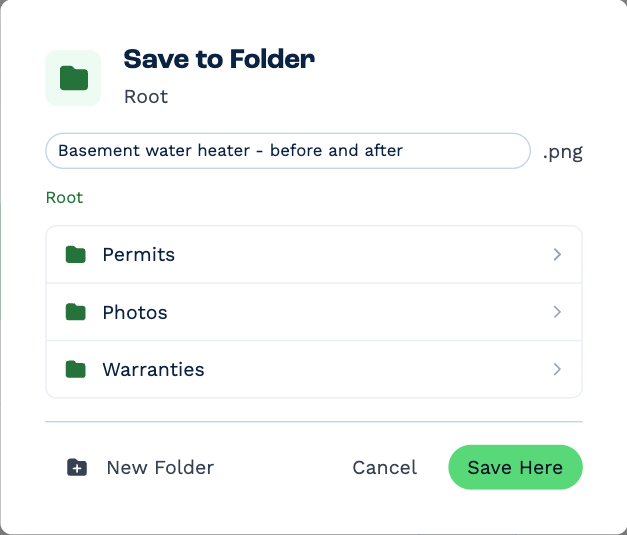
Pick the folder (or make a New Folder), change the Filename if you like, and click Save Here. You can also drag an attachment straight onto the Files tab.
The same menu has Download All, and Attach to Email and Attach to Workflow Note to pass the file on.
If the email isn't linked to a client yet, link it first.
Let automations file documents
A workflow can save files to a client for you — a signed form, a generated PDF. See the automation tasks under Automation.