Google Sheets Trigger
Overview
The Google Sheets Trigger watches a Google Sheet and starts a workflow when its rows change. Use it to turn a spreadsheet into a front end for automation — a sales team keeps a sheet, and every new row becomes a CRM record, an email, or an invoice.
BaseCloud polls the sheet and compares it against the last state it saw, so the trigger reports what actually changed rather than simply that something did.
When to use this trigger:
- Create CRM records from rows a team adds to a shared sheet.
- Kick off a workflow when a status column changes.
- Import a list someone maintains outside the CRM.
Reading and writing a sheet
This trigger starts a workflow on change. To read or write sheet data inside a workflow, use the Google Sheets action task.
BaseCloud polls the sheet and compares it against the last state it saw. That comparison is why the very first run behaves differently from every run after it:
flowchart TD
    A[Poll the sheet] --> B[Compare against last seen state]
    B --> C{First run?}
    C -->|Yes| D["initial_connection — a baseline, not new records"]
    C -->|No| E["batch_changes — rows added, modified, deleted"]
    E --> F[Workflow runs]
Guarding against that first run is the single most common thing to get wrong here — see On the first run after connecting.
The first run does not fire once per existing row
Connecting to a sheet that already has rows produces one initial_connection event
summarising them — not one event per row. It carries totalRows, connectionSummary and a
sampleData array of the first three rows. A workflow that assumes every trigger is a single
row will mis-handle that first event.
There is a second collapse to know about: when more than 50 rows change in one poll, the
individual events are replaced by a single batch_changes event carrying totalChanges,
rowsAdded and rowsModified. A bulk paste into the sheet produces one event, not hundreds.
This trigger takes the spreadsheet URL; the Google Sheets action takes the spreadsheet ID. They are not interchangeable — paste the whole URL here, and the long identifier from inside it there.
Leaving Watch Range blank watches the entire sheet. Narrowing it is the cheapest way to stop edits in unrelated columns waking the workflow.
Configuration
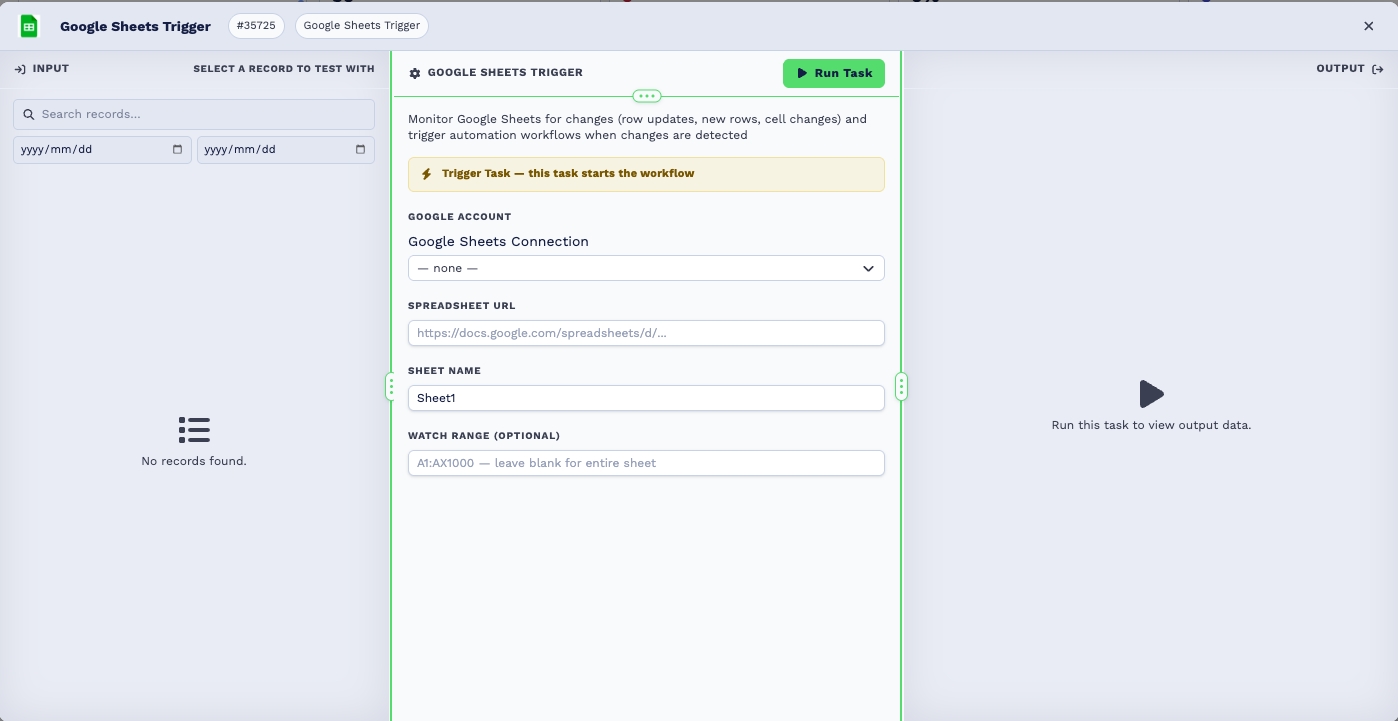
Builder fields
The Field column is the label as it appears in the task builder; Key is the name the value is stored under and referenced by.
| Field | Key | Type | Default | Notes |
|---|---|---|---|---|
| Google Account | app_connection_id |
app-connection | – | |
| Spreadsheet URL | spreadsheet_url |
text | – | |
| Sheet Name | sheet_name |
text | Sheet1 |
|
| Watch Range (optional) | watch_range |
text | – |
| Field | Required | Default | Notes |
|---|---|---|---|
| Google account | Yes | – | The connected Google account with access to the spreadsheet. |
| Spreadsheet ID | Yes | – | From the sheet's URL, between /d/ and /edit. |
| Sheet name | Yes | Sheet1 |
The tab within the spreadsheet. |
| Trigger type | Yes | row_updated |
What kind of change starts the workflow. |
| Watch range | No | blank | Restrict watching to a range such as A2:F500. Blank watches the whole sheet. |
Finding the spreadsheet ID:
https://docs.google.com/spreadsheets/d/1AbCdEfGhIjKlMnOpQrStUvWxYz/edit#gid=0
                                       └──────── spreadsheet ID ────────┘
Set a watch range on a large sheet
Watching an entire large sheet means comparing every cell on every poll. A range that covers
only the columns and rows that matter is faster and produces fewer spurious changes — for
example A2:F1000 to skip the header row.
Outputs
Field names are camelCase, unlike most tasks. They are exactly as emitted.
| Field | Type | Example | Notes |
|---|---|---|---|
changeType |
string | batch_changes |
What kind of change this was — batch_changes, initial_connection, and so on. Branch on this first. |
rowIndex |
number | 14 |
The affected row, 1-based, matching what you see in Sheets. |
rowData |
array | ["Jane","jane@x.com"] |
The row's current values. |
oldRowData |
array | ["Jane","old@x.com"] |
The row's previous values, for a modification. |
timestamp |
string | 2026-09-07T09:14:02Z |
When the change was detected. |
run |
boolean | true |
false when no change data was available. |
run_text |
string | Google Sheets Change Detected… |
A readable summary of the change. |
On a batch change
| Field | Type | Notes |
|---|---|---|
totalChanges |
number | How many changes were detected in this batch. |
rowsAdded |
number | Rows added. |
rowsModified |
number | Rows modified. |
rowsDeleted |
number | Rows deleted. |
batchChanges |
array | The individual row changes. Iterate this with a Loop using action set to array. |
On the first run after connecting
| Field | Type | Notes |
|---|---|---|
totalRows |
number | How many rows the sheet holds. |
sampleData |
array | A sample of the first rows. |
connectionSummary |
string | A readable summary of the connection. |
Guard on changeType before creating records
The first run reports initial_connection — a baseline, not a batch of new rows. Test
changeType in an If Statement before acting.
Real-World Examples
Turn new spreadsheet rows into CRM clients
Google Sheets Trigger      watch A2:F1000, trigger on row updated
  └─ If Statement          type is not "initial_connection"
      └─ Loop              over batchChanges
          └─ Match to Client   look the client up by email
              └─ Email         send a welcome message
Act on a status column change
Google Sheets Trigger
  └─ If Statement          the status cell equals "Approved"
      └─ BaseCloud Accounting   raise the invoice
Best Practices
- Always set a watch range. It bounds the comparison and avoids noise from unrelated columns.
- Skip the header row by starting the range at row 2.
- Handle
initial_connectionexplicitly. It is a baseline, not a batch of new records. - Loop over
batchChanges, don't assume one change per run — several edits between polls arrive together. - Keep the sheet's shape stable. Inserting or reordering columns changes what each position means and will produce confusing changes.
- Don't have the workflow write back to the same watched range — the write is itself a change and the trigger will fire again.
Troubleshooting
| Symptom | Cause and fix |
|---|---|
No change data available from trigger. |
The event carried no change payload. Usually a transient poll issue; check the Google connection is still authorised. |
Change data not found in raw_content. |
The stored change data could not be loaded. Re-save the task and let it re-baseline. |
Invalid change data format: … |
The stored change payload was not readable. Re-save the task to re-baseline. |
| Trigger fires constantly | A workflow is writing back into the watched range, or a formula recalculates on every poll. Narrow the watch range to static columns. |
| Nothing fires when rows change | Wrong sheet name, changes outside the watch range, or the Google account has lost access to the file. |
| Every existing row looks new | This is the initial_connection baseline run. Guard against it. |
Frequently Asked Questions
How quickly does it react? The sheet is polled, so a change is picked up on the next poll rather than instantly.
Does it detect a formula's result changing? It compares cell values, so a recalculated formula reads as a change. Keep formula columns out of the watch range unless you want that.
Can I watch several tabs? One task watches one tab. Add a task per tab.
Can I write back to the sheet? Yes — with the Google Sheets action task, but write to a different range than the one being watched.
Related Tasks
- Google Sheets - Read and write sheet data in a workflow
- Loop - Process each row in
batchChanges - Match to Client - Turn a row into a CRM record
- If Statement - Guard against the initial connection run
- Webhook In - A more immediate alternative when the source can post data