Edit Client Task
Overview
The Edit Client Task updates existing contact records in your BaseCloud CRM. It's essential for keeping contact data current, managing tags, updating custom fields, and tracking contact interactions.
When to use this task:
- Update contact information from form submissions
- Add or remove tags based on behavior
- Log activity in contact notes
- Update custom field values
- Change contact status or assignments
- Increment counters or scores
- Merge new data with existing records
Key Features:
- Update any contact field
- Add/remove tags individually
- Append to contact notes
- Conditional updates (only update if empty)
- Bulk field updates
- Custom field management
- Status and assignment changes
Quick Start
Builder fields
The Field column is the label as it appears in the task builder; Key is the name the value is stored under and referenced by.
| Field | Key | Type | Default | Notes |
|---|---|---|---|---|
| Client Fields | _rows |
client-edit-rows | – |
- Add Edit Client task to workflow
- Select contact to edit: Usually
{{task_15001_contact_id}} - Choose fields to update
- Enter new values or variables
- Select update strategy (always/if empty/append)
- Save and test
Simple Example:
Contact ID: {{task_15001_contact_id}}
Add Tags: Website Lead, 2024
Update Field: custom_last_contact_date = {{task_48001_current_date}}
Contact Selection
By Contact ID (Most Common)
Use contact ID from previous task:
Sources of contact IDs:
- Match to Client task:
{{task_15001_contact_id}} - CRM Trigger:
{{task_47001_contact_id}} - Get Contact task:
{{task_28001_contact_id}} - Webhook In:
{{task_46001_contact_id}}
By Email Address
Search and update by email:
Note: Creates contact if not found (use Match to Client first for better control).
By Phone Number
Search and update by phone:
Standard Field Updates
Basic Information
First Name:
Last Name:
Email:
Phone:
Company:
Update Strategies
Always Update:
- Overwrites existing value
- Use for: Latest information, corrected data
Update if Empty:
- Only updates if field is currently empty
- Use for: Filling gaps, preserving existing data
Append:
- Adds to existing value (for notes/text fields)
- Use for: Activity logs, notes
Address Fields
Street Address: {{task_55001_address}}
City: {{task_55001_city}}
State/Province: {{task_55001_state}}
Postal Code: {{task_55001_postal_code}}
Country: {{task_55001_country}}
Status and Assignment
Contact Status:
Common statuses:
- Lead
- Prospect
- Customer
- Inactive
- Partner
Assigned To:
Assign to specific user:
Tag Management
Add Tags
Add one or more tags to contact:
Best practices:
- Comma-separated list
- Can include variables
- Duplicates are ignored
- Case-sensitive
Examples:
Add Tags: VIP
Add Tags: Active, Engaged, 2024
Add Tags: {{task_47001_event_type}}, {{task_48001_month}}
Remove Tags
Remove specific tags from contact:
Use cases:
- Status transitions: Remove "Lead", add "Customer"
- Campaign completion: Remove "In Campaign"
- Unsubscribes: Remove "Email List"
Replace All Tags
Clear existing tags and set new ones:
Warning: Removes ALL existing tags first.
Use case: Complete status reset.
Conditional Tag Management
Custom Fields
Update Custom Fields
Any custom field you've created in CRM:
custom_lead_source: {{task_55001_utm_source}}
custom_lead_score: 75
custom_signup_date: {{task_48001_current_date}}
custom_last_interaction: {{task_48001_current_datetime}}
Field naming:
- Prefix with
custom_ - Use lowercase
- Underscores for spaces
- Must match exact field name in CRM
Increment Numeric Fields
Increase counter fields:
custom_form_submissions: +1
custom_total_orders: +{{task_43001_order_count}}
custom_lifetime_value: +{{task_43001_order_amount}}
Syntax:
+1- Add 1+5- Add 5+{{variable}}- Add dynamic amount-1- Subtract 1
Date/Time Fields
custom_last_purchase: {{task_48001_current_date}}
custom_trial_end_date: {{task_26001_formatted_date}}
custom_last_login: {{task_48001_current_datetime}}
Formats:
- Date:
2024-02-08 - DateTime:
2024-02-08 14:30:00 - Relative: Use Date Formatter task first
Text Fields
custom_notes: Call requested callback on {{task_48001_current_date}}
custom_preference: {{task_55001_newsletter_preference}}
custom_source_details: {{task_46001_utm_campaign}} - {{task_46001_utm_medium}}
Contact Notes
Append to Notes
Add activity log entry:
Best practices:
- Include timestamp
- Clear description
- Add separator for readability
- Keep concise
Template:
Replace Notes
Caution: Overwrites all existing notes.
Rare use case: Typically use "Append" instead.
Real-World Examples
Update a client from a form submission
Form Submission
  └─ Match to Client   contact_email from the form
      └─ Edit Client   update the phone number and custom fields
Record a status change
Mark someone as opted out
Text Message Received
  └─ If Statement            message equals "STOP"
      └─ Match to Client     contact_cell_number: {{task_62001_from_number}}
          └─ Edit Client     set the opted-out field
Advanced Techniques
Conditional Field Updates
Use If tasks to control updates:
1. If Task: Check {{task_15001_status}} = "Lead"
2. Edit Client (True path): Update lead-specific fields
3. Edit Client (False path): Update customer-specific fields
Bulk Updates with Loop
1. Google Sheets: get_rows — the list of updates
2. Loop: over the rows
3. Match to Client: find each one
4. Edit Client: apply the update
Merge Data Strategy
Philosophy: Preserve good data, fill gaps, append notes.
Fields to Always Update:
- Phone (latest is best)
- Address (keep current)
- custom_last_interaction (always latest)

Fields to Update if Empty:
- First Name (keep if exists)
- Last Name (keep if exists)
- Company (keep original)

Fields to Append:
- Notes (never overwrite)
Field Calculations
Use Code task before Edit Client:
1. Code Task: Calculate lifetime_value
   return {
     ltv: parseFloat(orders) * parseFloat(avg_order)
   };
2. Edit Client: Update custom_lifetime_value with {{task_42001_ltv}}
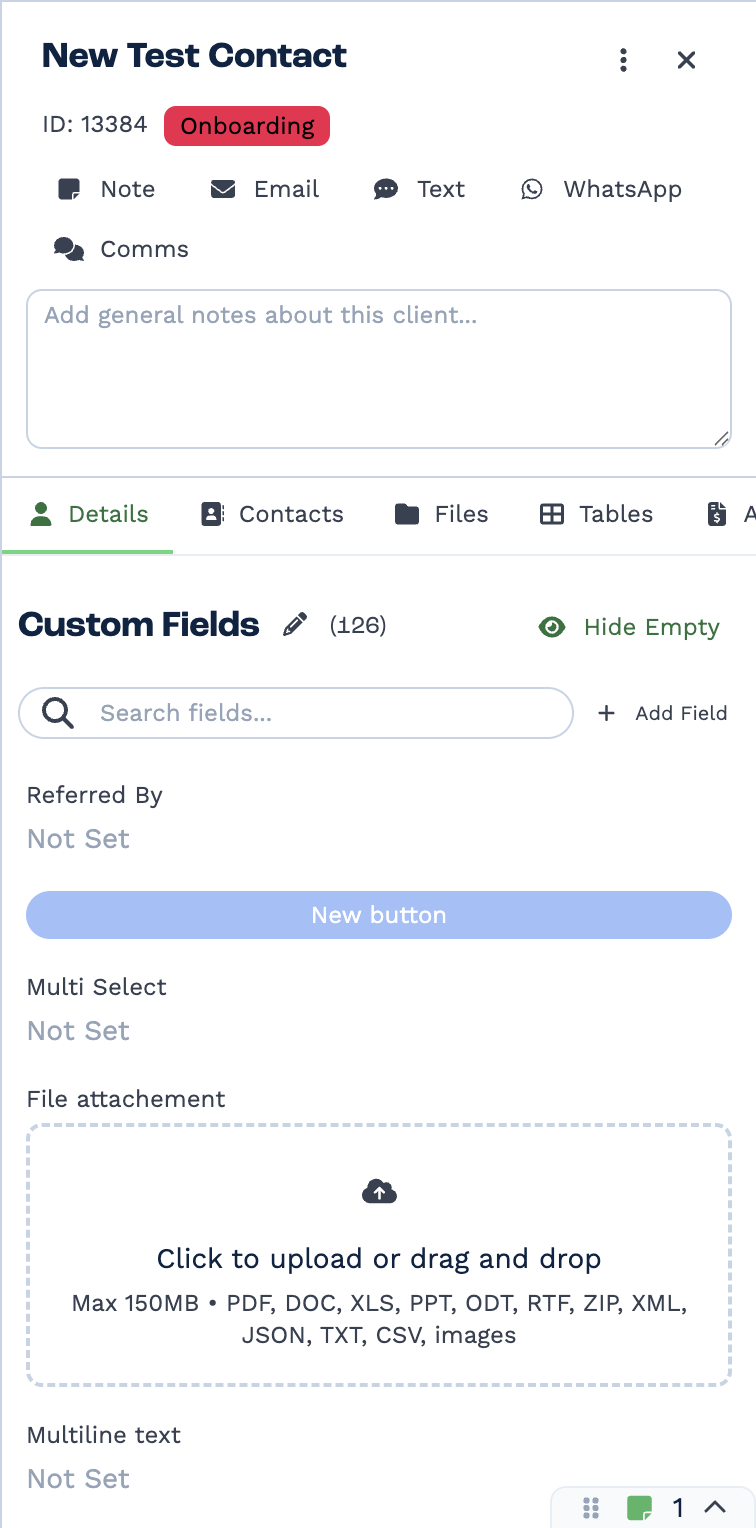
Custom fields are defined per tenant on the client record itself — the pencil edits the set, Add Field creates one. The name you give a field here is the name you reference from a task.
Outputs
| Field | Type | Example | Notes |
|---|---|---|---|
run |
boolean | true |
Whether the update was applied. |
run_text |
string | Client updated successfully. |
Names the reason on failure — most often a missing or unknown client_id. |
The task reports success and nothing else. There is no fields_updated, tags_added,
tags_removed, contact_id or success field.
To use the updated values, read them back
The task does not return the client it changed. Follow it with a
Match to Client task on the same client_id if a later task needs the
client's current field values.
Best Practices
Data Quality
- Validate before updating - Use If tasks to check data quality
- Normalize formats - Use Formatter tasks for consistency
- Preserve good data - Use "Update if Empty" strategically
- Don't overwrite unknowns - Empty submission field ≠ delete existing
Tag Management
- Consistent naming - "VIP Customer" not "vip" or "VIP CUSTOMER"
- Date-stamp campaigns - "Email Campaign 2024-02" not "Email Campaign"
- Remove old tags - Clean up status tags when status changes
- Document tag meanings - Keep internal wiki of tag purposes
Performance
- Batch updates - Use Loop task efficiently
- Only update changed fields - Don't update everything every time
- Index custom fields - Frequently queried fields should be indexed
- Avoid circular triggers - Don't trigger CRM Trigger that triggers Edit Client that triggers CRM Trigger...
Notes Management
- Always append - Never overwrite existing notes
- Include timestamps - Use
{{current_datetime}} - Use separators -
---or===between entries - Keep concise - Notes aren't storage, use custom fields for data
Troubleshooting
Contact Not Found
Error: Contact not found: ID 12345
Causes:
- Invalid contact ID
- Contact deleted
- Variable empty
Solution:
Fields Not Updating
Check:
- Field name exact -
custom_lead_scorenotlead_score - Update strategy - "Update if Empty" won't overwrite
- Permissions - API user has edit access?
- Data type - Number field receiving text?
Debug: View execution history:
- Check "Fields Updated" count
- View error messages
- Verify contact ID used
Tags Not Adding
Common issues:
- Case sensitivity - "VIP" ≠ "vip" (creates two tags)
- Extra spaces - "VIP " ≠ "VIP"
- Already exists - Adding existing tag (expected, not error)
- Comma in tag name - Don't use commas in individual tag names
Increment Not Working
Ensure:
✓ Correct: custom_count: +1
✗ Wrong: custom_count: 1 (replaces with 1, doesn't add)

✓ Correct: custom_value: +{{task_x_amount}}
✗ Wrong: custom_value: {{task_x_amount}} (replaces)
Circular Trigger Loops
Problem: Edit Client triggers CRM Trigger which runs workflow that edits client again...
Prevention:
- CRM Trigger: Filter "triggered_by ≠ system"
- Specific field triggers: Only trigger on human-changed fields
- Delay between updates: Add time-based throttling
Frequently Asked Questions
Can I update multiple contacts at once?
Not in one task. Use Loop task:
1. Google Sheets: get_rows — the contacts to update
2. Loop: For each contact
3. Edit Client: Update individual contact
What if I don't know the contact ID?
Use Match to Client first:
How do I clear a field value?
Set field to empty:
(Leave value blank)
Can I update based on current value?
Yes, for increments:
For other logic, use Get Contact → Code → Edit:
1. Get Contact: Retrieve current value
2. Code Task: Calculate new value
3. Edit Client: Update with calculated value
Should I use Edit Client or New Client?
Edit Client:
- Updating existing contact
- After Match to Client
New Client:
- Creating new contact
- When you KNOW it doesn't exist
Best practice: Use Match to Client + Edit Client (safer, prevents duplicates).
How do I update custom fields that don't exist yet?
Create the custom field in CRM first:
- Go to Clients → open a client → Custom Fields
- Add field with exact name
- Use in Edit Client task
Can I conditionally add tags?
Yes, use If task:
1. If: Check condition
2. Edit Client (True): Add specific tags
3. Edit Client (False): Add different tags
Related Tasks
- Match to Client - Find contact before editing
- Get Contact - Retrieve contact data
- New Client - Create new contacts
- If Task - Conditional updates
- Loop Task - Bulk updates
- Code Task - Calculate values before updating