Read the numbers
A report is only useful if you know what it's counting. This page covers the rules that apply to every card, then the ones that catch people out.
The date range
One date range, at the top of the page, applies to every card on the dashboard.
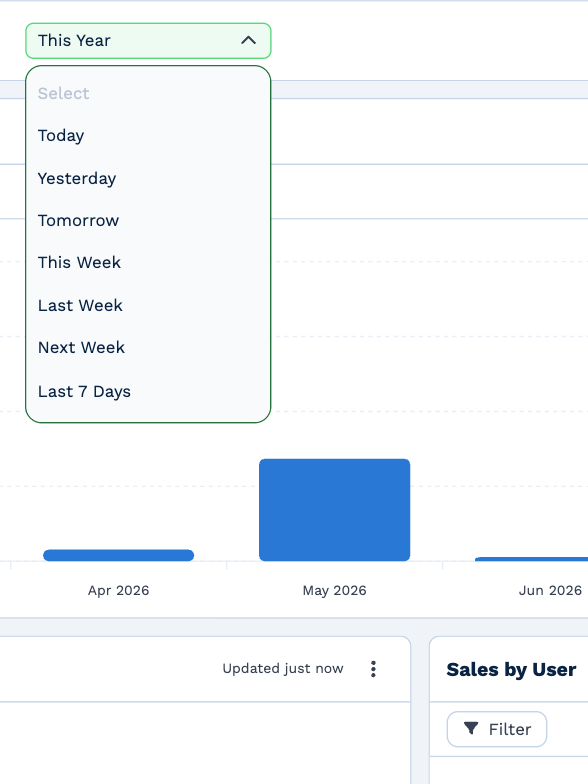
- Choose a preset — Today, This Week, Last Month, This Quarter, This Year and so on — or Custom for your own start and end dates.
- Reports opens on This Month. After that it remembers the range you last chose, in the browser you're using.
- Weeks run Monday to Sunday.
- A range can cover up to 10 years.
Cards that don't follow the dates
Some cards answer "what is true right now?", so the date range doesn't change them.
| Card | What it uses |
|---|---|
| Unpaid invoices by age, Outstanding balance | Today |
| Open quotes | Right now |
| Client list, Table rows | Everything that matches, whatever its date |
| Open workflow notes | Notes still open and due on or before the end of the range |
| Overdue workflow notes | Never looks past today, even if the range does |
The time zone
Reports use your account's Business Timezone, not the clock on your computer. "Today" starts and ends at midnight there, so two people in different places see the same figures. An administrator sets it in General Settings.
Why two people can see different totals
Reports only count what you're allowed to see.
- If you don't have View All Clients, or your team is limited to certain clients, cards count only the clients you can open.
- Cards that break figures down by person show your own activity, or your team's.
- A note marked private shows as Private note to anyone who isn't allowed to read it.
So a manager and a team member looking at the same card can, correctly, see different numbers.
How fresh the figures are
Each card says when it was last loaded — Updated just now, Updated 5 min ago. Click Refresh now, at the top right, to reload every card. Cards further down the page load as you scroll to them.
What the sales and accounting cards count
| Card | How it counts |
|---|---|
| Revenue by period | You choose under Count revenue: Cash (date paid) counts paid invoices on the day they were paid; Accrual (date issued) counts invoices on the day they were created, paid or not. Voided invoices are left out. |
| Sales by client | Invoices in the range. Voided invoices are left out. |
| Tax collected | The chart counts tax on invoices when they were paid. The table shows both paid and issued. |
| Average days to get paid | From the day an invoice was created to the day it was paid, for invoices paid in the range. |
| Quote performance | Quotes issued in the range, and how many of those became invoices — whenever that happened. Voided quotes are left out. |
| Unpaid invoices by age | Unpaid invoices only, grouped by how late they are: Current, 1-30, 31-60, 61-90 and 90+ days. An invoice due today is still Current. An invoice with no due date counts as due 7 days after it was created. |
What the workflow note cards count
- Overdue workflow notes — notes whose due date has passed and that weren't done by the end of the range. A note tagged to three people counts once for each of them.
- Open workflow notes — notes not yet done.
- Workflow notes created and Workflow notes completed — counted on the day they were created, or marked done.
Deleted notes, and notes on deleted clients, are never counted.
What the client cards count
- New clients — clients by the date they were added. Deleted clients are left out.
- Client statuses (new clients) — the status those new clients have now, not the one they started with.
- Client status changes — how many clients moved into each status during the range.
When a card is empty
- Nothing to show for these dates or No data for this period. — nothing matched. Try a wider date range.
- No rows match your filters. — the card's filter is ruling everything out.
- You don't have access to this report. — the card needs a right you don't have, usually View Invoices.
- We couldn't load this card. — a connection problem. Click Try again.