Client Date Trigger
Overview
The Client Date Trigger automatically runs workflows based on dates stored in your contacts' custom fields. This is perfect for birthday emails, renewal reminders, anniversary messages, subscription expirations, and any date-based automation tied to individual contacts.
When to use this trigger:
- Send birthday wishes automatically
- Remind customers of upcoming renewals
- Send anniversary/milestone emails
- Alert before contract expirations
- Follow up X days after a purchase
- Trigger actions on custom date fields
This trigger is a scheduled sweep, not a reaction to an event. Nothing has to happen to a contact for it to fire — the date on their record simply comes around:
flowchart LR
    A[Scheduled evaluation] --> B{Contact's date field due?}
    B -->|Yes| C[Workflow runs for that contact]
    B -->|No| D[Nothing happens today]
Quick Start
Builder fields
The Field column is the label as it appears in the task builder; Key is the name the value is stored under and referenced by.
| Field | Key | Type | Default | Notes |
|---|---|---|---|---|
| Date Field | custom_field |
select | – | |
| Interval | frequency_interval |
number | 1 |
|
| Unit | frequency_unit |
select | days |
Options: Days · Weeks · Months · Years |
| Time of Day (UTC) | time |
select | 00 |
- Ensure you have a date custom field in your CRM
- Create a new workflow
- Add a Client Date Trigger as the first task
- Select the date field to monitor
- Configure when to trigger (on date, before, after)
- Set the time to run
- Save and enable the workflow
Date Field Configuration
Setting Up Date Custom Fields
Before using Client Date Triggers, you need date custom fields in your CRM:
- Go to Clients → open a client → Custom Fields
- Create a new custom field
- Set type to "Date"
- Name it clearly (e.g.,
renewal_date,birthday,contract_end)
Common Date Fields:
birthday- Contact's birth daterenewal_date- Subscription/contract renewal dateanniversary_date- Customer anniversarycontract_end_date- When contract expireslast_purchase_date- Last transaction datetrial_end_date- When trial period ends
Trigger Timing Options
On the Date
Workflow runs on the exact date in the date field.
Configuration:
- Date Field: Select which date field to monitor
- Time: What time to run (e.g., 9:00 AM)
- Timezone: Your timezone
Example: Send birthday email on the customer's birthday at 9:00 AM
Before the Date
Workflow runs X days/weeks before the date.
Configuration:
- Date Field: Select which date field
- Offset: How many days/weeks before
- Time: What time to run
- Timezone: Your timezone
Example: Send renewal reminder 30 days before contract expiration
After the Date
Workflow runs X days/weeks after the date.
Configuration:
- Date Field: Select which date field
- Offset: How many days/weeks after
- Time: What time to run
- Timezone: Your timezone
Example: Send follow-up survey 7 days after purchase
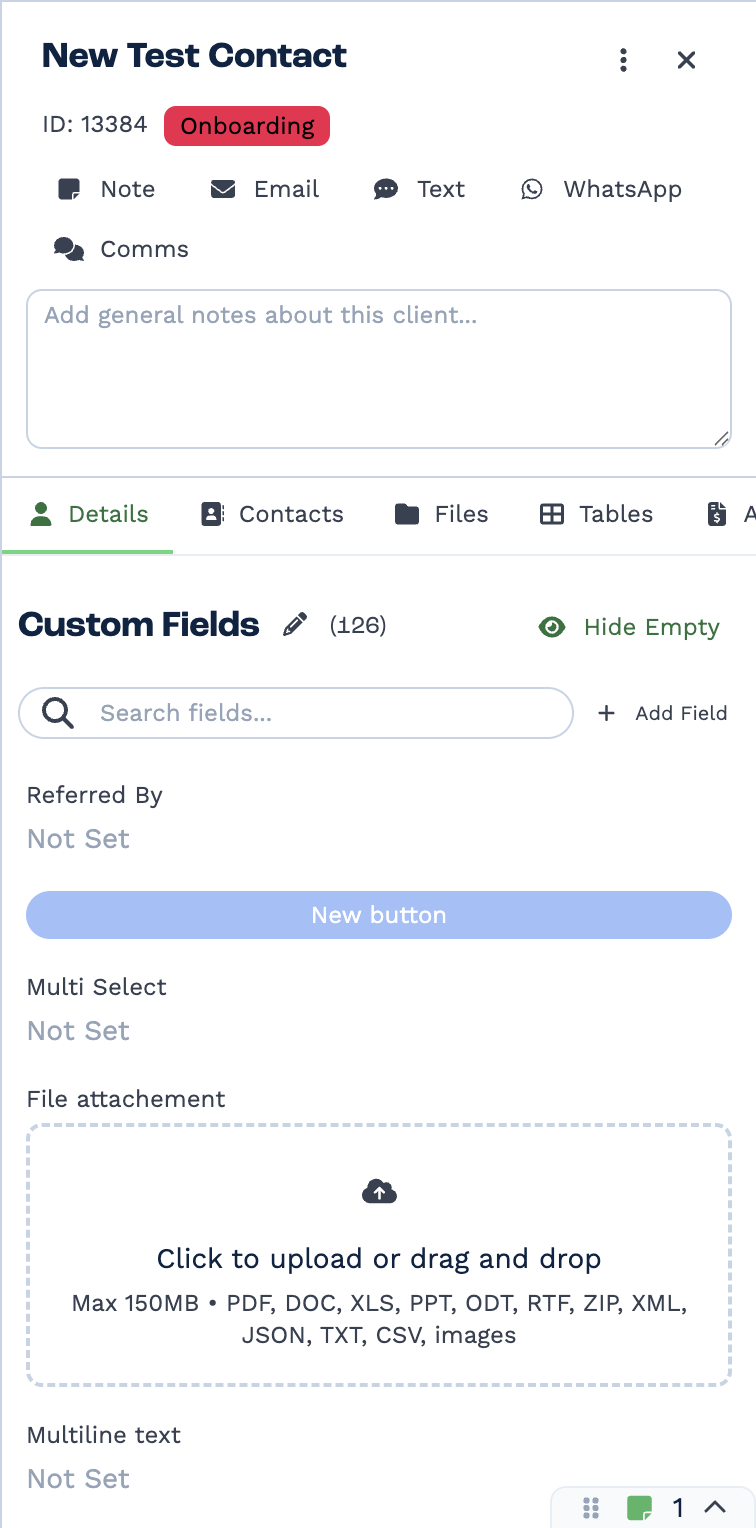
Custom fields are defined per tenant on the client record itself — the pencil edits the set, Add Field creates one. The name you give a field here is the name you reference from a task.
Outputs
| Field | Type | Example | Notes |
|---|---|---|---|
client_id |
number | 10482 |
The client whose date matched. The only client data this trigger emits — follow it with Match to Client using this ID to get names, status or custom fields. |
date_created |
string | 2026-09-07 06:00:12 |
When the trigger fired, UTC, YYYY-MM-DD HH:MM:SS. Not the client's date. |
schedule |
string | Monthly at 06:00 UTC |
A readable description of the configured schedule. |
run |
boolean | true |
Always true. |
run_text |
string | Client date trigger executed successfully. |
This trigger does not give you the client's details
It emits the client's ID and nothing else about them. To use a name, email or custom field
in the workflow, add a Match to Client task with
client_id: {{task_<ID>_client_id}}.
Real-World Examples
Example 1: Birthday Email Campaign
Trigger: On the date of birthday field at 8:00 AM
Workflow:
- Client Date Trigger - On birthday
- Email - Send personalized birthday email with discount code
Email Template:
Happy Birthday, {{task_49123_first_name}}! 🎉

To celebrate, here's a special 15% discount code: BDAY2024

Valid for 7 days. Enjoy your special day!
Example 2: Subscription Renewal Reminder
Trigger: 30 days before renewal_date at 10:00 AM
Workflow:
- Client Date Trigger - 30 days before renewal_date
- Email - Send renewal reminder
- Delay - Wait 14 days
- If Task - Check if renewed (check custom field or tag)
- Not renewed: Send second reminder
- Renewed: Stop workflow
Example 3: Contract Expiration Alert
Trigger: 60 days before contract_end_date at 9:00 AM
Workflow:
- Client Date Trigger - 60 days before contract end
- Email - Notify account manager
- Edit Client - Add "Renewal Due" tag
- Delay - Wait 30 days
- If Task - Check if contract renewed
- Not renewed: Send escalation email to senior management
- Renewed: Remove "Renewal Due" tag
Example 4: Customer Anniversary
Trigger: On the date of customer_anniversary at 9:00 AM
Workflow:
- Client Date Trigger - On anniversary
- Code Task - Calculate years as customer
- Email - Send personalized anniversary email
- If Task - Check if special milestone (5, 10, 20 years)
- Special milestone: Send gift card or special offer
- Regular anniversary: Send thank you message
Code Task Example:
const anniversaryDate = results['task_49123_custom_customer_anniversary'];
const today = new Date();
const firstDate = new Date(anniversaryDate);
const years = today.getFullYear() - firstDate.getFullYear();

return {
  years_as_customer: years,
  is_milestone: [5, 10, 15, 20, 25].includes(years),
};
Example 5: Trial Expiration Follow-up
Trigger: 1 day after trial_end_date at 10:00 AM
Workflow:
- Client Date Trigger - 1 day after trial_end_date
- If Task - Check if converted to paid (check status field)
- Not converted:
- Email - Send conversion offer
- Edit Client - Add "Trial Expired" tag
- Converted:
- Email - Send welcome as paid customer
- Edit Client - Add "Paid Customer" tag
Multiple Reminders
For complex date-based automations, you may want multiple reminders. Create separate workflows:
Renewal Example:
Workflow 1: 60 days before renewal
- Client Date Trigger - 60 days before
- Email - First reminder with early bird discount
Workflow 2: 30 days before renewal
- Client Date Trigger - 30 days before
- Email - Second reminder
Workflow 3: 7 days before renewal
- Client Date Trigger - 7 days before
- Email - Urgent reminder
Workflow 4: On renewal date
- Client Date Trigger - On date
- If Task - Check if renewed
- Not renewed: Send "last chance" email and alert team
Handling Missing Dates
Not all contacts will have values for every date field. Add validation:
Check if Date Exists
At workflow start, add an If task:
Set Default Behavior
If date is missing, decide what to do:
- Stop workflow (do nothing)
- Send different email
- Alert team to update data
Timezone Considerations
Client Date Triggers use your configured timezone. Important notes:
- All contacts trigger at the same time (e.g., 9:00 AM in YOUR timezone)
- If you have global customers, everyone gets emails at 9:00 AM your time (which might be 3:00 AM their time)
- For better UX, consider:
- Sending at universally acceptable times (e.g., 10:00 AM)
- Creating separate workflows for different timezone regions
- Storing customer timezone in custom field and checking before sending
Best Practices
✅ Do's
- Use clear date field names: Name fields descriptively (e.g.,
subscription_renewal_datenotdate1) - Handle missing dates: Add If tasks to check date fields exist
- Consider timezones: Send at reasonable times for your audience
- Test with real dates: Create test contacts with upcoming dates
- Add multiple touchpoints: Create series of reminders (60, 30, 7 days before)
- Update dates after actions: If customer renews, update renewal_date
- Track which emails sent: Add tags like "Birthday Email Sent 2024"
❌ Don'ts
- Don't forget to update dates: Keep date fields current
- Don't send too many reminders: Space them reasonably
- Don't ignore timezones: Consider your global audience
- Don't hardcode years: Use current year dynamically
- Don't assume dates are always set: Always validate
Troubleshooting
Workflow Not Triggering
Possible Causes:
- Date field is empty for contacts
- Workflow is disabled
- Date field configuration incorrect
- Date has already passed
Solutions:
- Check contacts have values in the date field
- Verify workflow toggle is ON
- Confirm date field selection is correct
- For testing, set date field to future dates
Triggering for All Contacts at Once
Cause: Many contacts have the same date
This is normal for:
- Imported contacts with placeholder dates
- Mass contract renewals
Solution: Stagger dates or add conditions to limit volume
Emails Sent at Wrong Time
Cause: Timezone misconfiguration
Solution: Check timezone setting in trigger configuration matches your desired timezone
Trigger Ran Yesterday/Tomorrow Instead of Today
Possible Causes:
- Date format issue (US vs. international format)
- Timezone offset
Solutions:
- Verify date format in custom field (YYYY-MM-DD recommended)
- Check timezone setting
- Test with a known date
Advanced Patterns
Dynamic Date Calculation
Calculate dates based on other dates:
// If you have purchase_date and want to trigger 30 days later
const purchaseDate = new Date(results['task_49123_custom_purchase_date']);
const followUpDate = new Date(purchaseDate);
followUpDate.setDate(followUpDate.getDate() + 30);

return {
  follow_up_date: followUpDate.toISOString().split('T')[0],
};
Recurring Annual Triggers
For dates like birthdays that recur annually, the system automatically checks the current year. No special configuration needed.
Conditional Date-Based Actions
Different actions based on how far in the future the date is:
- Client Date Trigger - 30 days before renewal
- Code Task - Calculate contract value
- If Task - Check contract value
- High value (>$10,000): Assign to senior account manager
- Medium value ($1,000-$10,000): Standard renewal email
- Low value (<$1,000): Automated renewal offer
Multi-Date Coordination
If you need to check multiple dates:
- Client Date Trigger - Before renewal_date
- Code Task - Check other date fields
- If Task - Determine which action based on multiple dates
const renewalDate = new Date(results['task_49123_custom_renewal_date']);
const contractDate = new Date(results['task_49123_custom_contract_start_date']);
const daysSinceStart = Math.floor((renewalDate - contractDate) / (1000 * 60 * 60 * 24));

return {
  contract_length_days: daysSinceStart,
  is_first_renewal: daysSinceStart <= 370, // ~1 year
};
Frequently Asked Questions
Can I trigger on multiple date fields in one workflow?
No, each Client Date Trigger monitors one date field. Create separate workflows for different date fields.
What happens if I update a contact's date after the trigger already ran?
The workflow won't run again for that date. Client Date Triggers run once per contact per matching date.
Can I trigger multiple times for the same date (e.g., 30 days before AND 7 days before)?
No, create separate workflows for each timing. Each workflow can have its own Client Date Trigger with different offsets.
What date format should I use?
Use YYYY-MM-DD format (e.g., 2024-02-08) for consistency and reliability.
How do I test without waiting for the actual date?
Set a contact's date field to tomorrow or a few days in the future, then check execution history when that date arrives.
Can I trigger on relative dates (e.g., "30 days after contact was created")?
Not directly. Instead:
- When creating contact, calculate the date and store in custom field
- Use Client Date Trigger on that field
Or use a CRM Trigger (contact created) with delays.
What happens for leap years and February 29 birthdays?
The system handles leap years correctly. For Feb 29 birthdays, the workflow triggers on Feb 28 in non-leap years.
Can I trigger only for specific contacts (e.g., only paying customers)?
Yes, add an If task at the workflow start:
How do I prevent duplicate triggers if I run multiple tests?
Client Date Triggers run once per date per contact. If you need to test multiple times, change the date field value between tests.
Next Steps:
- Timer Trigger - Time-based automation
- CRM Trigger - Event-based automation
- Edit Client Task - Update contact data