General settings
Who can do this
Anyone in the account can change the settings on this page. The Account Theme needs Manage Users.
Open Settings → General. There's no Save button: each setting saves as you change it, for the whole account.
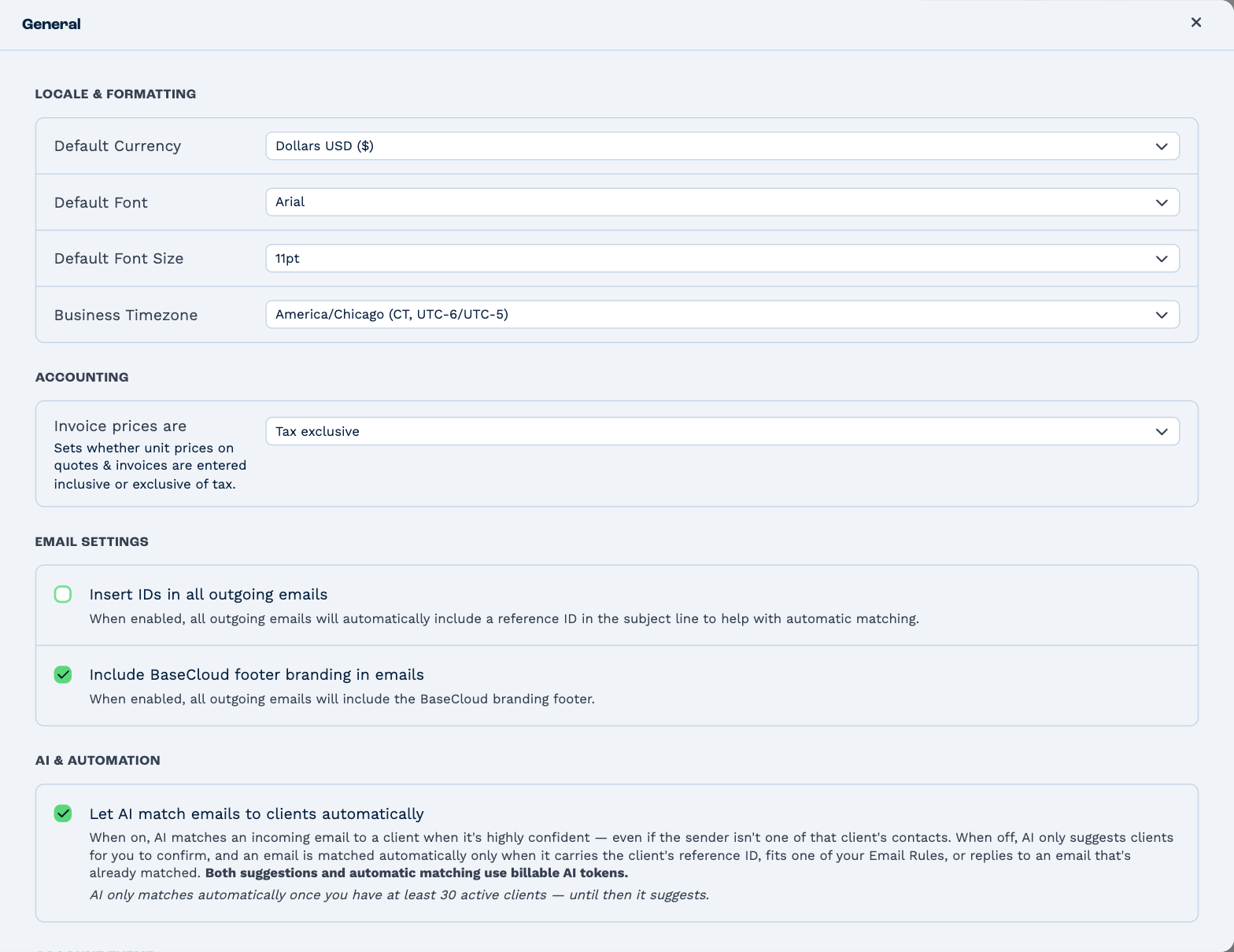
Locale & Formatting
| Setting | What it does |
|---|---|
| Default Currency | The currency your quotes, invoices and reports are shown in. |
| Default Font and Default Font Size | The font your emails are written and sent in, and the font of the PDFs BaseCloud makes for you. |
| Business Timezone | The clock your business runs on. |
Business Timezone matters more than it looks. BaseCloud uses it for:
- Reports — a day, week or month starts and ends on this clock, whoever is looking and wherever they are.
- Phone calls — opening hours in your call routing are read on this clock.
- Workflows — it's the timezone a new workflow task starts with.
Set it once, to where your business is.
Accounting
Invoice prices are sets how a new quote or invoice treats tax:
| Choice | Means |
|---|---|
| Tax exclusive | The prices you type are before tax; tax is added on top. |
| Tax inclusive | The prices you type already include tax. |
| No tax | No tax is charged. |
It's only the starting point — you can choose differently on any one document, and documents you've already made keep what they had. See Set up invoicing.
Email Settings
Insert IDs in all outgoing emails adds the client's reference to the end of the subject of every email you
send to a client — Your quote BC4945486. When they reply, BaseCloud reads the reference and files the reply
under that client, whatever address it came from.
Tick it, then type a short Custom ID prefix — BC, or your own initials. Give it a prefix: the reference is
only read back when it has one.
Include BaseCloud footer branding in emails adds a BaseCloud footer to outgoing email. Untick it to leave the footer off.
AI & Automation
Let AI match emails to clients automatically decides what happens to an incoming email from an address BaseCloud doesn't know.
- On — when the AI is highly confident which client it's about, it files the email under that client.
- Off — the AI only suggests clients, and you confirm. An email is still filed by itself when it carries the client's reference ID, fits one of your email rules, or replies to an email that's already filed.
Either way, the AI's work uses credit. And it only starts filing by itself once you have at least 30 active clients; until then it suggests.
See Unmatched emails and calls.
Themes
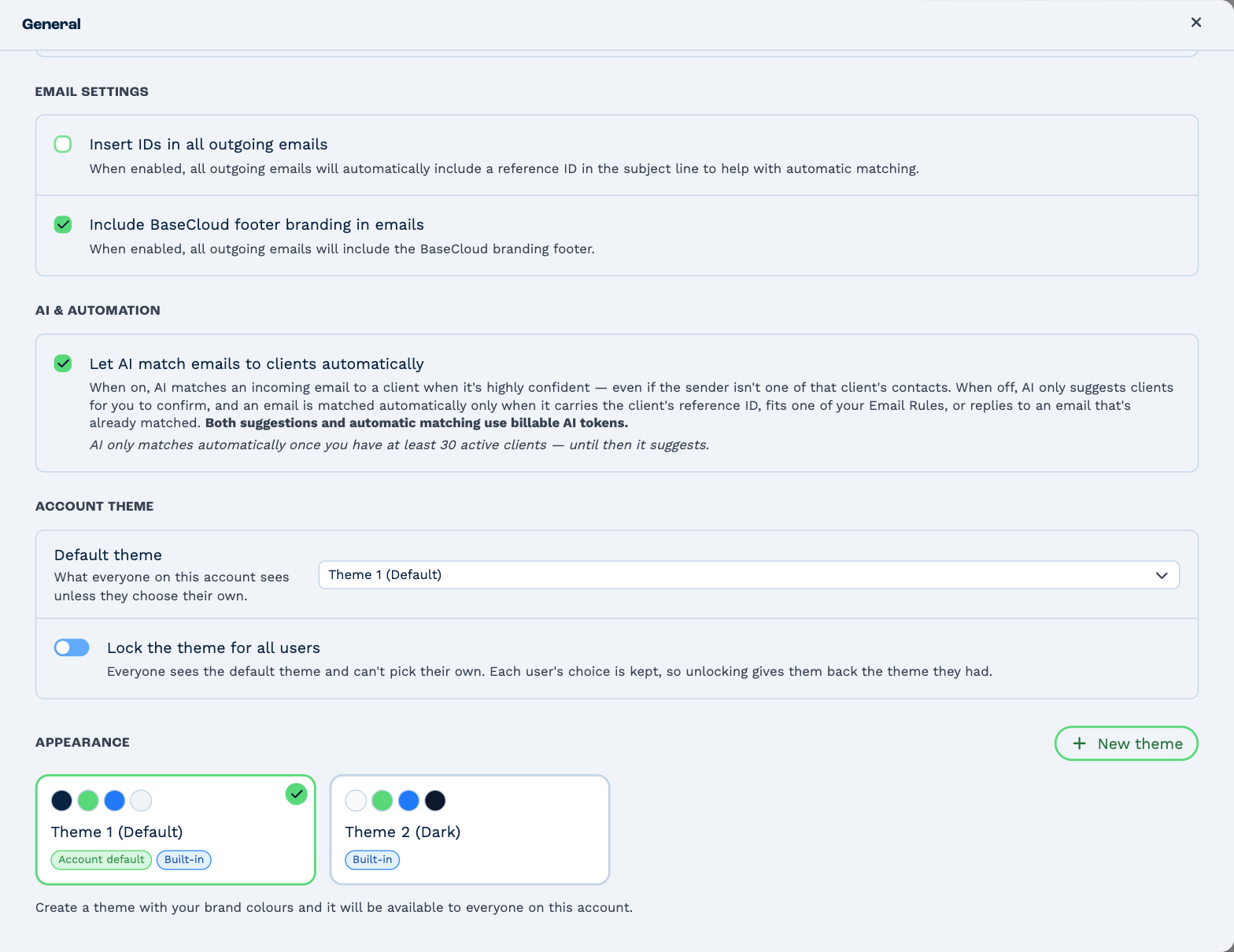
Choose your own theme
Under Appearance, click a theme. It changes BaseCloud's colours for you alone, in this account. Two are built in: Theme 1 (Default) and Theme 2 (Dark).
Make a theme in your brand colours
- Click New theme.
- Give it a name, and pick its six colours: Brand, Accent, Neutral, Error, Warning and Background. The Live preview shows the result as you go.
- Click Create theme.
Everyone in the account can then choose it. You can edit or delete a theme you made; so can anyone with Manage Users. Deleting one moves the people using it to the account's default.
Set the theme for everyone
Under Account Theme — you need Manage Users to see it:
- Default theme is what everyone sees until they choose their own.
- Lock the theme for all users makes everyone see the default, and stops them choosing. Each person's own choice is remembered, and comes back when you unlock.